
K+DCAN Utility is a small service tool designed to configure BMW K+DCAN USB interfaces before you run diagnostics or coding. It helps you switch the adapter CAN mode and baud rate, confirm the correct COM port, and improve connection stability when working with BMW tools that rely on an OBD USB serial interface.
This resource is not a diagnostic suite by itself. It is typically used alongside BMW applications like INPA and EDIABAS-based tools where the interface must match the vehicle bus speed and COM settings.

Summary Highlights
Package contents
Compatibility notes
Basic usage
Operating systems
Minimum system requirements
Disclaimer
Source of Files. All software and resources in this post are collected from public and open sources on the internet. We do not claim authorship or ownership.
File Hosting. This forum does not host files. All links point to third party public cloud storage. We are not responsible for external content.
User Responsibility. Software is provided for educational and evaluation purposes only. You use it at your own risk. Authors of the post and forum administration are not liable for any damage.
This resource is not a diagnostic suite by itself. It is typically used alongside BMW applications like INPA and EDIABAS-based tools where the interface must match the vehicle bus speed and COM settings.
Summary Highlights
- Switch adapter mode between 100 kbit/s K-CAN and 500 kbit/s D-CAN and PT-CAN
- COM port selector to match the interface used by INPA, ISTA, NCS Expert, and similar tools
- Quick enable, disable, or reset of the adapter CAN state
- Driver and USB serial setup helper included in the package
- Useful for workshop laptops, bench setups, and stable OBD session preparation
- Results depend on the adapter hardware and its firmware implementation
Package contents
- automotiveforum.net
- DCAN.exe
- D-CAN.exe
- L_timer.JPG
- Number.JPG
- OBDSetup.exe
Compatibility notes
- Designed for BMW K+DCAN style USB OBD interfaces that expose a serial COM port
- Some adapters support software CAN switching, others use internal wiring or a physical switch
- If your diagnostic tool cannot connect, verify COM port number and interface latency settings
- Availability varies by vehicle and interface firmware
Basic usage
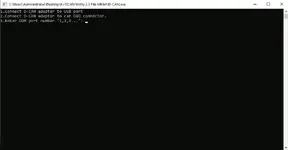
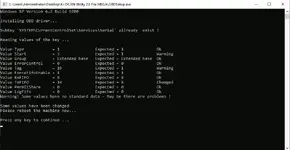
- Install the included USB serial driver if needed using OBDSetup.exe, then reboot the PC if prompted
- Open Device Manager and locate your USB Serial Port under Ports (COM & LPT), then note the COM number
- Open the port Properties, go to Port Settings, then Advanced, and set Latency Timer to a low value like 1 ms if supported
- Run DCAN.exe or D-CAN.exe, select the same COM port, then choose 100 kbit/s K-CAN or 500 kbit/s D-CAN and PT-CAN based on your vehicle and software
- Launch your BMW diagnostic or coding app and confirm it is configured for the same COM port
Operating systems
- Windows standalone executable utilities (.exe)
- Runs on Windows systems that support the included USB serial driver package
- 32-bit or 64-bit architecture is not specified in the package
Minimum system requirements
- CPU: Any modern x86 or x64 processor
- RAM: 2 GB minimum, 4 GB recommended
- Storage: 50 MB free space
- Network: Not required for basic operation
- Permissions: Admin rights may be needed for driver installation and COM port advanced settings
Disclaimer
Source of Files. All software and resources in this post are collected from public and open sources on the internet. We do not claim authorship or ownership.
File Hosting. This forum does not host files. All links point to third party public cloud storage. We are not responsible for external content.
User Responsibility. Software is provided for educational and evaluation purposes only. You use it at your own risk. Authors of the post and forum administration are not liable for any damage.


