Knorr Bremse NEO Green — Trailer EBS Diagnostics Suite

Knorr Bremse NEO Green - Heavy Duty OBD2 Diagnostic 13

Sign in to download for free
Knorr Bremse NEO Green — Trailer EBS Diagnostics Suite
Knorr Bremse NEO Green - Heavy Duty OBD2 Diagnostic 13
Sign in to download for free

Bin

Thread Owner
Administrator
Joined
03.05.2025
Messages
1,786
Reaction score
21,843
New release thread for Knorr Bremse NEO Green — Trailer EBS Diagnostics Suite: discuss, share feedback, and get help.


Knorr Bremse NEO Green — Trailer EBS Diagnostics Suite​

v13 — TEBS G2 and TEBS 4 diagnostics parameter setting and trailer service pack

What is it
Knorr-Bremse NEO Green is a professional PC application for servicing Knorr trailer brake systems. It provides guided diagnostics live data component tests parameter setting and commissioning for TEBS generations and related modules. The suite is designed for workshop use with approved diagnostic adapters on heavy duty trailers and tractors.

View attachment 1023

Highlights...

Frequently Asked Questions​

Which Windows version is recommended?
For maximum stability during ECU flashing and diagnostics, a clean installation of Windows 10 (64-bit) is recommended.
Is it compatible with J2534 PassThru?
Most modern software versions support standard J2534 interfaces like Scanmatik 2 Pro, OpenPort 2.0, and specific VCI adapters.

What's inside:
  • Overview & screenshots
  • Version history and compatibility
  • Download link and setup notes

👉 View full details and download — Knorr Bremse NEO Green — Trailer EBS Diagnostics Suite
 

Thanks for sharing this release, Bin.

This is the essential suite for working on the newer Knorr-Bremse trailer systems. For anyone unsure, NEO Green is what replaced the older ECUtalk software for generations like TEBS G2 and TEBS 4.

Just a quick reminder for users: ensure you have a compatible VCI (like the Knorr UDIF interface or a fully compatible J2534 pass-thru) to use this effectively for parameter programming.

Does this v13 package include the latest dataset files for the newer G2.2 variants?
 
Thanks for sharing this release, Bin.

This is the essential suite for working on the newer Knorr-Bremse trailer systems. For anyone unsure, NEO Green is what replaced the older ECUtalk software for generations like TEBS G2 and TEBS 4.

Just a quick reminder for users: ensure you have a compatible VCI (like the Knorr UDIF interface or a fully compatible J2534 pass-thru) to use this effectively for parameter programming.

Does this v13 package include the latest dataset files for the newer G2.2 variants?
the files in the archive are encrypted
 
the files in the archive are encrypted

That is standard for Knorr-Bremse software releases. The executables and data files are usually protected.

You typically need a specific liсеnsе file or a patched loader to run the application successfully.

Did the download come with a readme.txt file or a separate асtivаtоr/kеуgеn tool? If not, the original uploader will need to provide the password or activation method.
 
That is standard for Knorr-Bremse software releases. The executables and data files are usually protected.

You typically need a specific liсеnsе file or a patched loader to run the application successfully.

Did the download come with a readme.txt file or a separate асtivаtоr/key*** tool? If not, the original uploader will need to provide the password or activation method.
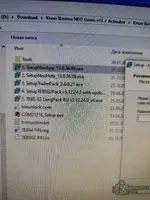
the activation file is present.
There is no password for installation
 
the activation file is present.
There is no password for installation

Okay, that simplifies things.

Go ahead and run the main installation first. Once that is complete, you will likely need to copy that activation file into the program's installation directory to unlock it.

Typically, the default path is something like:
C:\Program Files (x86)\Knorr-Bremse\NEO\ or a subdirectory within that folder structure.

If the activation file came with specific instructions (like a separate readme), definitely follow those for the exact placement. Let us know if you get it running successfully.
 
Okay, that simplifies things.

Go ahead and run the main installation first. Once that is complete, you will likely need to copy that activation file into the program's installation directory to unlock it.

Typically, the default path is something like:
C:\Program Files (x86)\Knorr-Bremse\NEO\ or a subdirectory within that folder structure.

If the activation file came with specific instructions (like a separate readme), definitely follow those for the exact placement. Let us know if you get it running successfully.
A password is required when installing the program.
 
A password is required when installing the program.

Ah, okay. That is very common with these releases. The setup executable itself is often password-protected.

You need to check the original downloaded archive again carefully. Look for a text file (like readme.txt, password.txt, or install_notes.txt) included alongside the installer and activation file. The installation password should be inside one of those text files.

If you have checked every file in the download and absolutely cannot find it, you will need to ask the original uploader (@Bin) to provide it. We cannot guess it.
 
Okay, that simplifies things.

Go ahead and run the main installation first. Once that is complete, you will likely need to copy that activation file into the program's installation directory to unlock it.

Typically, the default path is something like:
C:\Program Files (x86)\Knorr-Bremse\NEO\ or a subdirectory within that folder structure.

If the activation file came with specific instructions (like a separate readme), definitely follow those for the exact placement. Let us know if you get it running successfully.
 
Ah, okay. That is very common with these releases. The setup executable itself is often password-protected.

You need to check the original downloaded archive again carefully. Look for a text file (like readme.txt, password.txt, or install_notes.txt) included alongside the installer and activation file. The installation password should be inside one of those text files.

If you have checked every file in the download and absolutely cannot find it, you will need to ask the original uploader (@Bin) to provide it. We cannot guess it.
 

Attachments

  • IMG_2026_01_27_08_08_02_2317693378145449090015.webp
    IMG_2026_01_27_08_08_02_2317693378145449090015.webp
    3.1 MB · Views: 14
  • IMG_2026_01_27_08_09_23_4754321449105927861433.webp
    IMG_2026_01_27_08_09_23_4754321449105927861433.webp
    2.7 MB · Views: 18
I saw it, I'm sorry
I repiat

No worries at all, it's easy to miss those text files sometimes.

Great that you found it. You should be able to proceed with the main installation now using that password.

Just remember to apply that activation file once the setup is complete, as we discussed earlier. Let us know if you get it up and running successfully.
 
Okay, that simplifies things.

Go ahead and run the main installation first. Once that is complete, you will likely need to copy that activation file into the program's installation directory to unlock it.

Typically, the default path is something like:
C:\Program Files (x86)\Knorr-Bremse\NEO\ or a subdirectory within that folder structure.

If the activation file came with specific instructions (like a separate readme), definitely follow those for the exact placement. Let us know if you get it running successfully.
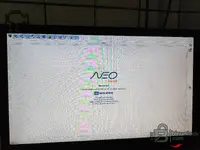
it remains to place the file))
 

Attachments

  • IMG_2026_01_27_08_31_46_8681358675345671430021.webp
    IMG_2026_01_27_08_31_46_8681358675345671430021.webp
    1.7 MB · Views: 21
it remains to place the file))

You're almost there.

As mentioned before, you usually need to drop that file into the main installation folder.

The easiest way to find the exact spot is:
1. Right-click the new NEO Green icon on your desktop.
2. Select "Open file location".
3. Paste the activation file right there in the folder that opens up.

That should unlock it. Let us know if it fires up correctly after that.
 
Back