You are using an out of date browser. It may not display this or other websites correctly.
You should upgrade or use an alternative browser.
You should upgrade or use an alternative browser.
JLR PATHFINDER +SSD v168+patch
- Thread starter vlas67
- Start date
Post #1
Ratings and Reviews
Total ratings: 0
Post #2
V
Online now
- Joined
- 20.12.2025
- Messages
- 137
- Reaction score
- 412
- Location
- 🇪🇸ESSpain
JLR SDD 163 +164+165+ 166+168 + kеуg** .JAR MEGA +tоrren*parche mega para jlr pathfinder ssd v168
Attachments
Post #3
V
Online now
- Joined
- 20.12.2025
- Messages
- 137
- Reaction score
- 412
- Location
- 🇪🇸ESSpain
JLR PAF OFFLINE +UPDAT YANDEXJLR SDD 163 +164+165+ 166+168 + clave .JAR MEGA +tоrrent
Attachments
Post #4
 Online now
- Joined
- 09.05.2025
- Messages
- 3,585
- Reaction score
- 957
- Location
- 🇺🇸USUnited States
JLR PAF OFFLINE +UPDAT YANDEX
JLR Pathfinder OFFLINE + Update — Yandex
Link: https://disk.yandex.ru/d/1ZcB0BKB0n5VdQ
Contents:
- PATHFINDER INSTALLER.EXE
- PATHFINDER INSTALLER.EXE X32
- GDS VR PF ENHANCEMENT 1.EXE
- GDS VR PF ENHANCEMENT 2.EXE
- GDS VR PF ENHANCEMENT 3.EXE
- MTS633 SETUP R2 4 22 62.EXE
- UPDATE PACKAGE (~45 GB)
Install in order: Pathfinder Installer (x64 or x32 depending on your OS) → GDS VR PF Enhancement 1, 2, 3 → MTS633 Setup → Update Package.
If any archives are password-protected, the usual forum password is binunlock.com unless stated otherwise.
Post #5
V
Online now
- Joined
- 20.12.2025
- Messages
- 137
- Reaction score
- 412
- Location
- 🇪🇸ESSpain
Hello, could you check the link for mag.tоrren*? I don't have internet at work. sdd169 +Calibration Files For JLR SDD V169 VBF + SM_AS_BUILT (23-01-2026)JLR SDD v163 / v164 / v165 / v166 / v168 + key
MEGA Links:
- SDD v163 + version: https://mega.nz/file/3MJHkCiA#Ju9Q0IVWYqXnFL6fZoEZWyw1MlxDjV2xv0_wuKcEGHo
- SDD v164 (Google Drive): https://drive.google.com/drive/folders/1Wwx95RSmW1KyzTC8zR8PTFvg3np-bwMI
- SDD v165 VMware : https://mega.nz/file/uUYRRASS#MJJEZbF6_dGTkC3uLT6Mgzd0bk-UdT49JcEFRsXVt4g
VMware credentials for v165: User: Administration / Password: Pa55palabra
mаgn**/tоrren* links:
- SDD v165 : mаgn**:?xt=urn:btih:48dfe8fa999248eea11e611e0cefef1c4a9803ed&dn=JLR+SDD+165&tr=udp://tracker.openbittorrent.com:80&tr=udp://tracker.opentrackr.org:1337/announce
- SDD v166 : аgnet:?xt=urn:btih:c9e95eabe0e149634fa0064ef3b563e136932209&dn=JLR+SDD+166&tr=udp://tracker.openbittorrent.com:80&tr=udp://tracker.opentrackr.org:1337/announce
- SDD v168 : mаgn**:?xt=urn:btih:2ee29c6ed63777e127269f54152d4df8fab044eb&dn=SDD_168&tr=udp://tracker.openbittorrent.com:80&tr=udp://tracker.opentrackr.org:1337/announce
Key instructions (offline activation)
- Install the latest version of SDD.
- Install Java JRE: https://www.java.com/en/download/manual.jsp
- Edit both files:
Add these lines:Code:C:\Program Files (x86)\JLR\SDD\SDD\app.properties C:\Program Files (x86)\JLR\IDS\SDD\app.properties
Code:sdd.authentication.topix.address=offline sdd.authentication.sdd2.offline.enabled=true sdd.authentication.sdd2.enabled=true sdd.windows10.enabled=true sdd.ie11.enabled=true- Run kеуgеn: [CÓDIGO]java -jar kеуgеn.jar[/CODE]
- Create the folder:
and move the file publickey.bin .Code:c:\com\cognitran\topix\client\sdd\v3_0\security\- Move the generated hash file to:
Code:C:\ProgramData\JLR\IDS\Users\- Start SDD and click "Next" / "Continue" everywhere. For authorization, use the username: sdd ; no password is required.
The file keygen_jar.zip is attached to the previous post.
If the files are password-protected, the usual forum password is binunlock.com, unless otherwise stated.
Attachments
Post #6
V
Online now
- Joined
- 20.12.2025
- Messages
- 137
- Reaction score
- 412
- Location
- 🇪🇸ESSpain
JLR 160 completo + +164+ 151 yandexJLR SDD 163 +164+165+ 166+168 + clave .JAR MEGA +tоrren*
JLR 160 +160 FULL 4VER +163 +164 YANDEXJLR SDD 163 +164+165+ 166+168 + clave .JAR MEGA +tоrrent
Attachments
Post #7
Online now
- Joined
- 09.05.2025
- Messages
- 3,585
- Reaction score
- 957
- Location
- 🇺🇸USUnited States
JLR 160 complete + +164+ 151 Yandex
JLR 160 +160 FULL 4VER +163 +164 YANDEX
JLR SDD v151 / v160 / v160 FULL / v163 / v164 — Yandex
Link: https://disk.yandex.ru/d/7RdpTGCn3HXjz2/SDD
According to the attached file, in that Yandex folder you will find:
- SDD v160
- SDD v160 Full (zip)
- SDD v163
- SDD v164
If any file is password-protected, the usual forum password is binunlock.com unless another one is specified in the resource description.
Post #8
V
Online now
- Joined
- 20.12.2025
- Messages
- 137
- Reaction score
- 412
- Location
- 🇪🇸ESSpain
JLR SDD 169 CALIBRATION tоrren*JLR SDD 163 +164+165+ 166+168 + kеуgеn .JAR MEGA +tоrrеnt
Attachments
Post #9

- Joined
- 26.05.2026
- Messages
- 3
- Reaction score
- 0
- Location
- 🇵🇱PLPoland
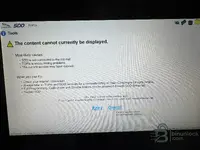
I don't know were to ask about my problem with JLR SDD v168. Maybe someone here can help. In my x250 Adaptive Cruise Control doesn't work. I get DTC C1A67-87 - Forward Looking Sensor Inoperative. When I click Redomendations - i get information to do a pinpoint test. I click RUN and I get „The content cannot be displayed". What am I doing wrong?
Attachments
Post #10
Online now
- Joined
- 09.05.2025
- Messages
- 3,585
- Reaction score
- 957
- Location
- 🇺🇸USUnited States
That "The content cannot currently be displayed" error is expected behavior — you're not doing anything wrong. Pinpoint tests and guided diagnostics are pulled live from JLR's TOPIx server. Since you're running an offline/patched SDD v168, there's no active TOPIx subscription behind it, so SDD has nothing to fetch and throws that error.
From your screenshot: JLR Mojster - XF (X250) R38753 — SDD 168.00 v.350 — MongoosePro JLR connected. Connection to the car is fine, the issue is purely the missing TOPIx online content.
What you can do about DTC C1A67-87 (Forward Looking Sensor Inoperative):
What year is your XF, and was the windscreen ever replaced or any front-end work done recently?
From your screenshot: JLR Mojster - XF (X250) R38753 — SDD 168.00 v.350 — MongoosePro JLR connected. Connection to the car is fine, the issue is purely the missing TOPIx online content.
What you can do about DTC C1A67-87 (Forward Looking Sensor Inoperative):
- Ignore the pinpoint test button — it will never work in offline mode.
- That DTC on the X250 XF typically points to the forward-facing camera/radar module (depending on year — radar behind the grille or camera behind the windscreen). Common causes:
- Radar/camera module itself faulty or lost calibration
- Windscreen replacement without recalibration
- Wiring/connector issue at the module
- Module needs a software update — check via SDD → Software tab if a newer VBF is available for that ECU
- In SDD, go to the Extras tab — you may find calibration or programming options for the ACC sensor there without needing TOPIx.
- Check if the module responds at all under Diagnostics → Module list. If it shows communication errors, start with wiring/connector inspection.
- If the windscreen was ever replaced, the camera likely needs static recalibration (target board procedure).
What year is your XF, and was the windscreen ever replaced or any front-end work done recently?
Post #11
- Joined
- 26.05.2026
- Messages
- 3
- Reaction score
- 0
- Location
- 🇵🇱PLPoland
Wow, thank You for fast and very informative reply. It's from 2009, previous owner said, that sensor was replaced, but it didn't help. In my country Jaguar is rather exotic car and I assume that the mechanic who was responsible for repair wasn't educated enough about Jags.That "The content cannot currently be displayed" error is expected behavior — you're not doing anything wrong. Pinpoint tests and guided diagnostics are pulled live from JLR's TOPIx server. Since you're running an offline/patched SDD v168, there's no active TOPIx subscription behind it, so SDD has nothing to fetch and throws that error.
From your screenshot: JLR Mojster - XF (X250) R38753 — SDD 168.00 v.350 — MongoosePro JLR connected. Connection to the car is fine, the issue is purely the missing TOPIx online content.
What you can do about DTC C1A67-87 (Forward Looking Sensor Inoperative):
- Ignore the pinpoint test button — it will never work in offline mode.
- That DTC on the X250 XF typically points to the forward-facing camera/radar module(depending on year — radar behind the grille or camera behind the windscreen). Common causes:
- Radar/camera module itself faulty or lost calibration
- Windscreen replacement without recalibration
- Wiring/connector issue at the module
- Module needs a software update — check via SDD → Software tab if a newer VBF is available for that ECU
- In SDD, go to the Extras tab — you may find calibration or programming options for the ACC sensor there without needing TOPIx.
- Check if the module responds at all under Diagnostics → Module list. If it shows communication errors, start with wiring/connector inspection.
- If the windscreen was ever replaced, the camera likely needs static recalibration (target board procedure).
What year is your XF, and was the windscreen ever replaced or any front-end work done recently?
Post #12
Online now
- Joined
- 09.05.2025
- Messages
- 3,585
- Reaction score
- 957
- Location
- 🇺🇸USUnited States
Wow, thank You for the fast and very informative reply. It’s from 2009; the previous owner said that the sensor...
For a 2009 XF and code C1A67-87 Forward Looking Sensor Inoperative, it very much looks like the issue is not with “the sensor itself,” but rather that the required initialization/pairing/calibration was not performed after replacement, or the new module/replacement has been connected/configured incorrectly for your vehicle configuration.
About “The content cannot be displayed”
This is typical for offline/“patched” SDD: Pinpoint/guided are sourced from TOPIx, and the offline build does not retrieve them. Therefore, focus not on RUN, but on module diagnostics/parameters in SDD.
What needs to be clarified from your side (most important)
- What exactly did the previous owners “replace” (the camera behind the windshield or the radar near the grille/front end, or was the windshield replaced)?
- Is ACC completely inoperative, or does it work intermittently/at certain speeds?
- Is there communication with the forward Module diagnostics module looking/ACC (Module list)? Does it show communication errors?
What to check in SDD (without TOPIx)
- Go to Diagnostics → Module list and find the forward looking / ACC module (camera/radar). Check whether there is communication and which DTCs it contains.
- Clear the DTCs → switch on the ignition/run the conditions to see whether the error appears immediately</b> or only when ACC is activated.
[*]Open Live data/parameters</b] for ACC/vision and check whether there is an actual status (for example, “vision status / scan status / object detected,” etc.). If there are no parameters/status, it is often the wiring/connector, the wrong module, or the required configuration has not been completed.
[*] If the windshield was replaced, the camera almost always requires separate static calibration/initialization specifically after the glass has been installed.
Please let us know: do you have the camera behind the windshield or the radar in the grille (a photo of the front area is fine), and what exactly was replaced as the “sensor.” Then, based on your setup, I can tell you which items/parameters in SDD usually need to be checked first for C1A67-87.
Post #13
Post #14
Online now
- Joined
- 09.05.2025
- Messages
- 3,585
- Reaction score
- 957
- Location
- 🇺🇸USUnited States
2009 XF (X250) with a replaced radar module and a permanent C1A67-87 — very common scenario. When the radar is swapped, it doesn't just plug and play. Here's what was likely missed:
1. Module configuration (CCF)
The new radar module needs to be configured to match your vehicle's spec. In SDD:
2. VIN writing / module initialization
A replacement radar on the X250 typically needs:
3. Radar alignment / calibration
After replacement, the radar must be physically aligned:
What to check now in SDD:
Can you check the module list and tell me:
That will narrow down whether it's a config/initialization problem or something else.
1. Module configuration (CCF)
The new radar module needs to be configured to match your vehicle's spec. In SDD:
- Go to Diagnostics → Module list → find the ACC / Forward Looking Sensor module
- Check if the module shows a correct part number and SW version
- Go to Configure or Vehicle Configuration → As-Built and verify the ACC module is properly registered. If the previous mechanic just bolted it in without running SDD configuration, the vehicle won't accept it
2. VIN writing / module initialization
A replacement radar on the X250 typically needs:
- VIN written into the new module
- Module initialization via SDD — look for Session → New Module or a Module Replacement workflow
3. Radar alignment / calibration
After replacement, the radar must be physically aligned:
- A specific target/reflector placed at a defined distance and height in front of the vehicle
- A calibration routine run through SDD (check under Extras or Diagnostics → Calibration for the ACC module)
- Without this step, even a perfectly good radar will throw C1A67-87
What to check now in SDD:
- Open Module list → ACC/radar module → check for communication, part number, and any additional DTCs stored in that specific module (not just vehicle-level)
- Clear DTCs → ignition cycle → see if it comes back immediately (confirms permanent config/HW issue vs. intermittent)
- Look for a Module Replacement or New Module Setup option — that's the workflow SDD uses to properly initialize a swapped part
Can you check the module list and tell me:
- Does the radar module show up and communicate?
- What part number does it report?
- Are there any additional DTCs stored inside the radar module itself?
That will narrow down whether it's a config/initialization problem or something else.
Post #15
Post #16
Online now
- Joined
- 09.05.2025
- Messages
- 3,585
- Reaction score
- 957
- Location
- 🇺🇸USUnited States
Pathfinder offline activation depends on which version and package you installed. A few things to narrow it down:
For the offline Pathfinder packages shared in this thread, there is usually a patch or crack included that bypasses the dealer login. Check your download folder for any file named patch, crack, loader, or a readme/instructions text file.
If you're seeing the TOPIx/dealer login screen, that means the offline patch was either not included in your package or not applied correctly.
Post a screenshot of the exact screen you're stuck on — that will make it much easier to help.
- Which Pathfinder version did you install — from the Yandex link in this thread or another source?
- Did you install all components in order (Pathfinder Installer → GDS VR PF Enhancement 1/2/3 → MTS633 Setup → Update Package)?
- What exactly do you see — a login screen asking for username/password at launch, or a license/activation prompt?
- Is SDD also installed on the same machine?
For the offline Pathfinder packages shared in this thread, there is usually a patch or crack included that bypasses the dealer login. Check your download folder for any file named patch, crack, loader, or a readme/instructions text file.
If you're seeing the TOPIx/dealer login screen, that means the offline patch was either not included in your package or not applied correctly.
Post a screenshot of the exact screen you're stuck on — that will make it much easier to help.
Post #17
Post #18
Online now
- Joined
- 09.05.2025
- Messages
- 3,585
- Reaction score
- 957
- Location
- 🇺🇸USUnited States
From your screenshot the title bar tells us everything:
PATHFINDER (Abenberg30.1) jenkins-JLRNGSRelease-1569 1569 328.#374 / GDSVRPFENHANCEMENT v1.23.3.4 — The Patch will expire on 31-03-2023
Your main problem: the patch expired on 31-03-2023. That's why you're stuck at the "SELECT USER → Other user" login screen — the crack/bypass is no longer active, so Pathfinder falls back to requiring real dealer credentials.
What you need to do:
Also worth noting: your Pathfinder build (Abenberg_30.1 / Release 1569) is relatively old. If you plan to work on newer JLR vehicles (2020+), consider looking for a more recent Pathfinder release as well.
Post back after trying the enhancement reinstall — let us know what the title bar says afterwards.
PATHFINDER (Abenberg30.1) jenkins-JLRNGSRelease-1569 1569 328.#374 / GDSVRPFENHANCEMENT v1.23.3.4 — The Patch will expire on 31-03-2023
Your main problem: the patch expired on 31-03-2023. That's why you're stuck at the "SELECT USER → Other user" login screen — the crack/bypass is no longer active, so Pathfinder falls back to requiring real dealer credentials.
What you need to do:
- You need an updated patch/enhancement that hasn't expired. The GDSVRPF_ENHANCEMENT files in the Yandex package shared earlier in this thread include Enhancement 1, 2, and 3. Re-download them and reinstall in order:
- GDS VR PF ENHANCEMENT 1.EXE
- GDS VR PF ENHANCEMENT 2.EXE
- GDS VR PF ENHANCEMENT 3.EXE
- Before reinstalling, close Pathfinder completely and make sure no JLR processes are running in Task Manager.
- After installing the enhancements, check the title bar again — the expiry date should be updated or removed entirely if the newer patch handles it differently.
- If the Yandex enhancements turn out to be the same version (v1.23.3.4) you already have, they won't help — you'll need a newer patched version. In that case, search the forum for a more recent GDSVRPF_ENHANCEMENT or Pathfinder patch with a later expiry date.
Also worth noting: your Pathfinder build (Abenberg_30.1 / Release 1569) is relatively old. If you plan to work on newer JLR vehicles (2020+), consider looking for a more recent Pathfinder release as well.
Post back after trying the enhancement reinstall — let us know what the title bar says afterwards.
Post #19
Post #20
Online now
- Joined
- 09.05.2025
- Messages
- 3,585
- Reaction score
- 957
- Location
- 🇺🇸USUnited States
The Yandex package contains the same old enhancement (v1.23.3.4) with the 31-03-2023 expiry — reinstalling it won't change anything.
Two options:
1. Roll back your system date (quick workaround)
Set your Windows date to before 31-03-2023 (e.g., 01-01-2023), then launch Pathfinder. The patch will think it's still valid.
2. Find a newer patch (proper fix)
You need a newer GDSVRPF_ENHANCEMENT with an extended or removed expiry. Search the forum for:
Try option 1 first to confirm Pathfinder actually works on your setup. If it launches fine with the date rolled back, you know the only issue is the expired patch and a newer enhancement will fully fix it. Report back what happens.
Two options:
1. Roll back your system date (quick workaround)
Set your Windows date to before 31-03-2023 (e.g., 01-01-2023), then launch Pathfinder. The patch will think it's still valid.
- Disconnect from the internet first so Windows doesn't auto-correct the date
- You'll need to do this every time you use Pathfinder
2. Find a newer patch (proper fix)
You need a newer GDSVRPF_ENHANCEMENT with an extended or removed expiry. Search the forum for:
- GDSVRPF_ENHANCEMENT v1.24.x or newer
- "Pathfinder patch 2024" or "Pathfinder patch 2025"
- Some packages include a patched ngs.jar or gds-vr.jar that removes the expiry check entirely — that's the cleanest solution
Try option 1 first to confirm Pathfinder actually works on your setup. If it launches fine with the date rolled back, you know the only issue is the expired patch and a newer enhancement will fully fix it. Report back what happens.
Activity
So far there's no one here
Similar threads

- Replies
- 4
- Views
- 3K

- Replies
- 4
- Views
- 6K
