JLR MONGOOSE Application Control

Post #1

edd14

Watchlisted
Thread Owner
Joined
06.05.2026
Messages
4
Reaction score
0
Location
UK
Good Day, all!

I am sure we will all have this issue eventually, something that i have started having from now 2026 May after latested Windows 11 OS update.

JLR Mongoose cable drivers are being blocked by Application Control policy, that cannot be turned off.

I have pretty much tried everything what AI suggested and various forums, but I guess this issue is too fresh, we will all have to figure this out.

I have tried editing Regedit, turning off smart app control, Core Isolation, memory integrity, trusting the .sys file, adding security roles, but no matter what i do, Windows is still blocking the drivers.

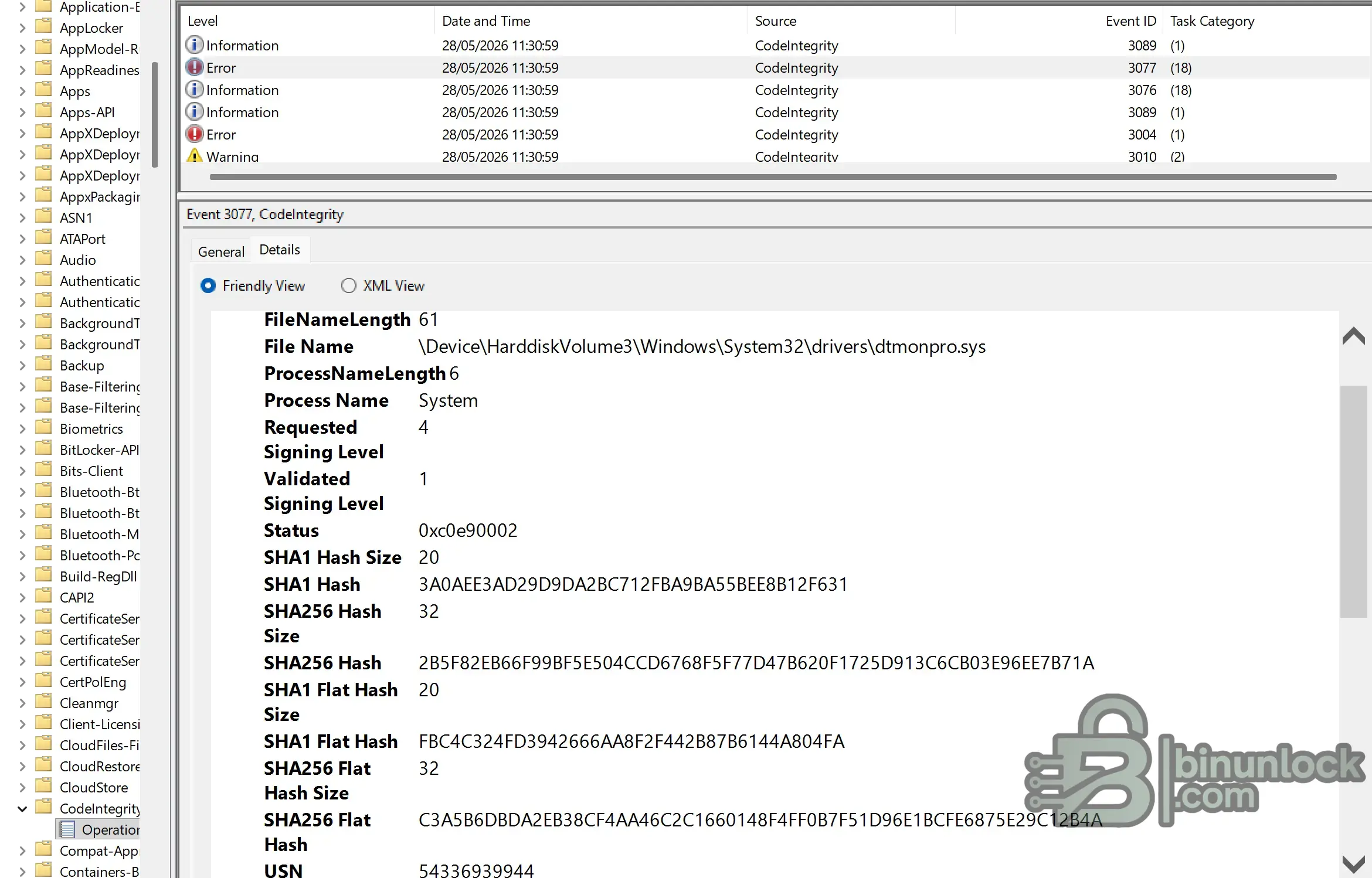
"Windows cannot load the device driver for this hardware. The driver may be corrupted or missing. (Code 39)

An Application Control policy has blocked this file
."

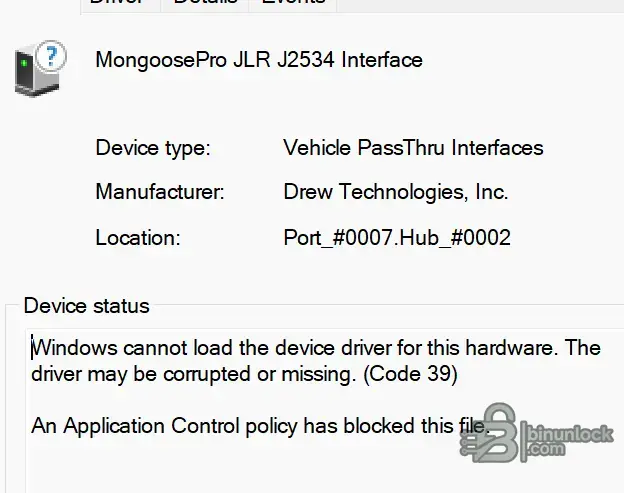
dtmonpro.sys is being blocked and can be seen in Event Viewer.

Basically what is happening, after windows update signing level increased to 4, while drivers for jlr mongoose cable is level1.

Requested Signing Level 4
Validated Signing Level 1
1779964570833.webp

1779964626658.webp
 
Ratings and Reviews
Total ratings: 0

Post #2

This is a known issue hitting more people after recent Windows 11 updates. Microsoft has tightened Kernel-Mode Code Signing (KMCS) enforcement — your Event Viewer confirms it: the system now demands Signing Level 4 (Microsoft/WHQL-signed) but dtmonpro.sys from Drew Technologies only validates at Level 1. Once Windows enforces this at the Code Integrity level, registry tweaks, Smart App Control, or Memory Integrity toggles won't help.

Here are your realistic options:

1. Disable Secure Boot + Enable Test Signing (quickest)

  • Enter BIOS/UEFI → disable Secure Boot
  • Open an elevated command prompt:

Code:
bcdedit /set testsigning on
bcdedit /set nointegritychecks on

  • Reboot. You'll see a "Test Mode" watermark on the desktop, but dtmonpro.sys should load.

2. WDAC Hash Whitelist (keeps Secure Boot on)

You can whitelist the driver by its SHA256 hash (visible in your Event Viewer: 2B5F82EB66F99BF5E504CCD6768F5F77D47B620F1725D913C6CB03E96EE7B71A) using a custom Code Integrity supplemental policy:

Code:
$DriverPath = "C:\Windows\System32\drivers\dtmonpro.sys"
New-CIPolicy -FilePath "C:\Policies\MongooseAllow.xml" -DriverFiles $DriverPath -Level Hash -UserPEs
ConvertFrom-CIPolicy "C:\Policies\MongooseAllow.xml" "C:\Policies\MongooseAllow.p7b"
Copy-Item "C:\Policies\MongooseAllow.p7b" "C:\Windows\System32\CodeIntegrity\CiPolicies\Active\"

Reboot after deploying. More involved, but keeps your system security mostly intact.

3. Dedicated Windows 10 Installation (most reliable long-term)

Many people running JLR SDD/Pathfinder with Mongoose cables keep a separate Windows 10 LTSC partition or bootable SSD for diagnostics. Win10 LTSC 2021 doesn't enforce the Level 4 signing requirement and is the most hassle-free approach for workshop use.

4. Updated WHQL-signed driver (unlikely)

Drew Technologies was acquired by Opus IVS — they could theoretically release a properly WHQL-signed dtmonpro.sys, but given how long the Mongoose Pro JLR has been effectively EOL in their lineup, don't count on it.

Bottom line: Fastest fix is option 1. Cleanest fix while keeping security is option 2. Most reliable long-term is option 3.

If you try the WDAC policy route and run into trouble, post back with details.
 

Post #3

This is a known issue hitting more people after recent Windows 11 updates. Microsoft has tightened Kernel-Mode Code Signing (KMCS) enforcement — your Event Viewer confirms it: the system now demands Signing Level 4 (Microsoft/WHQL-signed) but dtmonpro.sys from Drew Technologies only validates at Level 1. Once Windows enforces this at the Code Integrity level, registry tweaks, Smart App Control, or Memory Integrity toggles won't help.

Here are your realistic options:

1. Disable Secure Boot + Enable Test Signing (quickest)

  • Enter BIOS/UEFI → disable Secure Boot
  • Open an elevated command prompt:

Code:
bcdedit /set testsigning on
bcdedit /set nointegritychecks on

  • Reboot. You'll see a "Test Mode" watermark on the desktop, but dtmonpro.sys should load.

2. WDAC Hash Whitelist (keeps Secure Boot on)

You can whitelist the driver by its SHA256 hash (visible in your Event Viewer: 2B5F82EB66F99BF5E504CCD6768F5F77D47B620F1725D913C6CB03E96EE7B71A) using a custom Code Integrity supplemental policy:

Code:
$DriverPath = "C:\Windows\System32\drivers\dtmonpro.sys"
New-CIPolicy -FilePath "C:\Policies\MongooseAllow.xml" -DriverFiles $DriverPath -Level Hash -UserPEs
ConvertFrom-CIPolicy "C:\Policies\MongooseAllow.xml" "C:\Policies\MongooseAllow.p7b"
Copy-Item "C:\Policies\MongooseAllow.p7b" "C:\Windows\System32\CodeIntegrity\CiPolicies\Active\"

Reboot after deploying. More involved, but keeps your system security mostly intact.

3. Dedicated Windows 10 Installation (most reliable long-term)

Many people running JLR SDD/Pathfinder with Mongoose cables keep a separate Windows 10 LTSC partition or bootable SSD for diagnostics. Win10 LTSC 2021 doesn't enforce the Level 4 signing requirement and is the most hassle-free approach for workshop use.

4. Updated WHQL-signed driver (unlikely)

Drew Technologies was acquired by Opus IVS — they could theoretically release a properly WHQL-signed dtmonpro.sys, but given how long the Mongoose Pro JLR has been effectively EOL in their lineup, don't count on it.

Bottom line: Fastest fix is option 1. Cleanest fix while keeping security is option 2. Most reliable long-term is option 3.

If you try the WDAC policy route and run into trouble, post back with details.
Thank you this is great, i will try working on option 2.

In regards of whitelisting, do i need to whitelist all of the sha256? as i can see multiple ones within the event viewer.

1779970141497.webp
 

Post #4

Thank you this is great, i will try working on option 2.

In regards of whitelisting, do i need to w...

You don’t need to whitelist every SHA256 you see—only the specific hash(es) for the exact dtmonpro.sys instance Windows is blocking.

In Event Viewer, open the exact “Application Control policy has blocked…” event for dtmonpro.sys and take the File: path + the SHA256 listed in that same event. Whitelist that hash for that file/path.

If the event shows multiple SHA256 values, it’s usually because Windows is checking multiple components/instances (different copy/version/path of dtmonpro.sys, or multiple related driver objects). Only include the hashes that correspond to the blocked dtmonpro.sys shown in the File: line(s). Don’t add unrelated hashes from other events.

If you paste the full event text (especially the File: path and all SHA256 values shown in that same blocked event), I’ll tell you exactly which hashes to include.
 

Post #5

You don’t need to whitelist every SHA256 you see—only the specific hash(es) for the exact dtmonpro.sys instance Windows is blocking.

In Event Viewer, open the exact “Application Control policy has blocked…” event for dtmonpro.sys and take the File: path + the SHA256 listed in that same event. Whitelist that hash for that file/path.

If the event shows multiple SHA256 values, it’s usually because Windows is checking multiple components/instances (different copy/version/path of dtmonpro.sys, or multiple related driver objects). Only include the hashes that correspond to the blocked dtmonpro.sys shown in the File: line(s). Don’t add unrelated hashes from other events.

If you paste the full event text (especially the File: path and all SHA256 values shown in that same blocked event), I’ll tell you exactly which hashes to include.
[td]-[/td] [td]System[/td]
[td]
-Provider
[ Name] Microsoft-Windows-CodeIntegrity
[ Guid] {4ee76bd8-3cf4-44a0-a0ac-3937643e37a3}
[/td]
[td]
EventID3077
[/td]
[td]
Version5
[/td]
[td]
Level2
[/td]
[td]
Task18
[/td]
[td]
Opcode111
[/td]
[td]
Keywords0x8000000000000000
[/td]
[td]
-TimeCreated
[ SystemTime] 2026-05-28T12:07:43.1284598Z
[/td]
[td]
EventRecordID1700
[/td]
[td]
-Correlation
[ ActivityID] {362071f3-edf6-000c-0ebc-4a36f6eddc01}
[/td]
[td]
-Execution
[ ProcessID] 4
[ ThreadID] 12644
[/td]
[td]
ChannelMicrosoft-Windows-CodeIntegrity/Operational
[/td]
[td]
ComputerEd
[/td]
[td]
-Security
[ UserID] S-1-5-18
[/td]
[td]-[/td] [td]EventData[/td]
[td]FileNameLength[/td] [td]61[/td]
[td]File Name[/td] [td]\Device\HarddiskVolume3\Windows\System32\drivers\dtmonpro.sys[/td]
[td]ProcessNameLength[/td] [td]6[/td]
[td]Process Name[/td] [td]System[/td]
[td]Requested Signing Level[/td] [td]4[/td]
[td]Validated Signing Level[/td] [td]1[/td]
[td]Status[/td] [td]0xc0e90002[/td]
[td]SHA1 Hash Size[/td] [td]20[/td]
[td]SHA1 Hash[/td] [td]3A0AEE3AD29D9DA2BC712FBA9BA55BEE8B12F631[/td]
[td]SHA256 Hash Size[/td] [td]32[/td]
[td]SHA256 Hash[/td] [td]2B5F82EB66F99BF5E504CCD6768F5F77D47B620F1725D913C6CB03E96EE7B71A[/td]
[td]SHA1 Flat Hash Size[/td] [td]20[/td]
[td]SHA1 Flat Hash[/td] [td]FBC4C324FD3942666AA8F2F442B87B6144A804FA[/td]
[td]SHA256 Flat Hash Size[/td] [td]32[/td]
[td]SHA256 Flat Hash[/td] [td]C3A5B6DBDA2EB38CF4AA46C2C1660148F4FF0B7F51D96E1BCFE6875E29C12B4A[/td]
[td]USN[/td] [td]54336939944[/td]
[td]SI Signing Scenario[/td] [td]0[/td]
[td]PolicyNameLength[/td] [td]73[/td]
[td]PolicyName[/td] [td]Microsoft Windows Cross Certificates for Code Integrity Exceptions Policy[/td]
[td]PolicyIDLength[/td] [td]12[/td]
[td]PolicyID[/td] [td]10.29505.0.0[/td]
[td]PolicyHashSize[/td] [td]32[/td]
[td]PolicyHash[/td] [td]B5A8E9E10F610E94FFBD898DDA015C1E8B6DBCA516B97A63F0A7E115C96901EE[/td]
[td]OriginalFileNameLength[/td] [td]12[/td]
[td]OriginalFileName[/td] [td]dtmonpro.sys[/td]
[td]InternalNameLength[/td] [td]15[/td]
[td]InternalName[/td] [td]MongoosePro.sys[/td]
[td]FileDescriptionLength[/td] [td]25[/td]
[td]FileDescription[/td] [td]MongoosePro Device Driver[/td]
[td]ProductNameLength[/td] [td]42[/td]
[td]ProductName[/td] [td]MongoosePro SAE-J2534 USB OBD-II Interface[/td]
[td]FileVersion[/td] [td]1.1.0.0[/td]
[td]PolicyGUID[/td] [td]{8f9cb695-5d48-48d6-a329-7202b44607e3}[/td]
[td]UserWriteable[/td] [td]false[/td]
[td]PackageFamilyNameLength[/td] [td]0[/td]
[td]PackageFamilyName[/td]
 

Post #6

- System


- Provider


Microsoft-Windows-CodeIntegrity


{4ee76bd8-3cf4-44a0-a0ac-3937...

You only need to whitelist the SHA256 values that appear in that same blocked event for:

\Device\HarddiskVolume3\Windows\System32\drivers\dtmonpro.sys

From your event, whitelist:

  • SHA256: 2B5F82EB66F99BF5E504CCD6768F5F77D47B620F1725D913C6CB03E96EE7B71A
  • SHA256 Flat: C3A5B6DBDA2EB38CF4AA46C2C1660148F4FF0B7F51D96E1BCFE6875E29C12B4A

Don’t whitelist any other SHA256s you might see from other events/copies—only those tied to this dtmonpro.sys block.
 

Post #7

You only need to whitelist the SHA256 values that appear in that same blocked event for:

\Device\HarddiskVolume3\Windows\System32\drivers\dtmonpro.sys

From your event, whitelist:

  • SHA256: 2B5F82EB66F99BF5E504CCD6768F5F77D47B620F1725D913C6CB03E96EE7B71A
  • SHA256 Flat: C3A5B6DBDA2EB38CF4AA46C2C1660148F4FF0B7F51D96E1BCFE6875E29C12B4A

Don’t whitelist any other SHA256s you might see from other events/copies—only those tied to this dtmonpro.sys block.
provide full steps. thanks
 

Post #8

provide full steps. thanks

Full steps to whitelist dtmonpro.sys (from your EventID 3077)

  • 1) Use only the SHA256s from that exact blocked event
    From your Microsoft-Windows-CodeIntegrity EventID 3077, the file/path is:
    Code:
    \Device\HarddiskVolume3\Windows\System32\drivers\dtmonpro.sys

    Whitelist these SHA256s (and do NOT use any other hashes from other events):
    • Code:
      2B5F82EB66F99BF5E504CCD6768F5F77D47B620F1725D913C6CB03E96EE7B71A
    • Code:
      C3A5B6DBDA2EB38CF4AA46C2C1660148F4FF0B7F51D96E1BCFE6875E29C12B4A
  • 2) Confirm what policy type you’re editing
    Your event shows:
    Code:
    PolicyName: Microsoft Windows Cross Certificates for Code Integrity Exceptions Policy
    So you need a Code Integrity Exceptions–style whitelist/exception entry for the driver using the SHA256s above.
  • 3) Add the exception entry (exact method depends on your tool/approach)
    Create an exception for the driver file using:
    • Target file: dtmonpro.sys (path shown in the event)
    • Hashing: SHA256
    • Hashes: add both SHA256 values from the event
  • 4) Deploy / apply and reboot
    After updating the policy:
    • Apply the policy (according to the method you’re using)
    • Reboot (required in most cases for driver CI changes)
  • 5) Verify
    Trigger Mongoose again and re-check:
    Code:
    Microsoft-Windows-CodeIntegrity / Operational
    You should no longer see the same block for dtmonpro.sys / EventID 3077.

One detail I need to write truly “full steps”
What are you using to whitelist—WDAC/Code Integrity policy tooling (CIPolicyTool/WG/PowerShell) or a specific third-party tool/script you downloaded?
Tell me the tool name (or paste the command you’re running / the policy file type you’re editing), and I’ll give the exact click-by-click/command steps for that exact method.
 

Post #9

powershell

You can’t whitelist just the SHA256 with PowerShell alone unless you’re using WDAC/Code Integrity policy cmdlets/tools to build or update a WDAC policy and then deploy it.

To give you the exact PowerShell commands, I need these specifics:

  • Windows version (10 or 11) and whether the policy is currently Audit or Enforce.
  • The exact PolicyName from your EventID 3077 (full text), since it looks like “Microsoft Windows Cross Certificates for Code Integrity Exceptions Policy”.
  • What you’re editing with PowerShell: do you already have an existing .cip</b> or .xml</b> policy file? If yes, paste its filename/path (where it’s stored).
    [*] Are you using Microsoft WDAC cmdlets (like ConvertFrom-CIPolicy / New-CIPolicy etc.), or a specific script/tool you downloaded?


Input you will use once the above is confirmed (from your event):
  • File: \Device\HarddiskVolume3\Windows\System32\drivers\dtmonpro.sys
  • SHA256s to add:
    • 2B5F82EB66F99BF5E504CCD6768F5F77D47B620F1725D913C6CB03E96EE7B71A
    • C3A5B6DBDA2EB38CF4AA46C2C1660148F4FF0B7F51D96E1BCFE6875E29C12B4A

Reply with those 4 items and I’ll post the exact PowerShell step-by-step for your setup.
 

Post #10

please help with this moment. No idea how add it in white list. thanks
 

Post #11

Which Windows version are you on — Windows 10 or Windows 11? And is it the same JLR Mongoose Pro cable with dtmonpro.sys being blocked (Code 39 / Event 3077 in Event Viewer)?

If yes, here's the full PowerShell method to whitelist the driver. Open PowerShell as Administrator and run step by step:

Step 1 — Create a folder for the policy files
Code:
New-Item -Path "C:\CIPolicy" -ItemType Directory -Force

Step 2 — Create a CI policy that allows dtmonpro.sys by hash
Code:
$DriverFile = "C:\Windows\System32\drivers\dtmonpro.sys"
New-CIPolicy -FilePath "C:\CIPolicy\MongooseAllow.xml" -DriverFiles $DriverFile -Level Hash -UserPEs -Fallback Hash

Step 3 — Set the policy to Supplemental so it doesn't replace the base policy
Code:
Set-CIPolicyIdInfo -FilePath "C:\CIPolicy\MongooseAllow.xml" -PolicyName "Allow Mongoose dtmonpro" -ResetPolicyID
Set-RuleOption -FilePath "C:\CIPolicy\MongooseAllow.xml" -Option 3 -Delete

Step 4 — Convert the XML policy to binary
Code:
ConvertFrom-CIPolicy -XmlFilePath "C:\CIPolicy\MongooseAllow.xml" -BinaryFilePath "C:\CIPolicy\MongooseAllow.p7b"

Step 5 — Deploy the policy
Code:
Copy-Item "C:\CIPolicy\MongooseAllow.p7b" -Destination "C:\Windows\System32\CodeIntegrity\CiPolicies\Active\" -Force

Step 6 — Reboot
Code:
Restart-Computer

After reboot, plug in the Mongoose cable and check Device Manager — Code 39 should be gone. Also verify in Event Viewer under Microsoft-Windows-CodeIntegrity/Operational that there are no new Event 3077 entries for dtmonpro.sys.

If Step 2 fails with an error about the file not being a valid PE or similar, post the exact error message here and I'll adjust the commands for your situation.
 

Post #12

Какую версию Windows вы используете — Windows 10 или Windows 11? И это тот же кабель JLR Mongoose Pro, который dtmonpro.sysблокируется (код 39 / событие 3077 в журнале событий)?

Если да, то вот полный метод PowerShell для добавления драйвера в белый список. Откройте PowerShell от имени администратора и выполните следующие действия по порядку:

Шаг 1 — Создайте папку для файлов политики.
Code:
New-Item -Path "C:\CIPolicy" -ItemType Directory -Force

Шаг 2 — Создайте политику CI, которая разрешает использование dtmonpro.sys по хешу.
Code:
$DriverFile = "C:\Windows\System32\drivers\dtmonpro.sys"
New-CIPolicy -FilePath "C:\CIPolicy\MongooseAllow.xml" -DriverFiles $DriverFile -Level Hash -UserPEs -Fallback Hash

Шаг 3 — Установите для политики статус «Дополнительная», чтобы она не заменяла базовую политику.
Code:
Set-CIPolicyIdInfo -FilePath "C:\CIPolicy\MongooseAllow.xml" -PolicyName "Allow Mongoose dtmonpro" -ResetPolicyID
Set-RuleOption -FilePath "C:\CIPolicy\MongooseAllow.xml" -Option 3 -Delete

Шаг 4 — Преобразуйте XML-политику в двоичный формат.
Code:
ConvertFrom-CIPolicy -XmlFilePath "C:\CIPolicy\MongooseAllow.xml" -BinaryFilePath "C:\CIPolicy\MongooseAllow.p7b"

Шаг 5 — Развертывание политики
Code:
Copy-Item "C:\CIPolicy\MongooseAllow.p7b" -Destination "C:\Windows\System32\CodeIntegrity\CiPolicies\Active\" -Force

Шаг 6 — Перезагрузка
Code:
Перезагрузите компьютер

После перезагрузки подключите кабель Mongoose и проверьте Диспетчер устройств — ошибка с кодом 39 должна исчезнуть. Также проверьте в Просмотрщике событий в разделе Microsoft-Windows-CodeIntegrity/Operational , нет ли новых записей с кодом 3077 для dtmonpro.sys.

Если на шаге 2 возникнет ошибка, указывающая на то, что файл не является допустимым PE-файлом или что-то подобное, опубликуйте здесь точное сообщение об ошибке, и я скорректирую команды в соответствии с вашей ситуацией.
Windows 11
3033
3089
 

Post #13

Windows 11
3033
3089

Which specific blocker are you hitting?

From your last message I only see:
Windows 11
Event IDs: 3033, 3089

To write the correct whitelist steps, I need the exact Event Viewer text for the blocked Event 3077 (the one that names dtmonpro.sys). Please paste the full details for:
  • Microsoft-Windows-CodeIntegrity / Operational entry with EventID 3077 (full message)
  • The PolicyName shown there
  • The file path shown (e.g. \Device\HarddiskVolumeX\Windows\System32\drivers\dtmonpro.sys)
  • The SHA256 values shown for that dtmonpro.sys event
  • What the Code 39 Device Manager error says for the same device/cable

Also confirm this one point: is it definitely WDAC/Code Integrity blocking dtmonpro.sys (not Defender/other AV)?
 

Post #14

Which specific blocker are you hitting?

From your last message I only see:
Windows 11
Event IDs: 3033, 3089


To write the correct whitelist steps, I need the exact Event Viewer text for the blocked Event 3077 (the one that names dtmonpro.sys). Please paste the full details for:
  • Microsoft-Windows-CodeIntegrity / Operational entry with EventID 3077 (full message)
  • The PolicyName shown there
  • The file path shown (e.g. \Device\HarddiskVolumeX\Windows\System32\drivers\dtmonpro.sys)
  • The SHA256 values shown for that dtmonpro.sys event
  • What the Code 39 Device Manager error says for the same device/cable

Also confirm this one point: is it definitely WDAC/Code Integrity blocking dtmonpro.sys (not Defender/other AV)?
[td] [/td] [td]System[/td]
[td]

-Provider
[ Name]Microsoft-Windows-CodeIntegrity
[ Guid]{4ee76bd8-3cf4-44a0-a0ac-3937643e37a3}
[/td]

[td]
EventID3089
[/td]

[td]
Version3
[/td]

[td]
Level4
[/td]

[td]
Task1
[/td]

[td]
Opcode130
[/td]

[td]
Keywords0x8000000000000000
[/td]

[td]
-TimeCreated
[ SystemTime]2026-05-31T10:58:36.9198884Z
[/td]

[td]
EventRecordID101317
[/td]

[td]
-Correlation
[ ActivityID]{57ec756f-f0ec-0002-4018-ed57ecf0dc01}
[/td]

[td]
-Execution
[ ProcessID]4732
[ ThreadID]5744
[/td]

[td]
ChannelMicrosoft-Windows-CodeIntegrity/Operational
[/td]

[td]
ComputerDMEforBMW
[/td]

[td]
-Security
[ UserID]S-1-5-18
[/td]

[td]-[/td] [td]EventData[/td]
[td]TotalSignatureCount[/td]
[td]1[/td]
[td]Signature[/td]
[td]0[/td]
[td]CacheState[/td]
[td]3[/td]
[td]Hash Size[/td]
[td]20[/td]
[td]Hash[/td]
[td]6B02292D04379E7B8DADD0AF893F43EA064DC108[/td]
[td]PageHash[/td]
[td]false[/td]
[td]SignatureType[/td]
[td]1[/td]
[td]ValidatedSigningLevel[/td]
[td]1[/td]
[td]VerificationError[/td]
[td]7[/td]
[td]Flags[/td]
[td]0[/td]
[td]PolicyBits[/td]
[td]16[/td]
[td]NotValidBefore[/td]
[td]2015-07-29T00:00:00.0000000Z[/td]
[td]NotValidAfter[/td]
[td]2017-08-27T23:59:59.0000000Z[/td]
[td]PublisherNameLength[/td]
[td]10[/td]
[td]PublisherName[/td]
[td]Apple Inc.[/td]
[td]IssuerNameLength[/td]
[td]37[/td]
[td]IssuerName[/td]
[td]VeriSign Class 3 Code Signing 2010 CA[/td]
[td]PublisherTBSHashSize[/td]
[td]20[/td]
[td]PublisherTBSHash[/td]
[td]F2B86C44144AAB38C9C3080496B43716EF9FF973[/td]
[td]IssuerTBSHashSize[/td]
[td]20[/td]
[td]IssuerTBSHash[/td]
[td]4843A82ED3B1F2BFBEE9671960E1940C942F688D[/td]
[td]OPUSInfoLength[/td]
[td]5[/td]
[td]OPUSInfo[/td]
[td]Apple[/td]
[td]EKUsSize[/td]
[td]10[/td]
[td]EKUs[/td]
[td]01082B06010505070303[/td]
[td]KnownRoot[/td]
[td]1[/td]
Which specific blocker are you hitting?

From your last message I only see:
Windows 11
Event IDs: 3033, 3089


To write the correct whitelist steps, I need the exact Event Viewer text for the blocked Event 3077 (the one that names dtmonpro.sys). Please paste the full details for:
  • Microsoft-Windows-CodeIntegrity / Operational entry with EventID 3077 (full message)
  • The PolicyName shown there
  • The file path shown (e.g. \Device\HarddiskVolumeX\Windows\System32\drivers\dtmonpro.sys)
  • The SHA256 values shown for that dtmonpro.sys event
  • What the Code 39 Device Manager error says for the same device/cable

Also confirm this one point: is it definitely WDAC/Code Integrity blocking dtmonpro.sys (not Defender/other AV)?
anyway thanks for info!
 
Activity
So far there's no one here
Back