Kubota Diagmaster (DM) + K-Diag Flow — Diagnostic suite for Kubota machines

Kubota Diagmaster K-Diag - Dealer Diagnostics & Programming 2025-09-10

Sign in to download for free
Kubota Diagmaster (DM) + K-Diag Flow — Diagnostic suite for Kubota machines
Kubota Diagmaster K-Diag - Dealer Diagnostics & Programming 2025-09-10
Sign in to download for free

Post #1

Bin

Thread Owner
Administrator
Joined
03.05.2025
Messages
1,835
Reaction score
42,368
New release thread for Kubota Diagmaster (DM) + K-Diag Flow — Diagnostic suite for Kubota machines: discuss, share feedback, and get help.


Kubota Diagmaster (DM) + K-Diag Flow — Diagnostic suite for Kubota machines​

Official Kubota Diagmaster with K-Diag Flow for DTCs, live data, tests, and guided service.

Overview
Kubota’s dealer diagnostic package for agricultural and construction equipment.
Includes Diagmaster (DM) and K-Diag Flow guided service content; designed for use
with the DENSO DST-i VCI.

View attachment 781

Included in this package
• Diagmaster application v4.20 (Setup_Diagmaster_Ver420.exe)
• Kubota DB/Release packages (e.g., ReleaseNote_DB_for_Kubota_With_03_05…...

Frequently Asked Questions​

Which Windows version is recommended?
For maximum stability during ECU flashing and diagnostics, a clean installation of Windows 10 (64-bit) is recommended.
Is it compatible with J2534 PassThru?
Most modern software versions support standard J2534 interfaces like Scanmatik 2 Pro, OpenPort 2.0, and specific VCI adapters.

What's inside:
  • Overview & screenshots
  • Version history and compatibility
  • Download link and setup notes

👉 View full details and download — Kubota Diagmaster (DM) + K-Diag Flow — Diagnostic suite for Kubota machines
 

Post #2

Release Notes Ver. Kubota_4.2.10 Relnote Ver. 01
Date: 2017/2/17

Hi! Is there a newer database for this release?
 

Post #3

Release Notes Ver. Kubota_4.2.10 Relnote Ver. 01
Date: 2017/2/17

Hi! Is there a newer database for ...

The package on the resource page includes Diagmaster v4.20 with DB/Release packages up to the ones bundled (DM001–DM006, with release notes dated around 2017). That is the version currently available in the download.

Regarding newer databases: Kubota periodically releases updated DB packages through their dealer portal (Kubota Link / DST-i update service). These newer DBs add coverage for later model-year machines and updated DTC definitions. However, they are tied to an active Kubota dealer subscription/account, so they aren't typically redistributed openly.

What you can do:
  • Install what's included in the package — it covers a solid range of Kubota CAN/UDS machines roughly up to ~2017 model year content.
  • If you have access to a Kubota dealer account, you can pull newer DB updates directly through the Diagmaster update mechanism or the Kubota portal.
  • If a newer standalone DB package surfaces on the forum or gets shared by another member, it would typically be installable on top of this base v4.20 installation.

If you let us know which specific machine (model, year, engine) you're trying to work on, we can tell you whether the included DB is likely to cover it or if you'd definitely need a newer release.
 

Post #4

It might be possible to read and clear errors with an older version of the program. My tractor type M19, M24. Model IC-M7172
 

Post #5

It might be possible to read and clear errors with an older version of the program. My tractor type ...

Good info. The Kubota M7-172 (IC-M7172) is a Tier 4 Final machine with a V6108 engine and fairly advanced electronics (CAN/UDS based). It was introduced around 2014–2015 depending on the market.

With the included v4.20 + DB packages (2017 release notes):

There is a reasonable chance the M7-172 is covered for basic diagnostics — DTC read/clear, freeze frame, and possibly some live data. The DB packages bundled go up to around that era, and the M7 series was a flagship line Kubota would have prioritized in their diagnostic coverage.

What to try:

  • Install everything as described (Diagmaster v4.20 + all DM_00x DB packages + K-Diag Flow English MSI)
  • Connect via DST-i (or try a J2534 adapter on CAN — not guaranteed but sometimes works for basic read/clear)
  • In Diagmaster, navigate to the model selection — look under Tractor → M7 Series → M7-172 or similar
  • If the model appears in the list, DTC read/clear should work at minimum

Potential limitations with this DB version:

  • Some newer ECU calibrations or sub-systems (e.g., updated transmission controller, DEF/SCR module revisions) added after 2017 may not be fully covered
  • Guided diagnostics (K-Diag Flow) content for the M7 series may be partial
  • Programming/parameterization will almost certainly require a dealer liсеnsе regardless

Regarding your adapter: What interface are you planning to use — a genuine DENSO DST-i, or a J2534 device (Scanmatik, OpenPort, etc.)? That will affect what actually connects successfully.

Give it a try with the included DB and report back whether the M7-172 shows up in the model list. If it doesn't, you'd definitely need a newer DB package.
 

Post #7

I have a Scanmatic 2 Pro adapter.

The Scanmatik 2 Pro is a solid J2534 PassThru adapter and has a good chance of working with Diagmaster for basic CAN/UDS communication. Here's how to set it up:

Setup steps for Scanmatik 2 Pro with Diagmaster:

  1. Install the Scanmatik 2 Pro drivers and J2534 DLL on the same PC (make sure the Scanmatik software/drivers are up to date)
  2. Install Diagmaster v4.20 + all DB packages as described
  3. Launch Diagmaster → go to Setup → for the interface selection, look for J2534 PassThru instead of DST-i
  4. Select the Scanmatik 2 Pro from the J2534 device list
  5. Connect to the tractor's OBD/diagnostic port with ignition ON

Important notes:

  • Diagmaster was designed primarily for the DENSO DST-i, so J2534 support is unofficial/limited. Basic functions like DTC read/clear and live data over CAN typically work, but some advanced features (actuations, programming, firmware update) may fail or not be available
  • If Diagmaster doesn't show a J2534 option in the interface menu, it may only enumerate DST-i — in that case you'd need to check if there's a registry tweak or config file that forces J2534 mode
  • Make sure the Scanmatik is set to 12V CAN mode and the correct diagnostic connector pinout is used for the M7-172 (standard 9-pin Deutsch or 16-pin OBD-II depending on market/harness)

Diagnostic connector on M7-172:

The M7 series typically uses a 14-pin Kubota diagnostic connector (not standard OBD-II). You may need a Kubota 14-pin to OBD-II adapter cable to connect the Scanmatik. Make sure CAN-H and CAN-L are mapped correctly on the adapter.

Try it and let us know:
  • Does Diagmaster detect the Scanmatik as a J2534 device?
  • Does the M7-172 appear in the model selection list?
  • Does it establish communication with the ECU?

That will tell us exactly where you stand.
 

Post #8

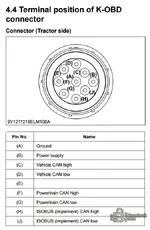
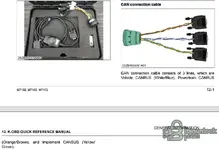
Just in case, I'll attach the pinout of the connector. Maybe it will be useful to someone
 

Attachments

  • K-OBD connector.webp
    K-OBD connector.webp
    31.9 KB · Views: 5
  • can connector.webp
    can connector.webp
    48.4 KB · Views: 6

Post #9

Just in case, I'll attach the pinout of the connector. Maybe it will be useful to someone

Excellent contribution, thanks for sharing! This is very useful for anyone working on the M7 series. Let me summarize the pinout clearly for the thread:

Kubota K-OBD Connector Pinout (9-pin Deutsch — M7132 / M7152 / M7172)

Connector part number: 9Y1211218ELM100A

  • (A) — Ground
  • (B) — Power supply (+12V)
  • (C) — Vehicle CAN High
  • (D) — Vehicle CAN Low
  • (E) — (not used)
  • (F) — Powertrain CAN High
  • (G) — Powertrain CAN Low
  • (H) — ISOBUS (Implement) CAN High
  • (J) — ISOBUS (Implement) CAN Low

Three separate CAN buses on this connector:

  • Vehicle CAN (C/D) — White/Blue wires — dashboard, body electronics, general vehicle network
  • Powertrain CAN (F/G) — Orange/Brown wires — engine ECU, transmission, DEF/SCR system
  • Implement CAN (H/J) — Yellow/Green wires — ISOBUS implements, hydraulic controllers

For Scanmatik 2 Pro wiring:

For engine diagnostics (DTC read/clear, live data) on the M7-172, you want to connect to the Powertrain CAN bus — pins F and G:

  • Scanmatik CAN-H → Pin (F)
  • Scanmatik CAN-L → Pin (G)
  • Scanmatik GND → Pin (A)

If you also need to talk to body/vehicle modules (instrument cluster, etc.), switch to pins (C) and (D) instead.

You'll need to make or source a custom cable from the 9-pin Deutsch to your Scanmatik's OBD-II connector, mapping the correct CAN pair to OBD-II pins 6 (CAN-H) and 14 (CAN-L), plus ground to pin 4/5.

Let us know how the connection goes once you try it! 👍
 
Activity
So far there's no one here
Back