Automotive Expert Repair Shop Ticketing and Work Order Manager

Automotive Expert Repair - Professional Software Utility 11.33

Sign in to download for free
  • Thread starter Thread starter Bin
  • Start date Start date
  • Tagged users Tagged users None
Automotive Expert Repair Shop Ticketing and Work Order Manager
Automotive Expert Repair - Professional Software Utility 11.33
Sign in to download for free
  • Thread starter Thread starter Bin
  • Start date Start date
  • Tagged users Tagged users None

Bin

Thread Owner
Administrator
Joined
03.05.2025
Messages
1,821
Reaction score
38,554
New release thread for Automotive Expert Repair Shop Ticketing and Work Order Manager: discuss, share feedback, and get help.


Automotive Expert Repair Shop Ticketing and Work Order Manager​

v11.33, create service tickets, manage jobs, print work orders, built-in backup

Automotive Expert is a workshop management application designed to create service tickets, organize repair jobs, and print customer facing documents. The interface is focused on fast vehicle selection by year and make, then building a ticket with jobs that can be saved, retrieved, and managed from a central workspace.


Frequently Asked Questions​

Which Windows version is recommended?
For maximum stability during ECU flashing and diagnostics, a clean installation of Windows 10 (64-bit) is recommended.
Is it compatible with J2534 PassThru?
Most modern software versions support standard J2534 interfaces like Scanmatik 2 Pro, OpenPort 2.0, and specific VCI adapters.

What's inside:
  • Overview & screenshots
  • Version history and compatibility
  • Download link and setup notes

👉 View full details and download — Automotive Expert Repair Shop Ticketing and Work Order Manager
 
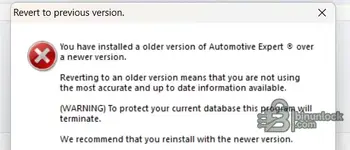
Keep getting this error?
 

Attachments

  • Screenshot ae.webp
    Screenshot ae.webp
    14 KB · Views: 3
Keep getting this error?

That error — "You have installed an older version of Automotive Expert® over a newer version" — means a newer build was already present on that machine before you ran the v11.33 installer. The program blocks the downgrade to protect its database.

How to fix it

  1. Fully uninstall the existing (newer) version first. Use Windows Apps & Features (or Programs and Features on older builds). If the app doesn't appear there, manually delete its installation folder.
  2. Clean leftover data. Check these typical locations and remove any remaining Automotive Expert folders:
    • Code:
      C:\Program Files (x86)\Automotive Expert\
    • Code:
      C:\ProgramData\Automotive Expert\
    • Code:
      %APPDATA%\Automotive Expert\
  3. Back up your database first if you have existing tickets/work orders you need to keep. Copy the data folder (or any .mdb / .accdb files you find inside the install directory) to a safe location before deleting anything.
  4. Reboot, then run AE1133.exe as Administrator (right-click → Run as administrator).
  5. After installation, if you want to restore your old records, copy your backed-up database file(s) back into the new install's data directory.

Quick checklist

  • Make sure you're running the RTE.EXE / RTEW.exe runtime components included in the package — check the Instruction.txt for the correct install order.
  • Install to a folder where your Windows user has full write permissions (avoid restricted system paths if you're not running as admin).
  • Run the built-in Back-Up utility right after a successful install so you have a clean restore point.

That should clear the version conflict and let v11.33 install cleanly.
 
Activity
So far there's no one here
Back