BMW mulitmap

shariz124

Stock Member
Thread Owner
Joined
07.02.2026
Messages
13
Reaction score
0
Location
United Kingdom
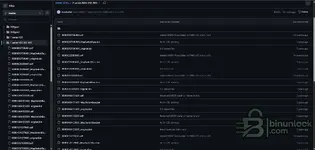
has anyone tried these bmw multimap with tunerpro from github? not sure how the multimap works? and if it can be read/flashed via OBD (flex mms/ kess3/ autotuner etc)
 

Attachments

  • 1771644052054.webp
    1771644052054.webp
    80.7 KB · Views: 13
has anyone tried these bmw multimap with tunerpro from github? not sure how the multimap works? and ...

Yes, the GitHub repositories usually contain the XDFs for TunerPro and the assembly patches (ASM) required to inject the multimap logic into the binary.

Basically, here is how the multimap works:
  • The code раtсh hijacks specific function calls within the DME (usually related to Load, Boost, or Timing lookups).
  • It monitors an input variable, typically the Cruise Control buttons or the Drive Mode switch (Eco/Sport).
  • Based on the selected mode, the code applies a memory offset to the map pointers, forcing the ECU to read from "Map slot 2", "Map slot 3", etc., instead of the default tables.

Regarding flashing via OBD with tools like Flex, Kess3, or Autotuner:
Be very careful.

These tools are designed to correct checksums (CS/RSA/CVN) for standard firmware structures. Since multimap involves custom code injection (adding code where there usually is empty space or overwriting existing routines), the automatic checksum correction in generic tools often fails or corrupts the раtсh, leading to a bricked ECU or a car that won't start.

If you want to use generic OBD tools:
  • You must calculate the checksums externally before loading the file into the tool.
  • You need to ensure the tool does not try to re-calculate checksums (disable auto-checksum if the tool allows it).

Most people utilizing those open-source definitions use specific flashers (like the MHD flasher app or raw binary writers like PCMFlash) that are known to handle or ignore the custom code blocks correctly.
 
got it, and on github, theres a folder for each software version i assume? one is xdf. original bin then the map switch bin. not sure how it works if i take a read through obd with my tool? do i match by read with one of the original bins, then instead use the map switching bin, edit that and flash back?
 
got it, and on github, theres a folder for each software version i assume? one is xdf. original bin ...

Yes, the folders are usually organized by the Software Version (SW ID). You must match this exactly to your ECU's current software.

Do not just flash the "map switch bin" from GitHub directly over your OBD read.

Here is why:
The binary on GitHub is likely a generic file. It does not contain your car's specific ISN (Immobilizer Secret Key), VIN, or coding data. If you flash that file directly, the car will not start because the CAS/FEM/BDC will reject the DME.

The correct workflow is usually:

  1. Read your ECU via OBD to get your specific backup (which contains your ISN).
  2. Identify the SW Version and find the corresponding folder on GitHub.
  3. Load your file into TunerPro.
  4. Load the XDF from the GitHub folder.
  5. Apply the раtсh: Usually, the XDF has a "раtсh" script or parameter built-in, or there is a separate .bin snippet containing the code. You need to copy the code block (the multimap logic) into your file at the specific address defined in the documentation.
  6. Save the file.
  7. Correct Checksums (External tool).
  8. Flash back to the car.

If the GitHub repo provides a full binary that is already patched, you would need to use a hex editor to copy your ISN and header data from your OBD read into that file before flashing, which is risky if you don't know the exact offsets. Sticking to patching your own read is safer.
 
are you sure? as flex connects to my car, saved the CAFD then takes a read, i modify the file then w...

You are confusing Coding Data (CAFD/ncd) with Immobilizer Data (ISN).

While Flex is a very advanced tool and can indeed restore the coding data (features, options, VIN in user interface) automatically, it generally does not automatically transfer the ISN (Immobilizer Secret Number) from your old file to a completely new file from the internet during a standard OBD write.

Here is the distinction:

  • CAFD / Coding: This is the configuration of the ECU (e.g., implies transmission type, fan settings, Vmax display). Flex handles this well.
  • ISN (Immobilizer): This is the cryptographic key that pairs the ECU to the CAS/FEM/BDC. This is embedded deep in the hex code of the boot/program area or EEPROM.

If you take a full binary from GitHub (which belongs to another car) and flash it:
1. Flex might restore your CAFD (Coding).
2. But the Flash data will contain the wrong ISN (from the donor car).
3. The car will crank but not start because the CAS/FEM will reject the DME.

The Checksum Issue is still the biggest risk:
Even if you manage to transfer the ISN, the main problem remains the Checksum (CS) calculation.

Multimap logic relies on "Code Patches" — custom Assembly code inserted into empty spaces in the binary.
  • Flex's auto-checksum algorithm expects standard BMW software structure.
  • When it sees the custom Multimap code, it often interprets it as "corrupted data" or a checksum error.
  • Flex might try to "fix" the checksums by altering or removing that custom code, which will result in a bricked ECU or a non-functional multimap.

Summary:
Do not flash the GitHub file directly.
1. Read your car with Flex.
2. Use TunerPro to apply the XDF раtсh to your specific read.
3. Disable Auto-Checksum in Flex (if possible) and calculate checksums using an external tool that supports custom patches (like Lols1337's checksum tools or similar), OR ensure Flex explicitly supports "Custom Code / раtсh" checksumming for that specific ECU protocol (which is rare for standard OBD protocols).
 
tunerpro wont apply the раtсh for some reason, i click раtсh bin -> from s-record and click the righ...

This is a very common error. It usually happens for one of two reasons:

1. You are selecting the wrong file type for the раtсh
TunerPro's "Apply раtсh" tool expects a file in S-Record format (usually .s19, .srec, or sometimes .xml).
If you are selecting a raw .bin file (the "map switch bin" you mentioned) in the "Apply раtсh" window, it will fail immediately because TunerPro tries to read it as text code, but it is raw binary.

If the GitHub repository provided a .bin file as the раtсh:
  • You cannot use the "Apply раtсh" tool.
  • You must use a Hex Editor (like HxD).
  • You have to manually copy the code block from the раtсh .bin and paste it into your original file at the exact same offset.

2. Your OBD Read is "Maps Only" (Partial Read)
Multimap logic requires modifying the Program Code area of the ECU, not just the calibration tables.
  • Many OBD tools (like Flex or Kess) default to reading "Maps" or "Calibration" to save time.
  • If your file size is small (e.g., 256KB or 512KB), you have a partial read.
  • The раtсh tries to write data to an address (e.g., 0x40000) that doesn't exist in your partial file.

Solution:
  • Ensure you performed a Full Read (Internal Flash) with your tool. For an N54 (MSD80/81), the file should be exactly 2,048 KB (2MB). For N55 (MEVD17), it is usually 4,096 KB (4MB).
  • If you have the correct file size, check if the repo provides an .s19 or .xml раtсh file instead of a .bin.
  • If they only provide a .bin, you must use a Hex Editor to compare the files and transfer the changes manually.
 
but the mapswitchbase is a .bin and original file is .bin too

That is exactly why it failed.

TunerPro's "раtсh Bin" function does NOT support .bin files.
It only accepts "S-Record" files (usually ending in .s19, .srec, or .xml). These are text-based files that tell TunerPro exactly which address to modify.

Since you have a raw binary (.bin) as the раtсh source, you have to do this manually using a Hex Editor.

Here is the workflow to apply that binary раtсh to your read:

How to раtсh Manually using HxD

You will need a free tool called HxD (Hex Editor).

  1. Open HxD.
  2. Open your Original Read (File 1).
  3. Open the MapSwitchBase.bin (File 2).
  4. Go to Analysis -> Data Comparison -> Compare.
  5. It will highlight the differences between the two files.

What to look for:
  • If the MapSwitchBase.bin is a full file (same size as yours), you will see differences in the map areas, but you are looking for a large block of code that is different, usually in the empty space of the file (often filled with FF or 00 in your original file, but filled with data in the Base file).
  • If the MapSwitchBase.bin is a small file (e.g., 30kb), it is just the code block. You need to find the specific address where this block belongs (usually stated in the GitHub Readme, e.g., "0x40000" or "0xC0000").

The Copy Process:
1. Highlight the code block in the MapSwitchBase.bin.
2. Copy it (Ctrl+C).
3. Switch to your Original Read tab.
4. Go to the exact same offset/address (or the address specified in the documentation).
5. Right-click and select Paste Write (Do NOT use "Paste Insert" as it changes the file size).

CRITICAL WARNING
Do NOT just copy everything.
The MapSwitchBase.bin likely contains a dummy ISN (Immobilizer) and dummy VIN.
  • If you copy the boot/eeprom area (usually the first few lines or specific sectors depending on ECU), you will overwrite your ISN.
  • Only copy the Multimap Logic Code (the раtсh) and the Map Tables if you want the base tune.

Once you have pasted the code into your file:
1. Save as a new file (e.g., MyCar_Multimap_Patched.bin).
2. Correct Checksums using an external tool (remember, Flex auto-checksum might fail on this custom code).
3. Flash.
 
can i do this on winols5

Yes, absolutely. WinOLS is actually much better and safer for this task than HxD because it visualizes the data structures better.

Here is the safest workflow to do this in WinOLS 5:

1. Create the Project
  • Drag and drop your Original OBD Read into WinOLS to create a new project.
  • Let WinOLS detect the maps and checksums (if you have the modules).

2. Import the раtсh File
  • With your project open, drag and drop the MapSwitchBase.bin onto the WinOLS window.
  • WinOLS will ask how to import it. Select "As a version".
  • This allows you to toggle between your Original file and the раtсh file instantly to compare them.

3. Transfer the раtсh
  • Press Ctrl+D (or go to Window -> Differences) to highlight the changes.
  • You will see "heaps" of differences.
  • Ignore the small differences in the map areas (these are just the tuning data).
  • Look for the large solid block of data that exists in the раtсh Version but is empty (FF or 00) in your Original Version. This is the Multimap Code.
  • Select that entire block of code.
  • Right-click on the selection -> Transfer selection -> to "Original" (or create a 3rd version called "Patched" and transfer both your original data and the раtсh into that).

4. The Critical Safety Check (ISN)
  • While looking at the differences, scroll to the top of the file (or the boot/eeprom area).
  • Ensure you DO NOT transfer any differences found in the header/ID area.
  • If the MapSwitchBase has a different VIN or ISN, WinOLS will highlight it. Leave your original values there.

5. Checksums (CS)
  • If you have the official WinOLS Checksum OLS module for your ECU, it might be able to correct the CS, but often these custom patches require a specific "Custom CS" calculation that standard modules don't understand.
  • If WinOLS tries to correct the checksum and says "Checksum block not found" or gives an error about the patched area, do not let it correct it.
  • Export the file (Project -> Expor & Import -> Export file -> Binary file).
  • Use an external tool (like the lols1337 tool or similar) to fix the checksums before flashing.
 
Back