FGTECH Galletto (0475 pre-patched) + v53/v54 HEX & EPT Repair Pack

FGTECH Galletto Pre-patched - Wiring Diagrams Manual 0475

Sign in to download for free
FGTECH Galletto (0475 pre-patched) + v53/v54 HEX & EPT Repair Pack
FGTECH Galletto Pre-patched - Wiring Diagrams Manual 0475
Sign in to download for free

Bin

Thread Owner
Administrator
Joined
03.05.2025
Messages
1,797
Reaction score
23,955
New release thread for FGTECH Galletto (0475 pre-patched) + v53/v54 HEX & EPT Repair Pack: discuss, share feedback, and get help.


FGTECH Galletto (0475 pre-patched) + v53/v54 HEX & EPT Repair Pack​

Ready-to-run v54 app + complete MCU HEX/EPT/EEPROM toolkit and wiring notes to revive or service.

Compact pack for FGTECH Galletto owners. Includes a pre-patched v54 (0475) executable plus a full MCU/FTDI repair toolkit for both 0386 and 0475 boards: HEX for LPC2119, EEPROM dumps, EPT profiles, FTDI tools and connection/wiring guides. Use it to revive non-working units, reflash MCUs, or reconfigure FTDI when needed.

...

Frequently Asked Questions​

Which Windows version is recommended?
For maximum stability during ECU flashing and diagnostics, a clean installation of Windows 10 (64-bit) is recommended.
Is it compatible with J2534 PassThru?
Most modern software versions support standard J2534 interfaces like Scanmatik 2 Pro, OpenPort 2.0, and specific VCI adapters.

What's inside:
  • Overview & screenshots
  • Version history and compatibility
  • Download link and setup notes

👉 View full details and download — FGTECH Galletto (0475 pre-patched) + v53/v54 HEX & EPT Repair Pack
 
how can i fix this?
 

Attachments

  • Näyttökuva (2).webp
    Näyttökuva (2).webp
    6.8 KB · Views: 3
  • Näyttökuva (3).webp
    Näyttökuva (3).webp
    6.9 KB · Views: 3
how can i fix this?

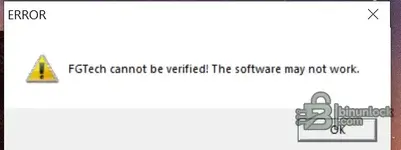
Based on the screenshots provided, the error FGTech cannot be verified! The software may not work typically indicates a mismatch between what the software expects to see on the USB bus and what your interface is actually reporting.

Since you are using the 0475 pre-patched version, the software is looking for a specific FTDI sеriаl Number and Description string. If your unit has lost its configuration (common with clones) or has the wrong EPT file flashed, the software will reject it.

Here is the procedure to fix this using the Repair Pack linked in your post.

Step 1: Verify Drivers
Before attempting to fix the EEPROM, ensure your computer actually sees the device.
  • Plug the Galletto tool into USB.
  • Open Device Manager.
  • You should see USB sеriаl Converter or FGTech under USB controllers.
  • If you see an exclamation mark or "Unknown Device", you must install the drivers included in the pack (usually in a folder named FTReadWrite_v3 or similar, look for CDM or FTD2XX drivers).

Step 2: Reprogram FTDI (The "EPT" Fix)
The error is almost certainly because the FTDI chip data is incorrect. You need to re-flash the EPT file.

1. Locate the folder V54 0475 HEX FIX EPT inside the downloaded pack.
2. Find the tool MProg (or FT_Prog if included, but MProg is standard for older units).
3. Run MProg.exe.
4. Go to Tools -> Read and Parse. You should see your device details populate.
5. Go to File -> Open and select the file named V54.ept (or 0475_V54_EEPROM.ept).
6. Click the Program button (lightning bolt icon) or Device -> Program.
7. Once finished, unplug the USB cable and plug it back in.

Step 3: Check Firmware (If Step 2 Fails)
If the FTDI fix does not clear the error, your hardware MCU (LPC2119) might be flashed with older firmware (like 0386) while you are trying to run 0475 software.

  • The pack contains a folder HEX LPC2119 0475.
  • You would need to open the unit and use the Philips Flash Utility (via sеriаl connection) to write the FGTECH 0475...hex firmware to the LPC2119 chip.
  • Refer to the image HOW TO CONNECT BOARD.jpg in your pack for the boot mode pinout.

Notes on the "Windows Vista" Message
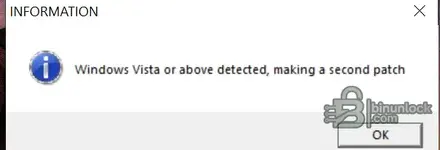
The first error image (Windows Vista or above detected...) is normal for this specific раtсh. It is just the loader modifying memory to run on modern Windows. You can ignore it; simply click OK. The blocker is the second error.

Let us know if MProg detects your device successfully.
 
ok what after this?

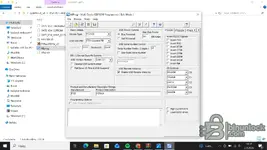
Based on the screenshot, you have MProg open with the correct settings loaded (PID DAAD, Description FGTech, sеriаl 47414554). Now you need to write this configuration to the interface.

Here is the exact procedure to finish the repair:

1. Connect the Galletto to your USB port (if not already connected).
2. In MProg, click the Scan button (the Magnifying Glass icon in the top toolbar).
* Look at the white text box at the bottom of the window. It should say Number of devices: 1.
3. If the device is found, the Program button (the Lightning Bolt icon) will become clickable. Click it.
* The bottom text box should confirm: Programmed sеriаl Number: ...
4. Critical Step: Unplug the USB cable from the computer and plug it back in.
* This forces Windows to reload the device with the new "FGTech" identity.
5. Run the Galletto software again.

Troubleshooting:
  • If "Scan" finds 0 devices: Your drivers are likely missing or incorrect. Go to Device Manager. If you see "FT232R USB UART" or "Unknown Device" with a yellow triangle, you need to manually update the driver using the files in the FTReadWrite_v3 or CDM... folder included in your pack.
  • If the Lightning Bolt is greyed out: Make sure you clicked "Scan" first. If it's still grey, the tool might not be detecting a writable EEPROM (rare, usually driver related).
 
now i didnt get error but its not opening:D

If the error is gone but the software simply doesn't appear or closes immediately, it usually means the software can "see" the USB device but cannot communicate with the hardware correctly, or Windows has not finished installing the driver for the new ID.

Here is the checklist to get it running:

1. Check Device Manager (Most Likely)
Since you just reprogrammed the FTDI chip, the device now identifies itself differently to Windows (as "FGTech" instead of a generic "USB sеriаl Port").

1. Open Device Manager.
2. Look for USB Controllers (at the bottom).
3. You should see FGTech listed there without any yellow exclamation marks.
4. If you see "FGTech" with a yellow mark or under "Other Devices":
* Right-click it -> Update Driver.
* Choose "Browse my computer".
* Point it to the folder in your pack (usually FTReadWrite_v3 or CDM...).
* Important: You might need to do this twice (once for the USB Loader, once for the sеriаl Port).

2. Antivirus / Windows Defender
The file V54 for 0475 Cooked.exe is a modified executable. Windows Defender often silently blocks it.
  • Check your Windows Security -> Protection History.
  • If you see a threat blocked recently, restore it and add an exclusion for the Galletto folder.

3. Firmware Mismatch (The "Silent Crash" Cause)
This is common if you are updating an older v53/0386 unit.
  • You fixed the USB Chip (FTDI) to look like a v54/0475 unit.
  • However, the Main Processor (LPC2119) inside the unit might still have the old firmware.
  • When the software launches, it queries the MCU. If the MCU replies with "I am v53", the v54 software just closes silently.

To fix this:
You need to flash the LPC2119 MCU using the Philips Flash Utility included in your pack.
1. Check the image HOW TO CONNECT BOARD.jpg in your pack. You need to solder/bridge the Boot Mode pins on the PCB.
2. Connect the device via USB.
3. Run Philips Flash Utility.
4. Flash the file FGTECH 0475...hex (found in HEX LPC2119 0475 folder).
5. Remove the boot jumper and try again.

Start with Step 1 (Drivers). If the drivers are perfect and it still won't open, you almost certainly need to do Step 3 (Flash MCU).
 
when i open software then in fgtech device sounds like clicking 2times but then nothing

That clicking sound is actually good news. It means your USB drivers and the FTDI chip (which you just fixed with MProg) are working perfectly. The software is talking to the box, and the box is waking up (relays clicking).

The Problem:
The software closes immediately because it detects a Firmware Mismatch.
You are running the 0475 software on your PC, but the main processor (LPC2119) inside your Galletto unit is likely still running older firmware (like v53 or 0386). The software queries the box, sees the wrong version, and shuts down for safety.

The Fix:
You must flash the MCU (LPC2119) with the 0475 firmware included in your pack. This requires opening the unit.

Here is the procedure:

1. Open the Galletto Case: Remove the 4 screws and slide the board out.
2. Enable Boot Mode:
* Look at the image HOW TO CONNECT BOARD 1.jpg or HOW TO CONNECT BOARD 2.jpg in your downloaded pack.
* You need to bridge (connect) two specific points on the board or ground a specific pin on the chip. This puts the chip into "programming mode".
* *Note: On many boards, there are two holes labeled "BOOT" or similar near the big black chip. You can use a piece of wire or tweezers to hold them connected while plugging in the USB.*
3. Connect to PC:
* With the Boot points bridged, plug the USB cable in.
* (You can stop holding the bridge once it's plugged in).
4. Run Philips Flash Utility:
* Install/Run the Philips Flash Utility from your pack.
* Select the correct COM port (check Device Manager under "Ports (COM & LPT)" for "USB sеriаl Port").
* Click "Read Device ID".
* *If it works, it will show "LPC2119 detected". If it fails, check your boot bridge and try again.*
5. Flash the Firmware:
* Go to the HEX LPC2119 0475 folder in your pack.
* Select the file: FGTECH 0475 NO USE DTR RTS.hex (or similar).
* Click "Upload to Flash" (or "Program").
* Wait for it to finish.
6. Final Step:
* Unplug USB.
* Remove the bridge/wire (Critical! If you leave it, the unit won't start).
* Plug USB back in.

Now when you run the software, it should click the relays and then stay open.
 
i cant see device in ports (com&lpt)

This is the most common issue when switching between "Running the Tool" and "Flashing the Chip".

The Explanation:
The Galletto software uses a specific mode called D2XX (Direct USB), which does not create a COM port.
The Philips Flash Utility (for fixing the MCU) requires a VCP (Virtual COM Port) mode.

You need to force Windows to create a COM port for your device temporarily.

How to Enable the COM Port:

1. Open Device Manager.
2. Expand Universal sеriаl Bus controllers (at the bottom).
3. Right-click on USB sеriаl Converter (or it might be named FGTech / Galletto).
4. Select Properties.
5. Go to the Advanced tab.
6. Check the box Load VCP (Virtual COM Port).
7. Click OK.
8. Unplug the USB cable and plug it back in.

Now look at Ports (COM & LPT) in Device Manager. You should see a new entry like USB sеriаl Port (COMx).

Next Steps:
1. Note the COM port number (e.g., COM3).
2. Open Philips Flash Utility.
3. Select that COM port.
4. Proceed with the flashing steps (Bridge Boot pins -> Connect USB -> Read Device ID -> Upload Hex).

Important:
After you finish flashing the MCU and want to use the Galletto software again, it is recommended to go back and uncheck "Load VCP" to ensure maximum stability for the main software.
 
now it is in other device not in ports

This is normal. When you enable VCP (Virtual COM Port), Windows sees a "new" device (the COM port itself) and needs to install the driver for it separately.

You just need to point Windows to the driver folder again.

Here is the fix:

  1. Right-click the device under Other devices (it might be named "USB sеriаl Port" or "FGTech" with a yellow icon).
  2. Select Update driver.
  3. Choose Browse my computer for drivers.
  4. Click Browse and select the folder inside your downloaded pack named FTReadWrite_v3 (or look for a folder starting with CDM...).
  5. Click Next.

Windows should install the driver successfully. Once it finishes, the device will disappear from "Other devices" and appear under Ports (COM & LPT) as USB sеriаl Port (COMx).

Now you can open the Philips Flash Utility, select that COM port, and proceed with flashing the MCU.
 
"windows cant find the drivers" it says that only

This is happening because the device now has a custom Product ID (PID: DAAD) due to the MProg fix, but the standard driver files are looking for the original ID. Windows "search" refuses to match them automatically.

You must force the installation manually. Do not use "Search".

Follow these exact steps to force the driver:

1. Right-click the device in "Other Devices" (the one with the yellow icon).
2. Select Update driver.
3. Select Browse my computer for drivers.
4. CLICK THIS OPTION: Let me pick from a list of available drivers on my computer.
5. If asked for device type, scroll down and select Ports (COM & LPT), then click Next.
6. Click the Have Disk... button.
7. Click Browse and navigate into your downloaded folder: .../V54 0475 HEX FIX EPT/FTReadWrite_v3/.
* *Note: If there is a folder inside named CDM... or Drivers, go inside that.*
* Select the file named ftdibus.inf or ftdiport.inf and click Open, then OK.
8. You should now see a list of models. Select USB sеriаl Port.
9. Click Next.
10. Warning Message: Windows will show a scary red warning saying "Update Driver Warning" or "Windows cannot verify compatibility".
* CLICK YES. (We know it is compatible; it is just the ID that is different).

Once this finishes, the device will move to Ports (COM & LPT) as USB sеriаl Port (COMx).

Now you can open Philips Flash Utility and select that COM port to flash the MCU.
 
flash utility says cannot communicate with test board

This error means the software is shouting at the chip, but the chip is not listening. The LPC2119 MCU is still trying to run the main program instead of entering "Programming Mode" (ISP Mode).

You need to get the timing exactly right.

1. The "Boot Mode" Sequence (Must be exact)
You cannot just bridge the pins while it is plugged in. You must do it in this order:

1. Unplug the USB cable completely.
2. Bridge the Boot pins (look at HOW TO CONNECT BOARD.jpg in your pack).
* *Tip: Use a bent paperclip or tweezers. You must connect the specific hole/pad to Ground (the metal shell of the USB port is a good ground).*
3. KEEP HOLDING THE BRIDGE. Do not let go yet.
4. Plug in the USB cable to the computer.
5. Wait 3 seconds.
6. Release the bridge.

Now the chip is stuck in "Boot Mode" and waiting for commands.

2. Check Utility Settings
Open Philips Flash Utility again:
  • COM Port: Select the one you just installed (e.g., COM3).
  • Baud Rate: Set to 9600 or 38400 (Lower is more stable).
  • XTAL Frequency: Set to 12000 (kHz). *This is critical. If 12000 fails, try 16000.*

3. Try "Read Device ID"
Click the "Read Device ID" button.
  • If it returns a long ID string (e.g., LPC2119...), you are connected!
  • Now you can go to "File" -> "Open" -> Select the .hex file -> "Upload to Flash".

If it still fails:
  • Your bridge might not be making good contact. The "Boot" pin on the chip is Pin 57 (P0.14). If the board pads are corroded, you can carefully touch a wire from Pin 57 directly to Ground (Pin 1 or USB shell) while plugging it in.
 
where i cnnect tx and rx i dont have that usb thing where that guy put it in photo

You do not need the external "USB thing" (USB-TTL Adapter) shown in that photo. That is an alternative method for people whose USB port is broken.

Since you successfully used MProg earlier, your internal USB chip is working perfectly. You can do everything through the standard Galletto USB cable.

Here is the corrected procedure for you:

1. Ignore the TX and RX wires in the photo. Your Galletto's USB cable handles those signals internally.
2. Focus ONLY on the "Boot" connection.
* Look at the photo again. Find the spot where they connect a wire to Ground (or bridge two points).
* This is usually pin 57 of the big black chip (LPC2119), or a pair of small pads nearby.
* You need to connect this point to Ground (the metal shell of the USB connector is a perfect Ground).

The Steps:
1. Unplug the Galletto from the computer.
2. Bridge the Boot point to Ground (use a wire or tweezers). HOLD IT.
3. Plug in the Galletto USB cable to your computer.
4. Wait 3 seconds.
5. Release the bridge/wire.
6. Open Philips Flash Utility.
7. Select the COM Port you set up earlier (e.g., COM3).
8. Select Baud Rate 9600 (slow is safe).
9. Click "Read Device ID".

If it works, it will say "LPC21xx detected". Then you can upload the file.

*Note: If "Read Device ID" still fails, try selecting "XTAL Frequency" as 12000 or 16000 in the utility.*
 
Back