FGTECH Galletto (0475 pre-patched) + v53/v54 HEX & EPT Repair Pack

FGTECH Galletto Pre-patched - Wiring Diagrams Manual 0475

Sign in to download for free
FGTECH Galletto (0475 pre-patched) + v53/v54 HEX & EPT Repair Pack
FGTECH Galletto Pre-patched - Wiring Diagrams Manual 0475
Sign in to download for free
cant communicate and i do that many times but cant read device id

This is a very common frustration with these units. If you are sure your "Boot Mode" bridge is good (holding it while plugging in), then the problem is usually a Windows Driver Setting called "Latency Timer".

The default setting is too slow for the flashing tool to catch the chip.

Please do this EXACT fix:

1. Open Device Manager.
2. Go to Ports (COM & LPT) -> Right-click your USB sеriаl Port (COMx) -> Properties.
3. Go to the Port Settings tab -> Click Advanced.
4. Look for Latency Timer (msec).
* It is currently set to 16.
* Change it to 1 or 2.
5. Click OK, then OK again.
6. Unplug the USB and plug it back in (repeat the Boot Mode bridge procedure while plugging in).

Now try Philips Flash Utility again:
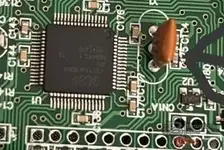
  • XTAL Frequency: Look at the silver oval metal component on your board (the crystal). Does it say 12.000 or 16.000? Set the software to match that number exactly (usually 12000).
  • Baud Rate: Try 9600.

One final check:
When you click "Read Device ID", do the LEDs on the Galletto board blink rapidly for a second?
  • If YES (LEDs blink): The computer is sending data, but the chip isn't answering (Wrong Boot Mode or Wrong XTAL).
  • If NO (No LEDs): The computer isn't sending anything (Wrong COM port selected).
 
red light flashing

Red light flashing is good!
It means your computer is sending the signal correctly (TX is working). The problem is the chip (LPC2119) is not answering back.

This happens for only two reasons:

1. Wrong Crystal Frequency (Most Likely)
The software is speaking at the wrong speed.
  • Look at your circuit board.
  • Find the silver oval metal component (the Crystal) near the black chip.
  • Read the number written on it.
* Does it say 12.000? -> Set Philips Utility XTAL to 12000.
* Does it say 16.000? -> Set Philips Utility XTAL to 16000.
  • If you can't read it, try 12000 first. If that fails, try 16000.

2. Not in Boot Mode
The chip ignored your bridge and started normally.
  • Make sure you are connecting the Boot Pin to a Solid Ground.
  • The metal shell of the USB port is the best ground.
  • Try this trick:
1. Bridge the Boot pin to Ground.
2. Plug in USB.
3. Keep holding the bridge.
4. Click "Read Device ID" in the software.
5. *Only release the bridge after it (hopefully) connects.*

Summary Checklist:
1. Device Manager Latency Timer = 1 msec.
2. Philips Utility Baud Rate = 9600.
3. Philips Utility XTAL = Matches your board (12000 or 16000).
4. Bridge is held TIGHT while plugging in.

Try changing the XTAL setting first. That is usually the culprit when you see red lights but get no connection.
 
aint work

Don't give up, you are 95% there.
The Red Light flashing is the proof. It means your USB drivers, the MProg fix, and the cable are all working perfectly. The computer is shouting "Hello?", but the chip (LPC2119) is sleeping and not answering.

This confirms the problem is only the Boot Mode connection. The chip is not entering "Programming Mode".

Since the standard bridge points aren't working for you, we need to be precise.

Please post a clear picture of your green circuit board (front and back).
I will edit the picture and draw a red line showing exactly which two points to touch.

While you take the photo, try the "Nuclear Option" (Direct Pin Method):
If the pads on the board are not working, go directly to the chip legs.

1. Look at the big black square chip (LPC2119).
2. Find Pin 57.
* *How to count:* Look for the small round dot on the corner of the chip. That is Pin 1. Count counter-clockwise.
* Pin 57 is on the 4th side. It is usually the 8th pin from the corner on that last side.
3. You need to connect this Pin 57 to Ground (the silver metal USB shell).
4. Hold this connection -> Plug in USB -> Wait 3 seconds -> Release.

If you can't count the pins, wait and post the photo. It is safer than shorting the wrong legs.
 
i cant count
 

Attachments

  • WhatsApp Image 2026-03-03 at 00.46.02.webp
    WhatsApp Image 2026-03-03 at 00.46.02.webp
    464.6 KB · Views: 1
  • WhatsApp Image 2026-03-03 at 00.46.01.webp
    WhatsApp Image 2026-03-03 at 00.46.01.webp
    363 KB · Views: 1
i cant count

Thanks for the photos. They are very clear.

Step 1: The "Software" Fix (Try this first!)
You said the red lights are flashing. This means the connection is 90% working, but the speed is wrong.
Look at your first photo. The silver oval component next to the black chip is the Crystal.
I cannot read the text on it in the photo, but it defines the speed.

1. Open Philips Flash Utility.
2. Look at the XTAL Frequency (kHz) box.
3. Change it to 12000.
4. Try to "Read Device ID" again (remember to do the bridge trick while plugging in).
5. If that fails, change it to 16000 and try again.

*Most of these boards use 12.000, but the software often defaults to something else. This causes the exact "Red Light but no connection" error you are seeing.*

***

Step 2: The "Hardware" Fix (If Step 1 fails)
If changing the frequency didn't work, you are not hitting the Boot Pin correctly.
Since you can't count the pins easily, use the Crystal as your landmark.

1. Look at the big black chip.
2. Look at the side of the chip that faces the USB Cable (the right side in your photo).
3. Find the silver Crystal (oval part).
4. The Boot Pin (Pin 57) is on that same side, just a few pins away from the Crystal.

How to find it:
  • The Crystal connects to two legs on the chip.
  • Count 4 or 5 legs *down* (away from the corner) from where the Crystal connects.
  • That is your target.

The "Sweep" Technique (Easier than counting):
1. Connect a wire to Ground (USB metal shell).
2. Place the other end of the wire gently against the chip legs right next to the Crystal (on the side away from the corner).
3. It is okay if you touch 2 or 3 legs at once in that specific area (Pin 57 is surrounded by safe pins).
4. Hold it there -> Plug in USB -> Wait 3 seconds -> Release.
5. Click "Read Device ID".

*Warning: Do not touch the legs at the very corner of the chip (Pin 64), as that is 3.3V power.*
 
Is this right?
 

Attachments

  • 70e487a3-2f0b-4310-9ea6-fb07176085bf.webp
    70e487a3-2f0b-4310-9ea6-fb07176085bf.webp
    352.5 KB · Views: 1
Is this right?

Yes, you have identified the components correctly!

1. Crystal: Yes, the orange component labeled Y1 (or similar) is the Crystal.
* Action: Look closely at the text printed on it. It likely says 12.00 or 16.00.
* Software: Set the "XTAL Frequency" in Philips Flash Utility to match this number exactly (e.g., 12000 or 16000).

2. Ground: The hole you pointed to might be ground, but it is risky to guess.
* Better Option: Use the silver metal shell of the USB connector (the big square metal part on the right). That is 100% solid Ground and much easier to hold a wire against.

How to Connect (The "Boot" Pin)

You have found the Crystal and Ground. Now you need to bridge Ground to the Boot Pin on the black chip.

The Boot Pin is on the side of the chip facing that orange Crystal.

1. Look at the corner of the black chip nearest to the orange Crystal.
2. Count the metal legs starting from that corner.
3. The Boot Pin is the 8th leg from the corner.
* *Note: It is roughly 4 legs to the left of where the Crystal connects to the chip.*

The Procedure:
1. Connect a wire to the USB metal shell (Ground).
2. Touch the other end of the wire to that 8th leg (Pin 57).
3. HOLD IT THERE.
4. Plug in the USB cable.
5. Wait 3 seconds.
6. Release the wire.
7. Click "Read Device ID" in the software.

*Safety Tip: Do not touch the very corner leg (Pin 64) to ground, as that is power. Aim for the middle of that side, slightly closer to the crystal.*
 
not workinggg

It is frustrating, but do not worry. The "Red Light Flashing" proves your cable and drivers are fine. The only problem is the Timing or the Crystal Speed.

Here is exactly why it is not working and how to fix it.

1. The Crystal Frequency (CRITICAL)
You circled the orange component (Crystal) correctly.
You MUST read the numbers written on it.
  • If it says 12.000 -> Set Philips Utility to 12000.
  • If it says 16.000 -> Set Philips Utility to 16000.
  • If you cannot read it, try 12000 first. If that fails, you MUST change it to 16000 and try again.

If this number in the software does not match the board, the chip will never answer, even if you bridge the pins perfectly.

2. The Ground Connection
Do not use the hole you circled. It might not be a solid ground.
Use the Silver Metal Shell of the USB connector (the big square metal part on the right). That is the best Ground.
Connect your wire to that metal shell.

3. The Exact Pin (How to count)
You are looking at the correct side of the chip (the side facing the orange Crystal).
Here is how to find Pin 57 without guessing:

1. Look at the TOP Corner of that side (the corner furthest away from you in the photo, near the relays).
2. Count 8 legs DOWN from that top corner.
* *Pin 64 is the corner.*
* *Pin 57 is the 8th leg.*
3. DANGER: Do not touch the legs further down (near the bottom of that side). Pin 51 (the 14th leg) is 3.3V Power. If you touch that to ground, you will damage the board. Stay in the top half of that side.

The Procedure (Try this exactly)
1. Close the Philips software.
2. Unplug the USB.
3. Connect one end of your wire to the USB Metal Shell (Ground).
4. Touch the other end to the 8th Leg (Pin 57).
5. HOLD IT THERE.
6. Plug in the USB cable.
7. Count to 5 seconds. (Do not rush).
8. Release the wire from the leg.
9. Open Philips Flash Utility.
10. Set COM Port (e.g., COM3).
11. Set Baud Rate to 9600.
12. Set XTAL Frequency to 12000 (or 16000 if you checked).
13. Click Read Device ID.

If it still fails, change XTAL to 16000 and repeat the whole process (Unplug -> Bridge -> Plug in -> Release -> Read).
 
what that 8th leg is

That 8th leg is Pin 57 (P0.14).

What it does:
It is the "Emergency Switch" for the chip.
Normally, when you plug in the USB, the chip immediately starts running the Galletto software.
By connecting this leg to Ground, you force the chip to STOP running and LISTEN for new software from your computer.

How to find it exactly (The "Crystal Method"):
Since counting from the corner is hard, use the orange Crystal you found as your map.

1. Look at the orange Crystal.
2. Follow the metal tracks from the Crystal to the black chip. They connect to Legs 61 and 62.
3. Your target (Pin 57) is just 4 legs away from those Crystal legs.

Visual Map:
(Side of chip facing the Crystal)
[Corner Leg] (Don't touch - Power)
[Leg]
[Leg] (Crystal connects here)
[Leg] (Crystal connects here)
[Leg]
[Leg]
[Leg]
[Leg] <--- THIS IS THE ONE (Pin 57)

Summary:
Find where the Crystal connects to the chip. Count 4 legs down (away from the corner). That is the leg you need to ground.
 
can u send photo

I cannot upload a new image directly, but I can draw it for you here.

Look at your board. Orient it so the Yellow Relays are on the Right.

Focus on the Right Side of the big black chip (the side facing the Orange Crystal).

Here is the map of that side, counting from the Top Corner (near the top edge of the board) down towards the USB connector:

Code:
   [TOP CORNER OF CHIP]
      |
      v
Pin 64: ||  <-- CORNER PIN (Do NOT touch - 3.3V Power!)
Pin 63: ||
Pin 62: ||  <-- Connected to Crystal
Pin 61: ||  <-- Connected to Crystal
Pin 60: ||
Pin 59: ||
Pin 58: ||
Pin 57: ||  <-- *** THIS IS THE BOOT PIN *** (Target)
Pin 56: ||
      .
      .
   [BOTTOM OF CHIP]

Simple Instructions:
1. Find the Top Right Corner of the black chip.
2. Count 8 pins down.
3. That 8th pin is your target.

Alternative Method (Using the Crystal):
1. Look at the two pins connected to the Orange Crystal.
2. Count 4 pins down from the bottom crystal pin.
3. That is your target.

The Connection:
1. Hold a wire on the USB Metal Shell (Ground).
2. Touch the other end to that 8th Pin.
3. Plug in USB -> Wait 3 seconds -> Release.

*Note: If you accidentally touch Pin 56 or 58, it is usually fine. Just avoid the very top corner (Pin 64).*
 
that is impossible to count
 

Attachments

  • 70e487a3-2f0b-4310-9ea6-fb07176085bf.webp
    70e487a3-2f0b-4310-9ea6-fb07176085bf.webp
    21.7 KB · Views: 0
that is impossible to count

I understand, those pins are tiny. Let's make this easier. You don't need to count from the corner.

Use the Orange Crystal as your marker. It is much bigger and easier to see.

The "4-Pin" Method (No counting from corner)

Look at your zoomed-in photo:
1. Find the Bottom Leg of the Orange Crystal (the leg furthest from the corner).
2. Look at the black chip legs right next to it.
3. Start counting from the first leg BELOW the Crystal's leg.
4. Count down 4 legs.
* Leg 1 (Safe)
* Leg 2 (Safe)
* Leg 3 (Safe)
* Leg 4 <--- TARGET (Pin 57)

The "Sweep" Method (If you can't see single legs)

If you still can't see the individual legs, use the "Safety Zone" method.

1. Danger Zone: The top corner of the chip (Pin 64) is Power (3.3V). Stay away from the corner.
2. Safety Zone: The area BELOW the Crystal is safe. The pins here are just signals.
3. The Trick:
* Take your ground wire (connected to the USB metal shell).
* Touch it to the chip legs roughly 2-3 millimeters below the Crystal.
* It is OKAY if your wire touches 2 or 3 legs at the same time in this area!
* As long as you are hitting that "4th leg down" area, it will work. Grounding the neighbors (Pin 56 or 58) momentarily won't hurt anything.

CRITICAL REMINDER: The Software Setting

Before you try the wire again, please confirm you changed the setting in the software.
If this setting is wrong, even a perfect wire connection will fail.

  • Open Philips Flash Utility.
  • Look at "XTAL Frequency".
  • Is it 12000?
  • If not, type 12000 in that box.

Try this order:
1. Set XTAL to 12000.
2. Hold wire on the "Safety Zone" (4 legs below crystal).
3. Plug in USB.
4. Wait 3 seconds -> Release wire.
5. Click "Read Device ID".

If it fails, change XTAL to 16000 and repeat.
 
Back