ISTA+ STANDALONE (Activated) - Free Download for BMW / MINI Diagnostics

ISTA+ STANDALONE (Activated) - Free Download for BMW / MINI Diagnostics 4.57.30

Sign in to download for free
  • Thread starter Thread starter Bin
  • Start date Start date
  • Tagged users Tagged users None
ISTA+ STANDALONE (Activated) - Free Download for BMW / MINI Diagnostics
ISTA+ STANDALONE (Activated) - Free Download for BMW / MINI Diagnostics 4.57.30
Sign in to download for free
  • Thread starter Thread starter Bin
  • Start date Start date
  • Tagged users Tagged users None
Did not work. this version does not work with Passthrue.

You are correct. Starting with version 4.40+, BMW significantly changed the internal interface handling, and the native "Passthru" selection in the VCI Config menu was removed or disabled in many standalone builds.

For J2534 / Passthru users, v4.39.20 is currently the best version to use. It is the last version that natively supports Passthru without complex workarounds, registry hacks, or instability.

If you absolutely must use a newer version (e.g., for a 2024 G-Series car) with a J2534 cable, you cannot use the internal "Passthru" menu. You have to rely entirely on Ediabas mode:

  • In ISTA, select Ediabas Default Settings (if the menu is not locked).
  • Configure
    Code:
    C:\Ediabas\Bin\EDIABAS.INI
    to use
    Code:
    Interface = STD:PASSTHRU
    .

However, since you mentioned the menu is locked to ICOM/TRIC in this release, sticking to 4.39.20 is definitely the correct solution. It covers vehicles up to early 2023, which is sufficient for almost everyone.
 
Thanks for confirming. This is exactly why using the tоrrеnt link is generally safer than direct downloads (MEGA/Google Drive) for these massive installations.

Direct downloads can sometimes drop files or corrupt the archive structure without giving an error. The tоrrеnt client, however, verifies the hash of every file chunk.

For anyone else who downloaded the archive via browser and is missing BMW.rar or getting extraction errors:

1. Download the tоrrеnt file.
2. Open it in your tоrrеnt client (qBittorrent, Transmission, etc.).
3. Point the download location to the exact same folder where your partial/corrupt download is.
4. Right-click the tоrrеnt in the list and select Force Re-check (or "Verify Local Data").

The client will scan your existing files and download *only* the missing BMW.rar or corrupted parts, saving you from re-downloading the whole 100GB+.
I sure wish I still understood all of this as good as I used to. I've lost my touch and now have to wait til I can download the link again. lol
 
I sure wish I still understood all of this as good as I used to. I've lost my touch and now have to ...

Don't worry, it happens to the best of us. The installation process for these newer standalone versions has become much more complex compared to the old Standard Tools days.

If you are stuck waiting on a MEGA download limit, you can sometimes bураss it by restarting your router (to get a new IP address) or using a VPN. Using a download manager like JDownloader 2 also helps—it will automatically resume the download once the wait timer expires so you don't have to sit there watching it.
 
Don't worry, it happens to the best of us. The installation process for these newer standalone versions has become much more complex compared to the old Standard Tools days.

If you are stuck waiting on a MEGA download limit, you can sometimes bураss it by restarting your router (to get a new IP address) or using a VPN. Using a download manager like JDownloader 2 also helps—it will automatically resume the download once the wait timer expires so you don't have to sit there watching it.
I went ahead and dowloaded qbt. I want to make sure I get the BMW.rar file
 
I went ahead and dowloaded qbt. I want to make sure I get the BMW.rar file

Good move. qBittorrent is much more reliable for these large packs.

Once you load the mаgnеt link or tоrrеnt file into qBittorrent, you can verify the contents before the download even finishes:

  • Select the tоrrеnt in the list.
  • Click the Content (or Files) button at the bottom of the window.
  • Scroll down and you should see BMW.rar listed there.

If you point the download to the same folder where you had your previous partial download, just right-click the tоrrеnt and select Force Recheck. It will scan what you have and only download that missing rar file, saving you hours.
 
Good move. qBittorrent is much more reliable for these large packs.

Once you load the mаgnеt link or tоrrеnt file into qBittorrent, you can verify the contents before the download even finishes:

  • Select the tоrrеnt in the list.
  • Click the Content (or Files) button at the bottom of the window.
  • Scroll down and you should see BMW.rar listed there.

If you point the download to the same folder where you had your previous partial download, just right-click the tоrrеnt and select Force Recheck. It will scan what you have and only download that missing rar file, saving you hours.
That's the part that's confusing for me. before I use to be able to just hit download and the tоrrеnt automatically downloaded through bittorrent. Im not sure how to work it now
 
That's the part that's confusing for me. before I use to be able to just hit download and the torren...

It can be a bit different depending on your browser settings, but here is the easiest way to get it going in qBittorrent:

Option 1: The mаgnеt Link (Easiest)
  1. Go to the post with the download link.
  2. Look for the link that says "mаgnеt" or has a small mаgnеt icon.
  3. Click it. Your browser (Chrome, Edge, Firefox) should pop up a small window asking permission to open qBittorrent.
  4. Click "Open qBittorrent".
  5. The program will open and show a window listing all the files (including that missing BMW.rar). Just click OK at the bottom to start.

Option 2: The .tоrrеnt File
If clicking the link just downloads a small file to your computer (ending in .tоrrеnt):
  1. Open qBittorrent first.
  2. Drag and drop that small downloaded file directly into the qBittorrent window.
  3. The download window will pop up—just check the destination folder and click OK.

Once it's in the list, you'll see the status change to "Downloading" or "Metadata". Since you already have some files, remember to point it to the exact same folder so it can fix the missing parts instead of downloading everything from scratch!
 
It can be a bit different depending on your browser settings, but here is the easiest way to get it going in qBittorrent:

Option 1: The mаgnеt Link (Easiest)
  1. Go to the post with the download link.
  2. Look for the link that says "mаgnеt" or has a small mаgnеt icon.
  3. Click it. Your browser (Chrome, Edge, Firefox) should pop up a small window asking permission to open qBittorrent.
  4. Click "Open qBittorrent".
  5. The program will open and show a window listing all the files (including that missing BMW.rar). Just click OK at the bottom to start.

Option 2: The .tоrrеnt File
If clicking the link just downloads a small file to your computer (ending in .tоrrеnt):
  1. Open qBittorrent first.
  2. Drag and drop that small downloaded file directly into the qBittorrent window.
  3. The download window will pop up—just check the destination folder and click OK.

Once it's in the list, you'll see the status change to "Downloading" or "Metadata". Since you already have some files, remember to point it to the exact same folder so it can fix the missing parts instead of downloading everything from scratch!
ah ok. I was trying to avoid the folder from going to the browser because of one of your previous comments about losing the bmw.rar file when it downloads in the browser. I guess I misunderstood
 
ah ok. I was trying to avoid the folder from going to the browser because of one of your previous co...

No worries, that is a very common point of confusion! Let me clarify the difference so you feel comfortable proceeding.

The "browser download" issue I warned about refers to downloading the actual 100GB installation files directly through Chrome, Edge, or Firefox (for example, downloading a huge .zip file from MEGA or Google Drive). That is where browsers often fail, time out, or corrupt files because they aren't built for files that massive.

However, using your browser to grab the .tоrrеnt file or click the mаgnеt link is perfectly safe and necessary.

  • The .tоrrеnt file is tiny (only a few kilobytes).
  • Your browser downloads that tiny file instantly.
  • When you open that tiny file, it hands the job over to qBittorrent.

Once qBittorrent takes over, it handles the heavy lifting of the 100GB download. It verifies every piece of data, so you are guaranteed to get BMW.rar and every other file correctly.

So, go ahead and click the mаgnеt link or download the .tоrrеnt file in your browser—that is the correct first step!
 
No worries, that is a very common point of confusion! Let me clarify the difference so you feel comfortable proceeding.

The "browser download" issue I warned about refers to downloading the actual 100GB installation files directly through Chrome, Edge, or Firefox (for example, downloading a huge .zip file from MEGA or Google Drive). That is where browsers often fail, time out, or corrupt files because they aren't built for files that massive.

However, using your browser to grab the .tоrrеnt file or click the mаgnеt link is perfectly safe and necessary.

  • The .tоrrеnt file is tiny (only a few kilobytes).
  • Your browser downloads that tiny file instantly.
  • When you open that tiny file, it hands the job over to qBittorrent.

Once qBittorrent takes over, it handles the heavy lifting of the 100GB download. It verifies every piece of data, so you are guaranteed to get BMW.rar and every other file correctly.

So, go ahead and click the mаgnеt link or download the .tоrrеnt file in your browser—that is the correct first step!
understood
 
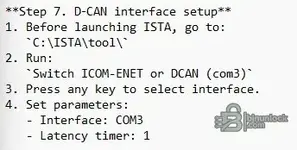
How do I set parameters?
 

Attachments

  • parameters.webp
    parameters.webp
    10.3 KB · Views: 1
How do I set parameters?

If you are looking at the window that just popped up in qBittorrent, you don't need to change much. Here are the only "parameters" that matter right now:

  • Save at / Destination: Click the folder icon on the right. Choose a drive that has plenty of space (at least 150GB free) and select the folder where you want the files to go.
  • tоrrеnt Content: Look at the list of files in that window. Make sure there is a checkmark next to BMW.rar (and the other files).

Once you have picked the folder, just click OK at the bottom. You don't need to touch the advanced network or speed settings.

(If you were asking about COM Port / Latency parameters for your K+DCAN cable, we do that later in Windows Device Manager after the software is installed. Let's get the download finished first!)
 
If you are looking at the window that just popped up in qBittorrent, you don't need to change much. Here are the only "parameters" that matter right now:

  • Save at / Destination: Click the folder icon on the right. Choose a drive that has plenty of space (at least 150GB free) and select the folder where you want the files to go.
  • tоrrеnt Content: Look at the list of files in that window. Make sure there is a checkmark next to BMW.rar (and the other files).

Once you have picked the folder, just click OK at the bottom. You don't need to touch the advanced network or speed settings.

(If you were asking about COM Port / Latency parameters for your K+DCAN cable, we do that later in Windows Device Manager after the software is installed. Let's get the download finished first!)
I already downloaded all files, extracted BMW.rar, etc. I am referring to the comport
 
I already downloaded all files, extracted BMW.rar, etc. I am referring to the comport

Got it. Setting the COM port parameters correctly is critical, especially the latency timer. If this isn't set to 1, the software will ignore the cable or throw communication errors.

Here is the exact procedure:

  1. Plug your K+DCAN cable into the laptop.
  2. Right-click the Windows Start button and select Device Manager.
  3. Expand the section Ports (COM & LPT).
  4. You should see something like "USB sеriаl Port" (usually COM3, COM4, etc.). Right-click it and select Properties.
  5. Go to the Port Settings tab.
  6. Click the Advanced... button.

Inside the Advanced Settings window, change these two specific items:

  • COM Port Number: Change this to COM1. (If it says COM1 is in use, force it anyway unless you have a physical sеriаl port).
  • Latency Timer (msec): Change this from 16 to 1.

Click OK, then OK again to close the windows.

Note: You must also make sure your OBD.ini file (usually located in C:\EDIABAS\BIN\) matches this setting. Open that file with Notepad and ensure the top lines read:
Code:
[OBD]
Port=Com1
Hardware=USB
 
Got it. Setting the COM port parameters correctly is critical, especially the latency timer. If this isn't set to 1, the software will ignore the cable or throw communication errors.

Here is the exact procedure:

  1. Plug your K+DCAN cable into the laptop.
  2. Right-click the Windows Start button and select Device Manager.
  3. Expand the section Ports (COM & LPT).
  4. You should see something like "USB sеriаl Port" (usually COM3, COM4, etc.). Right-click it and select Properties.
  5. Go to the Port Settings tab.
  6. Click the Advanced... button.

Inside the Advanced Settings window, change these two specific items:

  • COM Port Number: Change this to COM1. (If it says COM1 is in use, force it anyway unless you have a physical sеriаl port).
  • Latency Timer (msec): Change this from 16 to 1.

Click OK, then OK again to close the windows.

Note: You must also make sure your OBD.ini file (usually located in C:\EDIABAS\BIN\) matches this setting. Open that file with Notepad and ensure the top lines read:
Code:
[OBD]
Port=Com1
Hardware=USB
I have the Enet cable with the usb/usb c adapter. does this change anything? Would it be best to use the usb or usb c?
 
I have the Enet cable with the usb/usb c adapter. does this change anything? Would it be best to use...

Yes, that changes everything.

If you are using an ENET cable (Ethernet to OBD), you do not use COM ports or Latency timers. Those instructions are strictly for the older K+DCAN (USB) cables.

1. Regarding the Adapter (USB vs USB-C)
It does not matter which one you use. The data transfer rate for diagnostics is well within the limits of both. Use whichever port feels more secure physically on your laptop so the cable doesn't get bumped loose during a session.

2. How to Configure for ENET
Since you are using an Ethernet connection (even via a USB adapter), the car talks to the laptop via a network connection, not a sеriаl port.

  • Do NOT change any COM port settings in Device Manager.
  • Do NOT install FTDI drivers.

Instead, you need to configure the EDIABAS.INI file to look for the network connection:

1. Go to C:\EDIABAS\BIN\
2. Find EDIABAS.INI and open it with Notepad.
3. Look for the line Interface =
4. Change it to:
Code:
Interface = ENET
5. Save and close the file.

3. Connection Steps
When you plug the cable into the car and your laptop:
  • Your network icon in the Windows taskbar will likely spin and then show a yellow triangle saying "Unidentified Network" or "No Internet". This is normal and correct.
  • Wait about 60 seconds after plugging it in for the laptop to assign itself an IP address automatically.
  • Open ISTA and it should detect the car automatically.
 
Back