ISTA+ STANDALONE (Activated) - Free Download for BMW / MINI Diagnostics

ISTA+ STANDALONE (Activated) - Free Download for BMW / MINI Diagnostics 4.57.30

Sign in to download for free
  • Thread starter Thread starter Bin
  • Start date Start date
  • Tagged users Tagged users None
ISTA+ STANDALONE (Activated) - Free Download for BMW / MINI Diagnostics
ISTA+ STANDALONE (Activated) - Free Download for BMW / MINI Diagnostics 4.57.30
Sign in to download for free
  • Thread starter Thread starter Bin
  • Start date Start date
  • Tagged users Tagged users None
Don't throw in the towel yet! ISTA is notorious for being a pain to set up the first time, but once it works, it is rock solid. We have all been exactly where you are right now.

You mentioned in your last post that you "got the second"—did you mean you got a second error message after applying the registry fix?

If you can tell me exactly what that error says (or post a screenshot), we can solve it.

However, if the Registry Fix didn't solve the "Failed to start", the issue is almost certainly missing Microsoft Visual C++ files. This happens to everyone.

Try this specific check right now:

  1. Go to your Windows Control Panel -> Uninstall a Program (or Apps & Features).
  2. Scroll down to the "M" section.
  3. Do you see Microsoft Visual C++ 2015-2019 (or 2015-2022) Redistributable?
  4. You need BOTH the x86 and x64 versions installed.

If you only have x64, ISTA will crash. If you are missing them entirely, ISTA will crash.

Check that list and let us know what the error message is! You are closer than you think.
sorry no. I was letting you know that I got one when loading ista and one for loading the registry... to be clear, was I supposed to add all three lines on the registry or just the last line
 
sorry no. I was letting you know that I got one when loading ista and one for loading the registry.....

If you are creating a .reg file (a text file that you double-click to update the registry), you MUST have all the lines, including the header. If you leave out the top line, Windows won't recognize it as a registry script and will give you an error.

The file content should look exactly like this (assuming your ISTA folder is in C:\ISTA):

Code:
Windows Registry Editor Version 5.00

[HKEY_LOCAL_MACHINE\SOFTWARE\WOW6432Node\BMWGroup\ISPI\ISTA]
"InstallLocation"="C:\\ISTA"

Crucial Check:
The path in the last line ("C:\\ISTA") must match exactly where you put your ISTA folder.
  • If your folder is actually at C:\Users\Name\Desktop\ISTA, you must change that line in the code to match.
  • Note the double backslashes \\ are required in the .reg file format.

***

Alternative (Easier) Method:
If the file method is giving you errors, it is often easier to just do it manually. This prevents syntax errors.

1. Click Start, type regedit, and hit Enter.
2. Navigate through the folders on the left:
HKEY_LOCAL_MACHINE -> SOFTWARE -> WOW6432Node -> BMWGroup -> ISPI -> ISTA
*(If the BMWGroup, ISPI, or ISTA folders don't exist, right-click the parent folder -> New -> Key and name them exactly as shown).*
3. Once you are inside the ISTA folder on the left, look at the right side.
4. Right-click in the blank space on the right -> New -> String Value.
5. Name it: InstallLocation
6. Double-click InstallLocation and set the Value data to your actual folder path (e.g., C:\ISTA).
*(Note: When doing it manually here, use single backslashes like a normal folder path).*

Once that is set, try opening ISTA again.
 
If you are creating a .reg file (a text file that you double-click to update the registry), you MUST have all the lines, including the header. If you leave out the top line, Windows won't recognize it as a registry script and will give you an error.

The file content should look exactly like this (assuming your ISTA folder is in C:\ISTA):

Code:
Windows Registry Editor Version 5.00

[HKEY_LOCAL_MACHINE\SOFTWARE\WOW6432Node\BMWGroup\ISPI\ISTA]
"InstallLocation"="C:\\ISTA"

Crucial Check:
The path in the last line ("C:\\ISTA") must match exactly where you put your ISTA folder.
  • If your folder is actually at C:\Users\Name\Desktop\ISTA, you must change that line in the code to match.
  • Note the double backslashes \\ are required in the .reg file format.

***

Alternative (Easier) Method:
If the file method is giving you errors, it is often easier to just do it manually. This prevents syntax errors.

1. Click Start, type regedit, and hit Enter.
2. Navigate through the folders on the left:
HKEY_LOCAL_MACHINE -> SOFTWARE -> WOW6432Node -> BMWGroup -> ISPI -> ISTA
*(If the BMWGroup, ISPI, or ISTA folders don't exist, right-click the parent folder -> New -> Key and name them exactly as shown).*
3. Once you are inside the ISTA folder on the left, look at the right side.
4. Right-click in the blank space on the right -> New -> String Value.
5. Name it: InstallLocation
6. Double-click InstallLocation and set the Value data to your actual folder path (e.g., C:\ISTA).
*(Note: When doing it manually here, use single backslashes like a normal folder path).*

Once that is set, try opening ISTA again.
Its all there and didn't work
 
Its all there and didn't work

If the registry key is definitely correct (checked manually in Regedit) and it still fails to start, the issue is 99% likely to be missing Microsoft Visual C++ files.

This is the most common mistake: People install the 64-bit (x64) version because they have a 64-bit laptop, but ISTA requires the x86 (32-bit) version to run.

Please do these two steps exactly:

1. Install the x86 C++ Redistributable
Even if you think you have it, please reinstall it to be sure.
  • Go to the "Tools" or "Prereqs" folder in your download.
  • Find vcredist_x86.exe (usually 2015, 2017, or 2019).
  • Right-click and "Run as Administrator".
  • If it asks to Repair, click Repair.
  • If you don't have the file, download "Visual C++ Redistributable 2015-2022 x86" from Microsoft.

2. Unblock the Files
If you extracted the RAR file without "Unblocking" it first, Windows security treats the ISTA files as "foreign" and silently blocks them from running.
  • Go to your ISTA folder.
  • Find ISTAGUI.exe.
  • Right-click it -> Properties.
  • At the bottom of the General tab, look for a checkbox that says Unblock.
  • If you see it, check it and hit Apply. (If you don't see it, it's already unblocked).

After doing the x86 install, restart your laptop, then right-click ISTAGUI.exe and select Run as Administrator.

If it still fails, does it give an error message, or does the spinning circle just appear and then disappear with nothing happening?
 
sorry no. I was letting you know that I got one when loading ista and one for loading the registry... to be clear, was I supposed to add all three lines on the registry or just the last line
 

Attachments

  • Screenshot 2026-02-13 185040.webp
    Screenshot 2026-02-13 185040.webp
    41.9 KB · Views: 0
If the registry key is definitely correct (checked manually in Regedit) and it still fails to start, the issue is 99% likely to be missing Microsoft Visual C++ files.

This is the most common mistake: People install the 64-bit (x64) version because they have a 64-bit laptop, but ISTA requires the x86 (32-bit) version to run.

Please do these two steps exactly:

1. Install the x86 C++ Redistributable
Even if you think you have it, please reinstall it to be sure.
  • Go to the "Tools" or "Prereqs" folder in your download.
  • Find vcredist_x86.exe (usually 2015, 2017, or 2019).
  • Right-click and "Run as Administrator".
  • If it asks to Repair, click Repair.
  • If you don't have the file, download "Visual C++ Redistributable 2015-2022 x86" from Microsoft.

2. Unblock the Files
If you extracted the RAR file without "Unblocking" it first, Windows security treats the ISTA files as "foreign" and silently blocks them from running.
  • Go to your ISTA folder.
  • Find ISTAGUI.exe.
  • Right-click it -> Properties.
  • At the bottom of the General tab, look for a checkbox that says Unblock.
  • If you see it, check it and hit Apply. (If you don't see it, it's already unblocked).

After doing the x86 install, restart your laptop, then right-click ISTAGUI.exe and select Run as Administrator.

If it still fails, does it give an error message, or does the spinning circle just appear and then disappear with nothing happening?
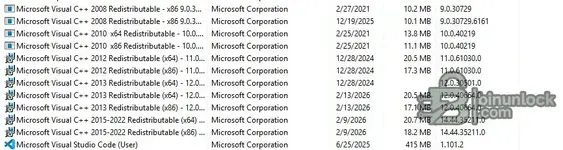
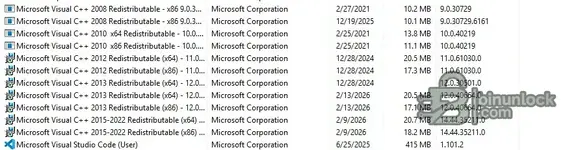
These are the c++ files i have
 

Attachments

  • Screenshot 2026-02-13 185040.webp
    Screenshot 2026-02-13 185040.webp
    41.9 KB · Views: 0
These are the c++ files i have

I cannot see the image or list you intended to attach, but I can tell you exactly what MUST be in that list for ISTA to launch.

Please compare your list against this requirement. You need BOTH x86 and x64 versions for the years listed below.

The Mandatory List:
  • Microsoft Visual C++ 2015-2022 Redistributable (x86) <--- CRITICAL (This is the one usually missing)
  • Microsoft Visual C++ 2015-2022 Redistributable (x64)

*Note: Depending on your specific Windows version, it might show up as "2015-2019" or just "2015", but you must have the x86 version.*

If you have those and it still fails:
There is one other common culprit: .NET Framework.

1. Type "Turn Windows features on or off" in your Start menu.
2. Ensure .NET Framework 3.5 and .NET Framework 4.8 (or 4.7) are checked (filled in).
3. If they are not, check them and let Windows download the files.

If you have verified all of the above and it still crashes, try running the file named ISTAGUI.exe directly from the folder (Right-click -> Run as Admin), rather than using a desktop shortcut, just to rule out a bad shortcut path.
 
I cannot see the image or list you intended to attach, but I can tell you exactly what MUST be in that list for ISTA to launch.

Please compare your list against this requirement. You need BOTH x86 and x64 versions for the years listed below.

The Mandatory List:
  • Microsoft Visual C++ 2015-2022 Redistributable (x86) <--- CRITICAL (This is the one usually missing)
  • Microsoft Visual C++ 2015-2022 Redistributable (x64)

*Note: Depending on your specific Windows version, it might show up as "2015-2019" or just "2015", but you must have the x86 version.*

If you have those and it still fails:
There is one other common culprit: .NET Framework.

1. Type "Turn Windows features on or off" in your Start menu.
2. Ensure .NET Framework 3.5 and .NET Framework 4.8 (or 4.7) are checked (filled in).
3. If they are not, check them and let Windows download the files.

If you have verified all of the above and it still crashes, try running the file named ISTAGUI.exe directly from the folder (Right-click -> Run as Admin), rather than using a desktop shortcut, just to rule out a bad shortcut path.
I have both the Microsoft visuals that is required along with 2008 (two x86) ,2010 (x64 and x86) ,2012 (64 and x86) and 2013 (two x64 and a x86)

As for Netframework 3.5 was not checked but I checked it. Is any of 3.5 subfolders need to be checked? Under Netfamework 4.8, only the WCF the ASP.NET 4.8 folder is not checked.
 
I have both the Microsoft visuals that is required along with 2008 (two x86) ,2010 (x64 and x86) ,20...

Good catch on .NET 3.5. That is very likely the missing piece. Many older BMW tools (and the drivers they rely on) still have dependencies on the 3.5 framework.

To answer your questions:

1. .NET Framework 3.5 Subfolders
You generally do not need to check the subfolders (like "Windows Communication Foundation HTTP Activation"). Just checking the main box next to ".NET Framework 3.5 (includes .NET 2.0 and 3.0)" is sufficient. Windows will download the required files.

2. .NET Framework 4.8
You do not need "ASP.NET 4.8". That is for hosting web applications. The default settings there are fine.

Next Steps

  1. Since you just checked the 3.5 box, Windows needs to download those files. Make sure you let it finish that process.
  2. Restart your computer. This is mandatory after enabling .NET features.
  3. Try running ISTAGUI.exe as Administrator again.

If it still crashes after the restart:
We need to stop guessing and look at the log file. ISTA creates a log every time it tries to start.

1. Go to your ISTA folder.
2. Look for a folder named Logs.
3. Inside, look for a file named ISTAGUI.log (or similar, check the "Date Modified" to find the newest one).
4. Open it with Notepad and scroll to the very bottom.
5. Copy and paste the last 10-20 lines here.

That log will tell us exactly why it is unhappy (e.g., "SQL Error", "Missing File", "Resolution Error").
 
Good catch on .NET 3.5. That is very likely the missing piece. Many older BMW tools (and the drivers they rely on) still have dependencies on the 3.5 framework.

To answer your questions:

1. .NET Framework 3.5 Subfolders
You generally do not need to check the subfolders (like "Windows Communication Foundation HTTP Activation"). Just checking the main box next to ".NET Framework 3.5 (includes .NET 2.0 and 3.0)" is sufficient. Windows will download the required files.

2. .NET Framework 4.8
You do not need "ASP.NET 4.8". That is for hosting web applications. The default settings there are fine.

Next Steps

  1. Since you just checked the 3.5 box, Windows needs to download those files. Make sure you let it finish that process.
  2. Restart your computer. This is mandatory after enabling .NET features.
  3. Try running ISTAGUI.exe as Administrator again.

If it still crashes after the restart:
We need to stop guessing and look at the log file. ISTA creates a log every time it tries to start.

1. Go to your ISTA folder.
2. Look for a folder named Logs.
3. Inside, look for a file named ISTAGUI.log (or similar, check the "Date Modified" to find the newest one).
4. Open it with Notepad and scroll to the very bottom.
5. Copy and paste the last 10-20 lines here.

That log will tell us exactly why it is unhappy (e.g., "SQL Error", "Missing File", "Resolution Error").
Same error. I went to the ista folder and the original extraction file. There is no log folder
 
Same error. I went to the ista folder and the original extraction file. There is no log folder

If there is no Logs folder, that is a very important clue. It means the program is crashing instantly—before it can even write a single line of text.

This almost always means one of two things:
1. The Registry Path is wrong (Windows cannot find the files to start the engine).
2. The files are "Blocked" by Windows Security.

Please check these two things carefully. Do not skip them, as this is almost certainly where the problem lies.

1. The "Folder-in-a-Folder" Trap
This is the #1 cause of "No Logs."

When you extracted the files, did it create a folder inside a folder?
  • Wrong: C:\ISTA\ISTA\TesterGUI
  • Correct: C:\ISTA\TesterGUI

Check this now:
1. Open your ISTA folder.
2. Do you see a folder named TesterGUI right there?
3. Or do you have to click into another folder to find it?

The Fix:
The path you put in the Registry (InstallLocation) must point to the folder that contains the TesterGUI folder.
  • If your TesterGUI folder is inside C:\Users\Name\Desktop\ISTA, then your Registry key MUST be C:\Users\Name\Desktop\ISTA.
  • If your Registry key says C:\ISTA, you MUST move all your files to C:\ISTA.

2. Unblock the Files (Critical)
If Windows thinks the files are "downloaded from the internet" (which they are), it will silently kill the process instantly.

1. Open your ISTA folder.
2. Find ISTAGUI.exe.
3. Right-click -> Properties.
4. Look at the very bottom of the General tab.
5. Do you see a checkbox or button that says Unblock?
* YES: Check it, hit Apply, then OK.
* NO: It is already unblocked.

3. Run as Admin
Always right-click ISTAGUI.exe and select Run as Administrator.

Check the folder structure vs. the registry key one more time. If they don't match 100%, it will never start.
 
If there is no Logs folder, that is a very important clue. It means the program is crashing instantly—before it can even write a single line of text.

This almost always means one of two things:
1. The Registry Path is wrong (Windows cannot find the files to start the engine).
2. The files are "Blocked" by Windows Security.

Please check these two things carefully. Do not skip them, as this is almost certainly where the problem lies.

1. The "Folder-in-a-Folder" Trap
This is the #1 cause of "No Logs."

When you extracted the files, did it create a folder inside a folder?
  • Wrong: C:\ISTA\ISTA\TesterGUI
  • Correct: C:\ISTA\TesterGUI

Check this now:
1. Open your ISTA folder.
2. Do you see a folder named TesterGUI right there?
3. Or do you have to click into another folder to find it?

The Fix:
The path you put in the Registry (InstallLocation) must point to the folder that contains the TesterGUI folder.
  • If your TesterGUI folder is inside C:\Users\Name\Desktop\ISTA, then your Registry key MUST be C:\Users\Name\Desktop\ISTA.
  • If your Registry key says C:\ISTA, you MUST move all your files to C:\ISTA.

2. Unblock the Files (Critical)
If Windows thinks the files are "downloaded from the internet" (which they are), it will silently kill the process instantly.

1. Open your ISTA folder.
2. Find ISTAGUI.exe.
3. Right-click -> Properties.
4. Look at the very bottom of the General tab.
5. Do you see a checkbox or button that says Unblock?
* YES: Check it, hit Apply, then OK.
* NO: It is already unblocked.

3. Run as Admin
Always right-click ISTAGUI.exe and select Run as Administrator.

Check the folder structure vs. the registry key one more time. If they don't match 100%, it will never start.
Checked all those options and everything is good
 
Checked all those options and everything is good

If there are no logs generated, the application is crashing before it can even initialize. This confirms it is an environment issue (Windows, Registry, or missing system files), not an issue with the ISTA database itself.

Since you are sure the files are there and unblocked, please perform these 3 specific checks. One of these is almost certainly the culprit.

1. Check for the Config File
In your ISTA folder, right next to ISTAGUI.exe, there MUST be a file named ISTAGUI.exe.config (or just ISTAGUI.exe if you have file extensions hidden, but the "Type" will be "XML Configuration File").

If this file is missing, the program will crash instantly with no error and no log.
  • Check if this file exists.
  • If it is missing, your antivirus likely deleted it, or the extraction failed.

2. Verify the Registry (The "Truth" Test)
Even if you checked the registry manually, a single hidden space or typo will break it. Let's see exactly what Windows sees.

Please open Command Prompt (CMD) and paste this command exactly:
Code:
reg query "HKLM\SOFTWARE\WOW6432Node\BMWGroup\ISPI\ISTA"

Copy and paste the output of that command here.
We need to see if the path listed in the output matches exactly with your folder location.

3. Check Antivirus "Protection History"
Windows Defender is notorious for silently deleting or blocking ISTA files without showing a popup.

  • Click Start -> Type "Windows Security" -> Open it.
  • Go to Virus & threat protection.
  • Click Protection history.
  • Look for any "Threat Blocked" or "Quarantined" items from today.
  • If you see ISTAGUI.exe or Rheingold listed there, click it and select Restore / Allow.

Please post the output from Step 2. That is usually where the answer lies.
 
If there are no logs generated, the application is crashing before it can even initialize. This confirms it is an environment issue (Windows, Registry, or missing system files), not an issue with the ISTA database itself.

Since you are sure the files are there and unblocked, please perform these 3 specific checks. One of these is almost certainly the culprit.

1. Check for the Config File
In your ISTA folder, right next to ISTAGUI.exe, there MUST be a file named ISTAGUI.exe.config (or just ISTAGUI.exe if you have file extensions hidden, but the "Type" will be "XML Configuration File").

If this file is missing, the program will crash instantly with no error and no log.
  • Check if this file exists.
  • If it is missing, your antivirus likely deleted it, or the extraction failed.

2. Verify the Registry (The "Truth" Test)
Even if you checked the registry manually, a single hidden space or typo will break it. Let's see exactly what Windows sees.

Please open Command Prompt (CMD) and paste this command exactly:
Code:
reg query "HKLM\SOFTWARE\WOW6432Node\BMWGroup\ISPI\ISTA"

Copy and paste the output of that command here.
We need to see if the path listed in the output matches exactly with your folder location.

3. Check Antivirus "Protection History"
Windows Defender is notorious for silently deleting or blocking ISTA files without showing a popup.

  • Click Start -> Type "Windows Security" -> Open it.
  • Go to Virus & threat protection.
  • Click Protection history.
  • Look for any "Threat Blocked" or "Quarantined" items from today.
  • If you see ISTAGUI.exe or Rheingold listed there, click it and select Restore / Allow.

Please post the output from Step 2. That is usually where the answer lies.
Defender didn't block anything but please see the command prompt output below.

HKEY_LOCAL_MACHINE\SOFTWARE\WOW6432Node\BMWGroup\ISPI\ISTA
ProductVersion REG_SZ 4.57.30.32356
DataVersion REG_SZ 4.57.30
DataVersion_en-GB REG_SZ 4.57.30
DataVersion_de-DE REG_SZ 4.57.30
SWIData REG_SZ 4.57.30
LogisticBaseVersion REG_SZ 4.57.30
InstallLocation REG_SZ C:\ISTA
 
Defender didn't block anything but please see the command prompt output below.

HKEY_LOCAL_MACHINE\...

This is the problem. Your registry is hard-coded to look for the files in C:\ISTA, but I suspect your files are not actually there.

The registry key InstallLocation value is C:\ISTA.

This means ISTA will only work if your folder structure is exactly:
C:\ISTA

If your files are currently in Downloads, Desktop, or C:\Program Files, ISTA will crash instantly because it looks at the registry, goes to C:\ISTA, finds nothing, and dies before it can write a log.

The Fix:

1. Move the Folder:
Take your entire ISTA folder and move it to the root of your C drive.
Rename the folder to just ISTA.

So the path to the executable should be something like:
C:\ISTA\TesterGUI\bin\Release\ISTAGUI.exe
*(Or if your version is flattened: C:\ISTA\ISTAGUI.exe)*

2. Verify the "TesterGUI" Folder:
Open your new C:\ISTA folder.
Do you see a folder named TesterGUI inside it?

* YES: You are good. Try running ISTAGUI.exe now.
* NO: If you see another folder inside (like ISTA_v4.57), open that one, cut everything inside, and paste it directly into C:\ISTA.

Summary:
The Registry says "I live in C:\ISTA".
You must put the files in C:\ISTA.

Once you move the files there, try running ISTAGUI.exe as Administrator again.
 
This is the problem. Your registry is hard-coded to look for the files in C:\ISTA, but I suspect your files are not actually there.

The registry key InstallLocation value is C:\ISTA.

This means ISTA will only work if your folder structure is exactly:
C:\ISTA

If your files are currently in Downloads, Desktop, or C:\Program Files, ISTA will crash instantly because it looks at the registry, goes to C:\ISTA, finds nothing, and dies before it can write a log.

The Fix:

1. Move the Folder:
Take your entire ISTA folder and move it to the root of your C drive.
Rename the folder to just ISTA.

So the path to the executable should be something like:
C:\ISTA\TesterGUI\bin\Release\ISTAGUI.exe
*(Or if your version is flattened: C:\ISTA\ISTAGUI.exe)*

2. Verify the "TesterGUI" Folder:
Open your new C:\ISTA folder.
Do you see a folder named TesterGUI inside it?

* YES: You are good. Try running ISTAGUI.exe now.
* NO: If you see another folder inside (like ISTA_v4.57), open that one, cut everything inside, and paste it directly into C:\ISTA.

Summary:
The Registry says "I live in C:\ISTA".
You must put the files in C:\ISTA.

Once you move the files there, try running ISTAGUI.exe as Administrator again.
That is the exit path I have .. This PC/OS (c:)/ISTA/TesterGUI
 
That is the exit path I have .. This PC/OS (c:)/ISTA/TesterGUI

If the path is correct (C:\ISTA) and the Registry matches (C:\ISTA), but it still crashes silently, we have to look at what Windows is seeing.

Since ISTA isn't creating its own log, Windows Event Viewer is the only thing that captured the error. This will tell us if it's a missing DLL, a permission error, or a bad database.

Please follow these steps to get the error code:

1. Check the Databases (Common Silent Crash Cause)
Before doing the technical check, look at this folder:
C:\ISTA\SQLiteDBs

Does this folder exist?
Open it. Do you see files like streamdataprimitive_other.sqlite and xmlvalueprimitive_other.sqlite?
If this folder is empty or missing, ISTA will crash instantly.

2. Get the Windows Error Log
1. Click Start, type Event Viewer, and hit Enter.
2. On the left side, expand Windows Logs -> Click Application.
3. Look at the list in the middle. Find the entry with a Red Error Icon (!) that happened at the exact time you tried to open ISTA.
4. Click that Error.
5. In the box below (General tab), look for:
* Faulting module name (e.g., kernelbase.dll, clr.dll, ucrtbase.dll)
* Exception code (e.g., 0xc0000005, 0xe0434352)

Post the "Faulting module name" and "Exception code" here.

  • If the code is 0xc000007b: Your C++ Visual Studio files are corrupt (even if installed).
  • If the module is clr.dll: It is a .NET Framework issue.
  • If the module is unknown: It is usually a permission/antivirus block.
 
If the path is correct (C:\ISTA) and the Registry matches (C:\ISTA), but it still crashes silently, we have to look at what Windows is seeing.

Since ISTA isn't creating its own log, Windows Event Viewer is the only thing that captured the error. This will tell us if it's a missing DLL, a permission error, or a bad database.

Please follow these steps to get the error code:

1. Check the Databases (Common Silent Crash Cause)
Before doing the technical check, look at this folder:
C:\ISTA\SQLiteDBs

Does this folder exist?
Open it. Do you see files like streamdataprimitive_other.sqlite and xmlvalueprimitive_other.sqlite?
If this folder is empty or missing, ISTA will crash instantly.

2. Get the Windows Error Log
1. Click Start, type Event Viewer, and hit Enter.
2. On the left side, expand Windows Logs -> Click Application.
3. Look at the list in the middle. Find the entry with a Red Error Icon (!) that happened at the exact time you tried to open ISTA.
4. Click that Error.
5. In the box below (General tab), look for:
* Faulting module name (e.g., kernelbase.dll, clr.dll, ucrtbase.dll)
* Exception code (e.g., 0xc0000005, 0xe0434352)

Post the "Faulting module name" and "Exception code" here.

  • If the code is 0xc000007b: Your C++ Visual Studio files are corrupt (even if installed).
  • If the module is clr.dll: It is a .NET Framework issue.
  • If the module is unknown: It is usually a permission/antivirus block.
The files are there and no red error. Event viewer says security-spp as source and 16384 for Event ID. Details says "Successfully scheduled Software Protection service for re-start at 2126-01-21T02:26:38Z. Reason: RulesEngine."
 
The files are there and no red error. Event viewer says security-spp as source and 16384 for Event I...

The "Security-SPP" event is just Windows checking its own liсеnsе status; it is not related to the crash.

If Event Viewer shows nothing for ISTA, and there are no logs in the ISTA folder, it means the application is crashing instantly upon launch—before it can even start its logging system.

Based on your first message, I believe I found the problem.

The Missing Component

In your first post, you listed:
"2008 (two x86) ,2010 (x64 and x86) ,2012 (64 and x86) and 2013 (two x64 and a x86)"

You are missing the most important one.
ISTA+ 4.x requires the Visual C++ 2015-2022 Redistributable (x86). The older ones (2013 and below) are not enough. Without the 2015+ runtime, the app will crash silently exactly as you are describing.

The Fix:
1. Go to Microsoft's website or Google "Visual C++ Redistributable 2015-2022".
2. Download and install the x86 version (vc_redist.x86.exe).
* Note: Even if your Windows is 64-bit, ISTA is a 32-bit program, so you MUST have the x86 version installed.
3. Restart your computer.
4. Try running ISTAGUI.exe again.

---

If it still crashes after installing 2015-2022:

We need to force the error to show itself. Since the GUI disappears, we will use the Command Prompt to catch the error message.

1. Open the folder where your ISTAGUI.exe is located.
2. Click in the empty white space of the address bar at the top (where it says C:\ISTA...).
3. Type cmd and hit Enter.
* A black Command Prompt window should open, already pointing to that folder.
4. Type ISTAGUI.exe and hit Enter.

What happens?
  • Does it print an error message in the black window? (e.g., "File not found", "Unhandled Exception").
  • Does a popup box appear with a specific error?

If installing the C++ 2015-2022 package doesn't fix it, please paste exactly what the Command Prompt says here.
 
The "Security-SPP" event is just Windows checking its own liсеnsе status; it is not related to the crash.

If Event Viewer shows nothing for ISTA, and there are no logs in the ISTA folder, it means the application is crashing instantly upon launch—before it can even start its logging system.

Based on your first message, I believe I found the problem.

The Missing Component

In your first post, you listed:
"2008 (two x86) ,2010 (x64 and x86) ,2012 (64 and x86) and 2013 (two x64 and a x86)"

You are missing the most important one.
ISTA+ 4.x requires the Visual C++ 2015-2022 Redistributable (x86). The older ones (2013 and below) are not enough. Without the 2015+ runtime, the app will crash silently exactly as you are describing.

The Fix:
1. Go to Microsoft's website or Google "Visual C++ Redistributable 2015-2022".
2. Download and install the x86 version (vc_redist.x86.exe).
* Note: Even if your Windows is 64-bit, ISTA is a 32-bit program, so you MUST have the x86 version installed.
3. Restart your computer.
4. Try running ISTAGUI.exe again.

---

If it still crashes after installing 2015-2022:

We need to force the error to show itself. Since the GUI disappears, we will use the Command Prompt to catch the error message.

1. Open the folder where your ISTAGUI.exe is located.
2. Click in the empty white space of the address bar at the top (where it says C:\ISTA...).
3. Type cmd and hit Enter.
* A black Command Prompt window should open, already pointing to that folder.
4. Type ISTAGUI.exe and hit Enter.

What happens?
  • Does it print an error message in the black window? (e.g., "File not found", "Unhandled Exception").
  • Does a popup box appear with a specific error?

If installing the C++ 2015-2022 package doesn't fix it, please paste exactly what the Command Prompt says here.
I have 2015 - 2022 x86 and x64
 
Back