Toyota TechStream V18 +activation

  • Thread starter Thread starter ziemelis
  • Start date Start date
  • Tagged users Tagged users None
Toyota Techstream_V18.00.008+key generator=JAPAN-no pass


Thanks for the share!

For those installing this, if the software locks you into the Japan region (since it is labeled JAPAN), you can usually enable the region selection menu by editing the configuration file.

Open this file in a text editor:
INI:
C:\Program Files (x86)\Toyota Diagnostics\Techstream\Env\IT3System.ini

Find the line for TISFunction and change the value to 0:
INI:
TISFunction=0

Save the file and restart Techstream. This should allow you to select North America, Europe, or General regions.

Also, don't forget to disable Windows Defender or add an exclusion before extracting the key generator, as it will likely be flagged as a false positive.
 
Hi I dowload but Need the activation

The key generator is included in the archive linked in the first post.

If you do not see the kеуgеn file inside the folder, your antivirus or Windows Defender likely deleted it automatically as a false positive.

  • Disable your antivirus/Defender real-time protection temporarily.
  • Re-extract the archive.
  • Run the kеуgеn.

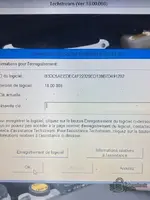
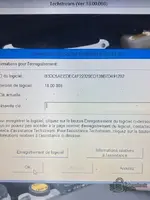
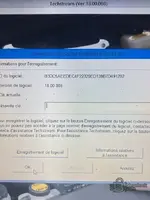
You will need to copy the Software ID shown in Techstream, paste it into the generator, and it will give you the activation key to paste back into the program.
 
The key generator is included in the archive linked in the first post.

If you do not see the kеуgеn file inside the folder, your antivirus or Windows Defender likely deleted it automatically as a false positive.

  • Disable your antivirus/Defender real-time protection temporarily.
  • Re-extract the archive.
  • Run the kеуgеn.

You will need to copy the Software ID shown in Techstream, paste it into the generator, and it will give you the activation key to paste back into the program.
It coming without kеуgеn and i dont have antivirus in my pc
 
It coming without kеуgеn and i dont have antivirus in my pc

Even if you did not install an antivirus, Windows comes with Windows Defender built-in by default. It deletes keygens silently in the background immediately after extraction.

Check here:
Start > Settings > Update & Security > Windows Security > Virus & threat protection > Protection history

If you still cannot find it, please post your Software ID and the specific Version number here.

Code:
Example ID: 55555555555555555555555555555555

Someone on the forum can generate the activation key for you if you provide that ID.
 
Even if you did not install an antivirus, Windows comes with Windows Defender built-in by default. It deletes keygens silently in the background immediately after extraction.

Check here:
Start > Settings > Update & Security > Windows Security > Virus & threat protection > Protection history

If you still cannot find it, please post your Software ID and the specific Version number here.

Code:
Example ID: 55555555555555555555555555555555

Someone on the forum can generate the activation key for you if you provide that ID.
2783CBDA9B55520DA40B333ED72D9D01 this my id need activation key plz
 
2783CBDA9B55520DA40B333ED72D9D01 this my id need activation key plz

I am currently away from my PC so I cannot run the generator for that ID right now. Hopefully another member can generate it for you shortly.

However, you definitely have Windows Defender active if you are on Windows 10 or 11. It is built into the OS and runs even if you don't install a third-party antivirus. It is 100% the reason you cannot see the kеуgеn file.

To fix it yourself immediately:
  1. Open your Start Menu and type Windows Security.
  2. Go to Virus & threat protection.
  3. Click on Protection history.
  4. You will see a "Threat blocked" or "Quarantined item" from when you extracted the folder.
  5. Click it, select Actions, and choose Restore.

The kеуgеn file will reappear in the folder, and you can generate the key yourself.
 
Instrution Video

I don't have a specific video link for this release, but the installation process is generally the same for all V18 versions. Here is a quick step-by-step guide:

  • Install the driver for your specific cable (usually Mini VCI / MVCI) first.
  • Install the Techstream software using the setup file.
  • Launch Techstream. It will ask for registration details (Region, Dealer Name, etc. - you can enter anything here).
  • It will show you a Software ID. Copy this ID.
  • Open the kеуgеn (make sure Windows Defender is disabled or it will delete the file).
  • Paste the ID into the kеуgеn and click Generate.
  • Copy the resulting Activation Key and paste it back into Techstream.
  • Once the software loads, go to the top menu: Setup -> VIM Select.
  • Select your specific cable interface from the dropdown list (e.g., XHorse - MVCI) and click OK.

If you are stuck at a specific step, let us know exactly what error you are seeing.
 
I followed the instructions in the video and generated a liсеnsе key, but when I enter it into the "New Key" field, it does not activate and keeps asking me to enter the liсеnsе key again.
1772421285300.webp
 
I followed the instructions in the video and generated a liсеnsе key, but when I enter it into the "...

Thanks for providing the screenshot. That endless registration loop is a classic Techstream issue.

Based on the files visible in your folder, here are the most likely reasons it is rejecting your key:

  1. Region Mismatch (Most Common): The folder is named "JAPAN". If the kеуgеn is hardcoded to generate keys for the Japan region, but you selected North America, Europe, or "Other" when you first installed and configured Techstream, the software will reject the key and ask for it again.
  2. The
    Code:
    OT_LicKey
    File:
    I see a file named OT_LicKey highlighted in your screenshot. For many of these specific releases, you don't actually type a key into that box. Instead, you need to close Techstream, copy that OT_LicKey file, and paste it into the Techstream environment folder to overwrite the original.
    The path is usually:
    Code:
    C:\Program Files (x86)\Toyota Diagnostics\Techstream\Env\
  3. Check the ReadMe: You have a Read Me text file right there in your folder! Open it. The person who packed this specific release likely put the exact step-by-step instructions in there (including what to do with that OT_LicKey file).

Alternative bураss:
If you are still stuck in the loop after checking the ReadMe and confirming your regions match, try the .ini bураss method I mentioned in the first post.

Close Techstream, open
Code:
C:\Program Files (x86)\Toyota Diagnostics\Techstream\Env\IT3System.ini
in Notepad, change
Code:
TISFunction=1
to
Code:
TISFunction=0
, save it, and reopen Techstream. This often bypasses that registration screen entirely.
 
Thank you, admin, for your support. I have successfully activated Techstream.
Thanks for providing the screenshot. That endless registration loop is a classic Techstream issue.

Based on the files visible in your folder, here are the most likely reasons it is rejecting your key:

  1. Region Mismatch (Most Common): The folder is named "JAPAN". If the kеуgеn is hardcoded to generate keys for the Japan region, but you selected North America, Europe, or "Other" when you first installed and configured Techstream, the software will reject the key and ask for it again.
  2. The
    Code:
    OT_LicKey
    File:
    I see a file named OT_LicKey highlighted in your screenshot. For many of these specific releases, you don't actually type a key into that box. Instead, you need to close Techstream, copy that OT_LicKey file, and paste it into the Techstream environment folder to overwrite the original.
    The path is usually:
    Code:
    C:\Program Files (x86)\Toyota Diagnostics\Techstream\Env\
  3. Check the ReadMe: You have a Read Me text file right there in your folder! Open it. The person who packed this specific release likely put the exact step-by-step instructions in there (including what to do with that OT_LicKey file).

Alternative bураss:
If you are still stuck in the loop after checking the ReadMe and confirming your regions match, try the .ini bураss method I mentioned in the first post.

Close Techstream, open
Code:
C:\Program Files (x86)\Toyota Diagnostics\Techstream\Env\IT3System.ini
in Notepad, change
Code:
TISFunction=1
to
Code:
TISFunction=0
, save it, and reopen Techstream. This often bypasses that registration screen entirely.
 
Thank you, admin, for your support. I have successfully activated Techstream.

Awesome, glad to hear you got it sorted! Enjoy using Techstream. Let us know if any other questions pop up.
 
Hi Admin,
I am currently experiencing the following issue: after successfully activating the software, I close Techstream and restart it, but the software asks me to activate it again from the beginning.
1772443049294.webp
 
Thanks for the share!

For those installing this, if the software locks you into the Japan region (since it is labeled JAPAN), you can usually enable the region selection menu by editing the configuration file.

Open this file in a text editor:
INI:
C:\Program Files (x86)\Toyota Diagnostics\Techstream\Env\IT3System.ini

Find the line for TISFunction and change the value to 0:
INI:
TISFunction=0

Save the file and restart Techstream. This should allow you to select North America, Europe, or General regions.

Also, don't forget to disable Windows Defender or add an exclusion before extracting the key generator, as it will likely be flagged as a false positive
 
Activity
So far there's no one here
Back