
Description
LiekoProf Firmware Vault — your firmware, protected and under control!
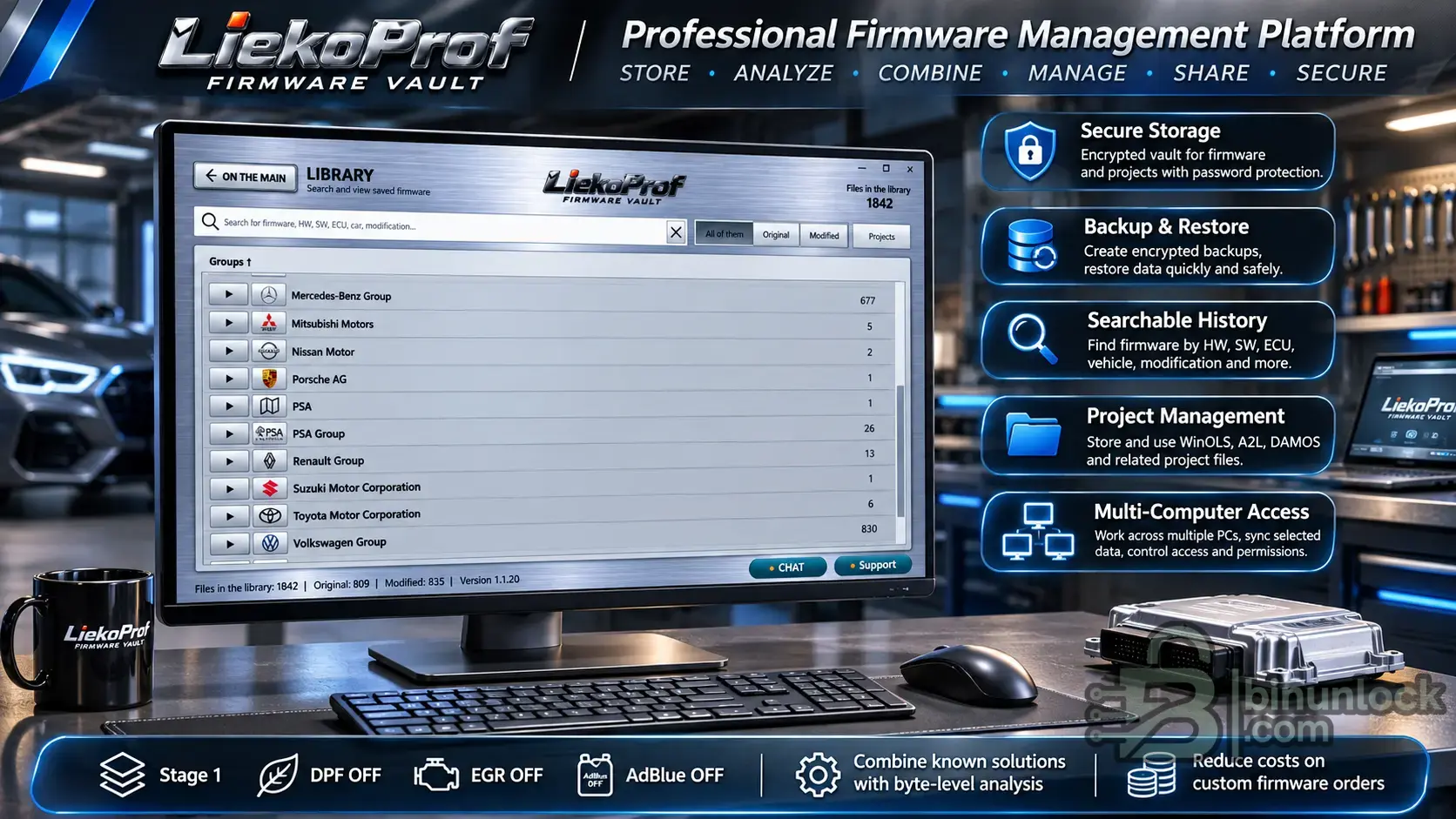
 Secure storage. An encrypted library of firmware and projects, password protection, backups, and data recovery.
 Smart analysis. Search, compare files, and identify changes, original versions, and modified versions.
 Combining solutions. Stage 1, DPF, EGR, AdBlue, and other modifications. Create new combinations from existing solutions when their compatibility has been confirmed by analysis.
 Save money. Reuse purchased solutions instead of ordering each combination separately.
 Work across multiple PCs. Synchronization, selective file access, data sharing, and communication between users.
 Everything in one place. Firmware, WinOLS projects, customers, vehicles, and work history.
LiekoProf Firmware Vault — store more, work more efficiently, spend less!
The program runs on Windows and supports multiple interface languages.
Creating combinations depends on the compatibility of the source files. Checking whether the result is suitable for a specific vehicle is still essential.
Advantages of LiekoProf Firmware Vault — learn more about the program's features
LiekoProf Firmware Vault is more than just a firmware library: it is a complete tool for storing, organizing, searching, analyzing, and reusing firmware.
The program is especially useful for specialists who regularly work with ECU firmware, different modification options, projects, and vehicle data.
 1. Your own firmware archive with lossless compression
LiekoProf Firmware Vault lets you create your own organized firmware storage.
When added, files are placed in the program's secure storage, where lossless compression is used.
 Save disk space by compressing files.
Store Original and Modified files in one organized library.
Protect the contents of the storage with encryption.
Preserve the original firmware content without changes.
Export the file you need at any time.
When exported, the firmware is restored to its original form—with the same size and contents as when it was imported.
SHA-256 is used to verify that files are identical.
This means the program serves as a firmware manager, secure storage, and archiver all at once.
The compression ratio depends on the contents of each file.
2. Conveniently organize your entire firmware library
Forget about hundreds of folders with cryptic file names.
LiekoProf Firmware Vault lets you organize firmware by technical specifications.
You can save the following details for each firmware file:
• Vehicle make and model.
• Engine type and specifications.
• ECU manufacturer and family.
• Hardware (HW).
• Software (SW).
• Software version.
• Calibration ID.
• File type and origin.
• Whether it is Original or Modified.
• Names of the modifications performed.
• Source of the firmware.
• Your own notes and additional information.
All this information makes it easy to find your way around, even in a large library.
 Recommendation: when adding firmware or a project, try to fill in all available fields as accurately as possible.
The more complete and accurate the information, the easier it will be to search, compare, and match files later.
3. Smart search and recognition of previously added firmware
One of the program’s key advantages is its ability to find previously saved files and associated solutions.
LiekoProf Firmware Vault lets you search for firmware by various technical parameters, including HW, SW, software version, and other identifiers.
A SHA-256 digital fingerprint is used to determine whether files are identical.
If a file is already in the library, the program can recognize an exact match.
If the software’s technical parameters match, you can find related and potentially suitable entries.
You can view previously saved Original and Modified versions.
You can use search results to continue working with existing solutions.
Example:
You are working again with a vehicle equipped with a familiar ECU software version.
After analyzing the file, the program may show that this firmware or related versions are already in your library.
As a result, you won't have to manually browse through a large number of folders every time to find the file you need.
Important: a match HW/SW by itself does not guarantee that the firmware is identical or that modifications are compatible. The program distinguishes between exact matches and related software versions.
 4. Original, Modified, and available solutions
LiekoProf Firmware Vault lets you organize different firmware versions and link them together.
For example, a single Original may have several Modified versions with different sets of changes.
In the library, you can:
View the original firmware and related modified versions.
Open information about each file.
See the available modification options.
Compare files and analyze differences.
Export the versions you need.
Add new firmware variants.
Edit technical information and notes.
Manage links between files.
Delete unnecessary entries using the mechanisms provided by the program.
If related variants already exist for a firmware, you can view them directly while working with its record.
In supported scenarios, the program also lets you create new configurations based on existing solutions.
However, changes must be compatible with the specific original firmware. If the required compatibility has not been confirmed, the configuration should not be created automatically.
The main idea is to reuse existing solutions instead of constantly searching for or purchasing the same modifications.
 5. Detailed information and printing firmware data
Each file in the library has its own record with technical information.
There you can view identifiers, modifications, the file source, notes, and related entries.
It is also possible to generate a document containing available firmware information and print it or save it as a PDF.
This is useful for keeping your own technical documentation, recording completed work, and using the information later.
 6. Customers, vehicles, and work history
LiekoProf Firmware Vault is also a tool for organizing the day-to-day work of an auto repair shop.
The program has a dedicated section for managing customers and vehicles.
Customer profile
You can save:
• The customer's name or company name.
• Contact information.
• Additional details.
• A photo of the customer.
• Your own notes.
Customer vehicles
You can add a customer's vehicles and enter the relevant technical data.
Firmware from your own library can be linked to vehicles.
This lets you keep track of which file was used when working on a particular vehicle.
History and comments
You can use the notes to record:
What work was performed.
What changes were made.
Which files were used.
Any additional customer requests.
Important technical notes.
Information for future visits.
You can review and use this information later when working on the same vehicle again.
7. Personal program settings
After installing LiekoProf Firmware Vault, we recommend opening the settings section and entering your basic user information.
Setup takes very little time and makes future work much more convenient.
Basic settings:
• Select the interface language.
• Set the window size at startup.
• Start in full-screen mode or restore the previous window size.
• Enter the name of the user or technician.
• Enter the company name, if applicable.
• Add other information about the program owner.
This information can be used when generating documents and printing firmware information.
 Important export recommendation
We recommend enabling the option that prompts you to choose where to save the exported file each time.
This lets you choose a folder for each export and avoid confusion with an automatically selected directory.
 Check for updates
We also recommend enabling automatic checks for updates.
LiekoProf Firmware Vault is regularly developed, receiving fixes and additional features.
Timely updates help you use the program’s latest features.
 8. Backing up and transferring data
One of the most useful features of LiekoProf Firmware Vault is the ability to save your own library and transfer it between computers.
The program provides two different mechanisms.
 Full or selective backup (.lfvbackup)
This lets you save selected program data together with the contents of the corresponding files.
Depending on the mode selected, you can choose:
• Firmware.
• Projects.
• The required data categories.
• The period when records were added or modified.
• Additional related data, if needed.
You can use a backup to restore data or transfer it to another computer.
Firmware database (.lfvdb)
This is a separate mechanism for saving and transferring technical information.
It is particularly useful because it lets you save information about firmware without including the BIN files themselves.
For example, after reinstalling the program, you can import a previously saved metadata database.
When the corresponding firmware files are added again, the program can match them to known records and use the saved technical information.
This makes it much easier to rebuild your own library.
Important: the .lfvdb database is not a full backup of the firmware itself. To save its contents, you need to use the appropriate backup.
 9. Monitoring disk space
The program settings include information about storage.
You can monitor:
Amount of data used by the program.
Available disk space.
Status of local storage.
This is especially useful when working with large collections of firmware files and projects.
10. Local password and protection against unauthorized access
LiekoProf Firmware Vault lets you set a local access password.
It is used to protect the program on a specific computer.
For example, if a technician steps away from the workstation temporarily, the program can automatically lock access after a set period of inactivity.
If you set the corresponding interval, for example to 5 minutes, you will need to re-enter the local password to continue working.
This helps protect the library from accidental or unauthorized viewing by other people who have access to the workstation.
The local password provides an additional layer of protection and does not replace Windows security features.
 11. Local operation without a constant Internet connection
LiekoProf Firmware Vault is designed primarily for local operation.
Core operations with your own library are performed directly on the computer.
A constant connection to a server is not required for normal use of locally available firmware files.
This allows users to manage their data storage themselves without relying on constant access to cloud storage.
 12. Synchronization and working across multiple computers
Additional synchronization features are available to registered users with the appropriate permissions.
This is especially useful for workshops with several specialists.
With the necessary permissions and settings, you can organize work using a primary device and additional devices.
For example:
• The library owner's primary computer.
• Additional work computers for employees.
• Selective access to individual firmware files and projects.
• Transfer of authorized files between devices.
• Receiving new files added at other workstations.
Example:
An employee read the vehicle's firmware, added it to their library, and filled in the technical details.
If file sharing is enabled for this file and the synchronization requirements are met, it can be transferred to the relevant authorized device.
There is no need to give every employee access to the entire library.
Important: synchronization and management of multiple devices depend on registration, granted permissions, the selected access model, and the program's terms of use.
 13. Communication between users and technical support
Communication features within the program are available to users with the appropriate access.
This can be useful when specialists work together across multiple devices.
In addition, LiekoProf Firmware Vault includes a technical support section.
If a question arises or a problem is found, users can submit a support request—a ticket.
Through this system, users can describe the situation and receive a response from the administration.
It is recommended that you submit one detailed request for each specific issue, include the necessary information, and avoid sending multiple identical tickets.
This helps support requests get handled faster and prevents abuse of the support system.
 14. Uninstalling the program while keeping data or performing a complete cleanup
LiekoProf Firmware Vault offers several uninstall options.
Uninstall application only
Allows you to uninstall the program while keeping its local data for a future installation.
This is convenient if you need to reinstall the application without intending to delete your own library.
Complete removal
Removes the application along with the local data and storage it manages.
Before performing a complete removal, it is recommended that you create a backup if you may need the information later.
Choose the appropriate option carefully.
 The main advantage of LiekoProf Firmware Vault
The program helps turn a scattered collection of BIN files and projects into your own structured knowledge base.
Instead of constantly searching through folders, users get:
Organized and secure storage.
Firmware compression without data loss.
Fast search by technical identifiers.
Recognition of previously saved files.
Original and Modified relationships.
View available modification options.
Firmware analysis and comparison.
File export and printing of technical information.
Tracking of customers, vehicles, and completed work.
Data backup and transfer.
Additional protection with a local password.
Collaboration across multiple devices.
LiekoProf Firmware Vault — save more, find things faster, and make more effective use of your own work!
The program is a tool for storing, analyzing, and managing files. A match between technical identifiers or the availability of a ready-made modification does not guarantee that it is suitable for a specific vehicle. Compatibility and the result of applying it must still be checked.
Try LiekoProf Firmware Vault with a ready-made example!
Would you like to get to know the program better and see how it works with real firmware files?
To help you do that, we’ve prepared a special demo backup featuring a Bosch MD1CP004 example.
You can load it into LiekoProf Firmware Vault and explore the library, technical data, relationships between Original and Modified, various modification options, and file management features for yourself.
This is an optional demo package for getting to know the program.
What’s included in the demo?
The package is based on Bosch MD1CP004 firmware for the Audi A6 (C8), 3.0 V6 TDI.
• 1 Original — the original firmware version.
• 3 Modified — versions with the stated changes DPF OFF, EGR OFF and AdBlue OFF.
• Saved Modified → Parent Original relationships.
• Technical identifiers, firmware details, and provenance history.
The original version is described by the author as a virtual OBD read using AutoTuner. The modifications were prepared using ECU-Tuning-Solutions-1.02.
Download the demo backup
 Download the Bosch MD1CP004 example from MEGA
File format: LiekoProf Firmware Vault backup (.lfvbackup).
How do I load the example into the program?
1. Install and open LiekoProf Firmware Vault.
2. In the On the main screen, open Settings.
3. Go to Backup and Transfer.
4. Select Import Backup.
5. Specify the downloaded backup file.
6. When the program asks for a password, enter:
1111111111
7. Then follow the instructions in the program dialog.
Menu item names may differ depending on the selected interface language.
What can be viewed after import?
How the firmware library is organized.
How Original and Modified are displayed.
How the program identifies and displays associated files.
How Original and the corresponding Modified files are opened.
How technical specifications and file history are presented.
How storing multiple modification variants works.
 Important
The demonstration set is intended solely to familiarize you with the program's capabilities.
The stated modifications have not undergone independent functional verification and should not be considered ready, tested solutions for flashing to a vehicle.
We recommend importing the example into a separate test library or a clean installation so as not to mix demonstration data with your working files.
Secure storage. An encrypted library of firmware and projects, password protection, backups, and data recovery. Smart analysis. Search, compare files, and identify changes, original versions, and modified versions. Combining solutions. Stage 1, DPF, EGR, AdBlue, and other modifications. Create new combinations from existing solutions when their compatibility has been confirmed by analysis. Save money. Reuse purchased solutions instead of ordering each combination separately. Work across multiple PCs. Synchronization, selective file access, data sharing, and communication between users. Everything in one place. Firmware, WinOLS projects, customers, vehicles, and work history.LiekoProf Firmware Vault — store more, work more efficiently, spend less!
The program runs on Windows and supports multiple interface languages.
Creating combinations depends on the compatibility of the source files. Checking whether the result is suitable for a specific vehicle is still essential.
Advantages of LiekoProf Firmware Vault — learn more about the program's featuresLiekoProf Firmware Vault is more than just a firmware library: it is a complete tool for storing, organizing, searching, analyzing, and reusing firmware.
The program is especially useful for specialists who regularly work with ECU firmware, different modification options, projects, and vehicle data.
1. Your own firmware archive with lossless compressionLiekoProf Firmware Vault lets you create your own organized firmware storage.
When added, files are placed in the program's secure storage, where lossless compression is used.
Save disk space by compressing files. Store Original and Modified files in one organized library. Protect the contents of the storage with encryption. Preserve the original firmware content without changes. Export the file you need at any time.When exported, the firmware is restored to its original form—with the same size and contents as when it was imported.
SHA-256 is used to verify that files are identical.
This means the program serves as a firmware manager, secure storage, and archiver all at once.
The compression ratio depends on the contents of each file.
2. Conveniently organize your entire firmware libraryForget about hundreds of folders with cryptic file names.
LiekoProf Firmware Vault lets you organize firmware by technical specifications.
You can save the following details for each firmware file:
• Vehicle make and model.
• Engine type and specifications.
• ECU manufacturer and family.
• Hardware (HW).
• Software (SW).
• Software version.
• Calibration ID.
• File type and origin.
• Whether it is Original or Modified.
• Names of the modifications performed.
• Source of the firmware.
• Your own notes and additional information.
All this information makes it easy to find your way around, even in a large library.
Recommendation: when adding firmware or a project, try to fill in all available fields as accurately as possible.The more complete and accurate the information, the easier it will be to search, compare, and match files later.
3. Smart search and recognition of previously added firmwareOne of the program’s key advantages is its ability to find previously saved files and associated solutions.
LiekoProf Firmware Vault lets you search for firmware by various technical parameters, including HW, SW, software version, and other identifiers.
A SHA-256 digital fingerprint is used to determine whether files are identical.
If a file is already in the library, the program can recognize an exact match. If the software’s technical parameters match, you can find related and potentially suitable entries. You can view previously saved Original and Modified versions. You can use search results to continue working with existing solutions.Example:
You are working again with a vehicle equipped with a familiar ECU software version.
After analyzing the file, the program may show that this firmware or related versions are already in your library.
As a result, you won't have to manually browse through a large number of folders every time to find the file you need.
Important: a match HW/SW by itself does not guarantee that the firmware is identical or that modifications are compatible. The program distinguishes between exact matches and related software versions.
4. Original, Modified, and available solutionsLiekoProf Firmware Vault lets you organize different firmware versions and link them together.
For example, a single Original may have several Modified versions with different sets of changes.
In the library, you can:
View the original firmware and related modified versions. Open information about each file. See the available modification options. Compare files and analyze differences. Export the versions you need. Add new firmware variants. Edit technical information and notes. Manage links between files. Delete unnecessary entries using the mechanisms provided by the program.If related variants already exist for a firmware, you can view them directly while working with its record.
In supported scenarios, the program also lets you create new configurations based on existing solutions.
However, changes must be compatible with the specific original firmware. If the required compatibility has not been confirmed, the configuration should not be created automatically.
The main idea is to reuse existing solutions instead of constantly searching for or purchasing the same modifications.
5. Detailed information and printing firmware dataEach file in the library has its own record with technical information.
There you can view identifiers, modifications, the file source, notes, and related entries.
It is also possible to generate a document containing available firmware information and print it or save it as a PDF.
This is useful for keeping your own technical documentation, recording completed work, and using the information later.
6. Customers, vehicles, and work historyLiekoProf Firmware Vault is also a tool for organizing the day-to-day work of an auto repair shop.
The program has a dedicated section for managing customers and vehicles.
Customer profile
You can save:
• The customer's name or company name.
• Contact information.
• Additional details.
• A photo of the customer.
• Your own notes.
Customer vehicles
You can add a customer's vehicles and enter the relevant technical data.
Firmware from your own library can be linked to vehicles.
This lets you keep track of which file was used when working on a particular vehicle.
History and comments
You can use the notes to record:
What work was performed. What changes were made. Which files were used. Any additional customer requests. Important technical notes. Information for future visits.You can review and use this information later when working on the same vehicle again.
7. Personal program settingsAfter installing LiekoProf Firmware Vault, we recommend opening the settings section and entering your basic user information.
Setup takes very little time and makes future work much more convenient.
Basic settings:
• Select the interface language.
• Set the window size at startup.
• Start in full-screen mode or restore the previous window size.
• Enter the name of the user or technician.
• Enter the company name, if applicable.
• Add other information about the program owner.
This information can be used when generating documents and printing firmware information.
Important export recommendationWe recommend enabling the option that prompts you to choose where to save the exported file each time.
This lets you choose a folder for each export and avoid confusion with an automatically selected directory.
Check for updatesWe also recommend enabling automatic checks for updates.
LiekoProf Firmware Vault is regularly developed, receiving fixes and additional features.
Timely updates help you use the program’s latest features.
8. Backing up and transferring dataOne of the most useful features of LiekoProf Firmware Vault is the ability to save your own library and transfer it between computers.
The program provides two different mechanisms.
Full or selective backup (.lfvbackup)This lets you save selected program data together with the contents of the corresponding files.
Depending on the mode selected, you can choose:
• Firmware.
• Projects.
• The required data categories.
• The period when records were added or modified.
• Additional related data, if needed.
You can use a backup to restore data or transfer it to another computer.
Firmware database (.lfvdb)This is a separate mechanism for saving and transferring technical information.
It is particularly useful because it lets you save information about firmware without including the BIN files themselves.
For example, after reinstalling the program, you can import a previously saved metadata database.
When the corresponding firmware files are added again, the program can match them to known records and use the saved technical information.
This makes it much easier to rebuild your own library.
Important: the .lfvdb database is not a full backup of the firmware itself. To save its contents, you need to use the appropriate backup.
9. Monitoring disk spaceThe program settings include information about storage.
You can monitor:
Amount of data used by the program. Available disk space. Status of local storage.This is especially useful when working with large collections of firmware files and projects.
10. Local password and protection against unauthorized accessLiekoProf Firmware Vault lets you set a local access password.
It is used to protect the program on a specific computer.
For example, if a technician steps away from the workstation temporarily, the program can automatically lock access after a set period of inactivity.
If you set the corresponding interval, for example to 5 minutes, you will need to re-enter the local password to continue working.
This helps protect the library from accidental or unauthorized viewing by other people who have access to the workstation.
The local password provides an additional layer of protection and does not replace Windows security features.
11. Local operation without a constant Internet connectionLiekoProf Firmware Vault is designed primarily for local operation.
Core operations with your own library are performed directly on the computer.
A constant connection to a server is not required for normal use of locally available firmware files.
This allows users to manage their data storage themselves without relying on constant access to cloud storage.
12. Synchronization and working across multiple computersAdditional synchronization features are available to registered users with the appropriate permissions.
This is especially useful for workshops with several specialists.
With the necessary permissions and settings, you can organize work using a primary device and additional devices.
For example:
• The library owner's primary computer.
• Additional work computers for employees.
• Selective access to individual firmware files and projects.
• Transfer of authorized files between devices.
• Receiving new files added at other workstations.
Example:
An employee read the vehicle's firmware, added it to their library, and filled in the technical details.
If file sharing is enabled for this file and the synchronization requirements are met, it can be transferred to the relevant authorized device.
There is no need to give every employee access to the entire library.
Important: synchronization and management of multiple devices depend on registration, granted permissions, the selected access model, and the program's terms of use.
13. Communication between users and technical supportCommunication features within the program are available to users with the appropriate access.
This can be useful when specialists work together across multiple devices.
In addition, LiekoProf Firmware Vault includes a technical support section.
If a question arises or a problem is found, users can submit a support request—a ticket.
Through this system, users can describe the situation and receive a response from the administration.
It is recommended that you submit one detailed request for each specific issue, include the necessary information, and avoid sending multiple identical tickets.
This helps support requests get handled faster and prevents abuse of the support system.
14. Uninstalling the program while keeping data or performing a complete cleanupLiekoProf Firmware Vault offers several uninstall options.
Uninstall application only
Allows you to uninstall the program while keeping its local data for a future installation.
This is convenient if you need to reinstall the application without intending to delete your own library.
Complete removal
Removes the application along with the local data and storage it manages.
Before performing a complete removal, it is recommended that you create a backup if you may need the information later.
Choose the appropriate option carefully.
The main advantage of LiekoProf Firmware VaultThe program helps turn a scattered collection of BIN files and projects into your own structured knowledge base.
Instead of constantly searching through folders, users get:
Organized and secure storage. Firmware compression without data loss. Fast search by technical identifiers. Recognition of previously saved files. Original and Modified relationships. View available modification options. Firmware analysis and comparison. File export and printing of technical information. Tracking of customers, vehicles, and completed work. Data backup and transfer. Additional protection with a local password. Collaboration across multiple devices.LiekoProf Firmware Vault — save more, find things faster, and make more effective use of your own work!
The program is a tool for storing, analyzing, and managing files. A match between technical identifiers or the availability of a ready-made modification does not guarantee that it is suitable for a specific vehicle. Compatibility and the result of applying it must still be checked.
Try LiekoProf Firmware Vault with a ready-made example!Would you like to get to know the program better and see how it works with real firmware files?
To help you do that, we’ve prepared a special demo backup featuring a Bosch MD1CP004 example.
You can load it into LiekoProf Firmware Vault and explore the library, technical data, relationships between Original and Modified, various modification options, and file management features for yourself.
This is an optional demo package for getting to know the program.
What’s included in the demo?The package is based on Bosch MD1CP004 firmware for the Audi A6 (C8), 3.0 V6 TDI.
• 1 Original — the original firmware version.
• 3 Modified — versions with the stated changes DPF OFF, EGR OFF and AdBlue OFF.
• Saved Modified → Parent Original relationships.
• Technical identifiers, firmware details, and provenance history.
The original version is described by the author as a virtual OBD read using AutoTuner. The modifications were prepared using ECU-Tuning-Solutions-1.02.
Download the demo backup Download the Bosch MD1CP004 example from MEGAFile format: LiekoProf Firmware Vault backup (.lfvbackup).
How do I load the example into the program?1. Install and open LiekoProf Firmware Vault.
2. In the On the main screen, open Settings.
3. Go to Backup and Transfer.
4. Select Import Backup.
5. Specify the downloaded backup file.
6. When the program asks for a password, enter:
1111111111
7. Then follow the instructions in the program dialog.
Menu item names may differ depending on the selected interface language.
What can be viewed after import? How the firmware library is organized. How Original and Modified are displayed. How the program identifies and displays associated files. How Original and the corresponding Modified files are opened. How technical specifications and file history are presented. How storing multiple modification variants works. ImportantThe demonstration set is intended solely to familiarize you with the program's capabilities.
The stated modifications have not undergone independent functional verification and should not be considered ready, tested solutions for flashing to a vehicle.
We recommend importing the example into a separate test library or a clean installation so as not to mix demonstration data with your working files.


