You are using an out of date browser. It may not display this or other websites correctly.
You should upgrade or use an alternative browser.
You should upgrade or use an alternative browser.

Post #21
Post #22
 Online now
- Joined
- 09.05.2025
- Messages
- 7,001
- Reactions
- 1,609
- Location
- 🇺🇸USUnited States
My map version is:
Road Map EUROPE WEST Route 2021-1.
I have a newer version of this but no activat...
No, absolutely do not abandon the project! ROUTE maps are fully supported by the key generator.
The issue is simply a technical mismatch with the "One-Click" reader tool you are using.
Here is the explanation:
- NBT (Next) head units store the activation key in a file called 0xDE.
- EntryNav (Route) head units (which you have) store the activation key in a file called 0xDF.
Since you have the ENET cable, you can easily pull the correct file using the standard BMW tool called E-Sys. It is much more reliable than the simple reader.
Here is how to do it:
1. Download and install E-Sys (any recent version like 3.27 or 3.30 is fine, you don't need a launcher/token for this specific task).
2. Connect your ENET cable and launch E-Sys.
3. Click the Connect button (top row). Select your chassis (e.g., F020 for F22) and select "Connection via VIN".
4. Go to Expert Mode -> FSC Extended (on the left menu).
5. Fill in these fields exactly:
- Diagnostic Address: 0x63
- Application Number: 0xDF <-- This is the specific ID for Route maps
- Base Variant: HUENTRYNAV (or try HUNBT if that fails, but usually EntryNav)
- Upgrade Index: 0x01
7. Click Read.
8. Click Save and name the file something like
my_car.fsc.Once you have that
.fsc file:1. Open your FSC Generator.
2. Instead of clicking "Read", look for a button that says "Load File" or "Open".
3. Select the
my_car.fsc file you just saved.4. Select Map Type: Route.
5. Select your Region and Year.
6. Click Generate.
It takes a few more steps than the "one-click" solution, but it works 100% for Route maps.
Post #23
Post #24
Online now
- Joined
- 09.05.2025
- Messages
- 7,001
- Reactions
- 1,609
- Location
- 🇺🇸USUnited States
Great. Thanks for that and thanks for your patience. I will give that method a try.
You're welcome!
Just one final tip since you are using E-Sys for the first time:
When you are in the FSC Extended tab, be very careful to type 0xDF into the Application Number field. If you accidentally leave it as the default (or 0xDE), E-Sys will throw an error saying "Application not found" because your EntryNav unit doesn't have the NBT application.
Good luck, let us know if you get the code generated successfully!
Post #25
Online now
- Joined
- 09.05.2025
- Messages
- 7,001
- Reactions
- 1,609
- Location
- 🇺🇸USUnited States
Will do.
Tip: Connect the cable to the car and laptop and wait about 30-60 seconds before launching E-Sys.
Windows needs a moment to assign the fallback IP address (you will likely see a "Limited Connectivity" or yellow triangle icon in the taskbar—this is normal and required). If you launch E-Sys too quickly before the network interface is active, it might not find the VIN in the connection window.
Post #26
- Joined
- 31.01.2026
- Messages
- 37
- Reactions
- 4
- Location
- 🇬🇧GBUnited Kingdom
Now that you told me that I have EntryNav (Route) I noticed in the FSC-Reader program that I have there is a option in the SWID drop down menu for EntryNav (DF). I selected this and I was able to read and save a FSC file. This appears to be a binary file with only a few readable characters showing the vehicle manufacture date. Does this file contain the FSC code ?
Post #27
Online now
- Joined
- 09.05.2025
- Messages
- 7,001
- Reactions
- 1,609
- Location
- 🇺🇸USUnited States
Now that you told me that I have EntryNav (Route) I noticed in the FSC-Reader program that I have ...
That is excellent news! You found the missing setting.
To answer your question: No, that file is not the code itself.
That binary file is the digital signature (specifically the 0xDF file) from your car's head unit. You cannot read the activation code inside it with a text editor. Instead, that file acts as the "Master Key" that allows the generator to calculate the specific code for your new map.
Here is the final step to get your code:
- Open your BMW CIC/NBT Key Generator software.
- Look for a button labeled "Load File", "Open FSC", or "Browse".
- Select the binary file you just saved from the reader.
- In the generator settings, select:
- Map Type: Route
- Region: Europe West (or whichever region your new map is)
- Maps: Select the specific year/version you are installing (e.g., 2024-1)
- Click Generate.
The box at the bottom will then spit out the 20-character alphanumeric code. That is the code you will type into the iDrive controller when you insert the USB stick with the new maps.
Post #28
Post #29
Online now
- Joined
- 09.05.2025
- Messages
- 7,001
- Reactions
- 1,609
- Location
- 🇺🇸USUnited States
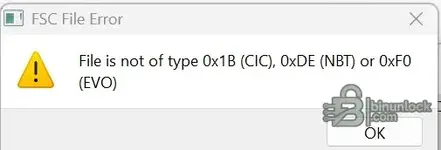
When I browse to and select the fsc file I get the attached error message.
Have I got the correct v...
It is difficult to say for sure without seeing the specific error message text, but if your generator has "Route" listed in the Map Type dropdown, it is likely the correct version (usually v1.91 or newer).
However, this error is almost always caused by one of two things:
1. The File Size is Incorrect
Right-click the FSC file you saved and check "Properties".
The file size MUST be exactly 319 bytes (or sometimes 320 bytes).
- If it is 0 bytes, the read failed.
- If it is larger (e.g., 1KB+), the reader may have saved it as a text file containing hex code instead of a raw binary file.
2. The Generator Settings
Even if you load the file, you must ensure the "Code Index" or "App ID" matches the file.
- For Route maps, the App ID is 0xDF (223).
- Some generators default to 0xDE (NBT). Make sure to change this if there is an option, or simply ensure "Route" is selected in the map definition before you load the file.
Troubleshooting Step:
If the GUI keeps failing, look in the folder where your generator is. Is there a file called
Code:
fsc.exeIf so, you can try generating it manually via Command Prompt (CMD) to bypass any GUI bugs:
Code:
fsc.exe <filename.fsc> 0x00DF <RegionID> <MapCode>(You would need to look up the RegionID and MapCode for your specific map version in the swid_fsc.txt or Lookup.xml file included with the generator).
If you can post the exact error text, I can narrow it down further!
Post #30
- Joined
- 31.01.2026
- Messages
- 37
- Reactions
- 4
- Location
- 🇬🇧GBUnited Kingdom
My last screenshot is the only error message I saw. My fsc file is 319 bytes in size.
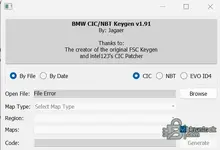
I have attached a screenshot of my kеуg** program window. The only options are CIC NBT or EVO. It won't allow selection of Map Type etc. presumably until the fsc file is open.
Unfortunately there is no fsc.exe contained in the zip file.
I have attached a screenshot of my kеуg** program window. The only options are CIC NBT or EVO. It won't allow selection of Map Type etc. presumably until the fsc file is open.
Unfortunately there is no fsc.exe contained in the zip file.
Attachments
Post #31
Online now
- Joined
- 09.05.2025
- Messages
- 7,001
- Reactions
- 1,609
- Location
- 🇺🇸USUnited States
My last screenshot is the only error message I saw. My fsc file is 319 bytes in size.
I have attache...
It looks like you are using a limited or older version of the generator that does not have the definitions for Route maps.
The error happens because your generator is likely hard-coded to expect:
- CIC (App ID 0x1B)
- NBT (App ID 0xDE)
Since your file is EntryNav/Route (App ID 0xDF), the generator tries to read it as NBT, sees the wrong internal ID, and throws an error.
You need to find the software version commonly known as "BMW FSC Generator 1.91" (by Jaeger).
When you open the correct version (1.91), it will look different:
1. It will have a "Map Type" dropdown that explicitly lists: Motion, Move, Premium, Next, Route, Evo.
2. You must select Route from that list.
3. Then, when you load your 319-byte
.fsc file, it will accept it because it knows to look for the 0xDF signature.Summary:
Your file is likely fine (319 bytes is perfect). Your software just doesn't speak "Route". Search for the 1.91 version, and it should work immediately.
Post #32
Post #33
Online now
- Joined
- 09.05.2025
- Messages
- 7,001
- Reactions
- 1,609
- Location
- 🇺🇸USUnited States
I do have the BMW FSC Generator 1.91" (by Jaeger) but it only seems to support CIC, NBT and EVO ID...
If your copy of the generator does not list "Route" in the dropdown, you are likely using an older build or one with an outdated
Lookup.xml file. The "1.91" version number is sometimes reused by different repackaged versions.I cannot provide a direct download link here, but you can easily find the command-line version (which includes
fsc.exe) on GitHub.Search for: BMW-FSC-Generator (look for the repository by packetpilot or Jagaer).
Once you download that ZIP and extract it, you will find
fsc.exe (or a bat file wrapper). You can generate the code manually using the Windows Command Prompt (CMD).How to use fsc.exe for Route Maps
1. Copy your 319-byte FSC file (e.g.,
my_car.fsc) into the same folder as fsc.exe.2. Open Command Prompt in that folder.
3. Run the following command:
Code:
fsc.exe my_car.fsc 0xDF 0x28 0xFFExplanation of the command:
my_car.fsc: Your file name.0xDF: The Application ID for Route (EntryNav).0x28: The Region ID for Europe West. (If you need a different region, see the list below).0xFF: This is a "Lifetime" code index. It usually works to activate the map regardless of the specific year.
If you want to generate a code for a specific year instead of Lifetime, you need to replace
0xFF with the specific Map Sequence ID (e.g., 0x0F might be for 2021, etc.), but 0xFF is the safest bet to get it working immediately.Common Region IDs (if you are not Europe West):
- Europe West:
0x28(40) - Europe East:
0x29(41) - North America:
0x2D(45)
Give that command a try and see if it outputs your code!
Post #34
- Joined
- 31.01.2026
- Messages
- 37
- Reactions
- 4
- Location
- 🇬🇧GBUnited Kingdom
I failed to find a copy of FSC-code generator on github. I am beginning to think it will be less effort to purchase a code for my car -if one is available !
Thanks for all your help.
Thanks for all your help.
Post #35
Online now
- Joined
- 09.05.2025
- Messages
- 7,001
- Reactions
- 1,609
- Location
- 🇺🇸USUnited States
I failed to find a copy of FSC-code generator on github. I am beginning to think it will be less eff...
Before you spend money, you are literally one step away! Since you have the valid 319-byte file, you have done the hard part.
Just zip your .fsc file and attach it to a reply here. I (or another member) can run that command for you in about 5 seconds and paste your code back here.
If you prefer to just be done with it, yes, buying a code is a valid option and usually costs less than $15, but you can get it for free right here since you already have the file.
Post #36
Online now
- Joined
- 09.05.2025
- Messages
- 7,001
- Reactions
- 1,609
- Location
- 🇺🇸USUnited States
That would be great. Thanks for that. File attached
I cannot download attachments directly from this thread. However, we can still get this done easily.
Since you have the file, please convert it to text so I can process it for you:
- Go to a site like base64encode.org
- Upload your 319-byte .fsc file.
- Click "Encode".
- Copy the resulting text string and paste it here in your next reply.
Once you paste that string, I can decode it and generate your Map Activation Code immediately.
Alternatively, if you want to fix your software:
Open the Lookup.xml file located in your generator's folder using Notepad. Look for the section defining the connection types (usually near the top). If you see an entry for NBT (0xDE), copy that line and create a new one for Route (0xDF).
But the Base64 method above is the fastest way for me to just give you the code right now.
Post #37
- Joined
- 31.01.2026
- Messages
- 37
- Reactions
- 4
- Location
- 🇬🇧GBUnited Kingdom
I encoded it at base64encode.org - Is this the correct format .
AQEAAAEgIDc3MzQ4NwEgMDAwMDAwMAtfAVY5NDQwMTABAAAAAAAAAAAABAIyMDE3MDIxMDE1NDdaAAxRUjFYUg8VShhXKVgCcUQwDThVBz4xSXBZUDkIISlTPmdeZWBfY35GVVYxVHVGdl4TaXBERjQ1DAwfWlsDRQAsQUsqRgRsH3hXKDkkJksdcEcTfj1FFh56SwEqOQQUEDZmRT1yaHlqWVBXT1ZwaiwOA2xbOhBEYz82XB81
AQEAAAEgIDc3MzQ4NwEgMDAwMDAwMAtfAVY5NDQwMTABAAAAAAAAAAAABAIyMDE3MDIxMDE1NDdaAAxRUjFYUg8VShhXKVgCcUQwDThVBz4xSXBZUDkIISlTPmdeZWBfY35GVVYxVHVGdl4TaXBERjQ1DAwfWlsDRQAsQUsqRgRsH3hXKDkkJksdcEcTfj1FFh56SwEqOQQUEDZmRT1yaHlqWVBXT1ZwaiwOA2xbOhBEYz82XB81
Post #38
Online now
- Joined
- 09.05.2025
- Messages
- 7,001
- Reactions
- 1,609
- Location
- 🇺🇸USUnited States
I encoded it at base64encode.org - Is this the correct format .
AQEAAAEgIDc3MzQ4NwEgMDAwMDAwMAtfAVY...
The string is incomplete.
The format is correct (Base64), but you have not copied the entire text.
A 319-byte file should result in a Base64 string of approximately 428 characters. The text you pasted is only about 256 characters long, which means the bottom half of the file (containing the digital signature) is missing.
Please try to copy the full string again. It usually ends with
= or ==.Alternative Solution:
Since you are having trouble finding the tool on GitHub, search Google specifically for this filename:
Code:
BMW_CIC_NBT_FSC_Generator_1.0.1.5.zipPost #39
- Joined
- 31.01.2026
- Messages
- 37
- Reactions
- 4
- Location
- 🇬🇧GBUnited Kingdom
AQEgw58gASAgNzczNDg3ASAwMDAwMDAwC18BVjk0NDAxMAEgICAgICAgICAEAjIwMTcwMjEwMTU0N1ogwoEM4oKsUVLLnDHDi8OrWMKtUg/CpxXDkErDi8OCwqAYwqRXwqEpw6LDtljLhsOEwqgCcUQwxaHigJ7Cs8OnCjjFoVXDkcO14oSiID4xScOfwq3Dn3DCgVlQOQghKeKAoFPCj8Wgw6zigJjCj8aSw5/Djz5nwqfDhsO5XsKP4oC6ZcOxw6PCq2DDicOZwqJfY37FoMORwr1GVcaSVjFUdUbCpXbDl17CoMOU4oC6E8Opw4HDkmnDlXBEw6LDl8KQRjQ1w5MMDB9aWwPDtUUgLEHCkMOtw49LwpAqRgRs4oCTH8KNw7N4wqRXKDnDpsK8w43CosOPJMOXJkvDtB1wwq9HE+KAoH7CtsKvPcOQwrxFFsW+HnpL4oKsAcO2KjkEFOKAsMOJw7TCveKCrMOXw6XCuMKkw4LDtMucw77igKHDrBA2ZkU9w67Cs3LCvsucwq9ow7Z5w7/DgGrigLlZUMOaw5tXT8Khwq9W4oCecMO3wrVqLOKAocKPw7HDh8OCwrQOwrDDsQNsW+KAsDrDoRBEw4ljPzZcwr8fNQ==
Post #40
Online now
- Joined
- 09.05.2025
- Messages
- 7,001
- Reactions
- 1,609
- Location
- 🇺🇸USUnited States
AQEgw58gASAgNzczNDg3ASAwMDAwMDAwC18BVjk0NDAxMAEgICAgICAgICAEAjIwMTcwMjEwMTU0N1ogwoEM4oKsUVLLnDHDi8Or...
The string you posted is corrupted. It contains strange characters (like
w58, 4oKs) which happens when you open a binary file in a text editor (like Notepad) and then copy the text. Notepad tries to "fix" the binary code into readable text, which destroys the data.Option 1: Get me the code (Fastest)
Please try the website again, but follow these steps exactly:
1. Go to base64encode.org
2. Do not open your .fsc file on your computer.
3. Click the button "Click here to select a file" (or "Choose File").
4. Select your
xxxxxxx.fsc file.5. Click Encode.
6. Click "Copy to Clipboard" (or copy the result directly from the box).
7. Paste that new string here.
Option 2: Fix your Software (Permanent)
Since you have the "Jaeger 1.91" generator, you can teach it to read your file.
1. Go to the folder where your generator is located.
2. Find the file named
Lookup.xml and open it with Notepad.3. Press
Ctrl+F and search for: 0x00DE (This is the NBT section).4. You will see a block of code that looks something like this:
XML:
<SgbId id="0x00DE">
    <Description>NBT</Description>
    ...
</SgbId><SgbId... to </SgbId>).6. Paste it immediately below the original block.
7. In the new pasted block, change two things:
* Change
0x00DE to 0x00DF* Change
NBT to EntryNav (or Route)8. Save the file.
9. Restart the generator. You should now see "EntryNav" or "Route" in the dropdown menu!
Activity
So far there's no one here