Oh ok thanks I'll retry with k dcan cable but would I need obd.ini file for that?

Yes, absolutely.

If you switch to a K+DCAN USB cable, an obd.ini file is mandatory.

The K+DCAN cable creates a virtual sеriаl (COM) port on your laptop. EDIABAS has no idea which port to use unless an obd.ini file tells it. Since this specific software package was pre-configured for ethernet (ENET), the creator left that file out.

To convert this specific portable package to work with your K+DCAN cable on the E93, you must do the following:

1. Get the file: Obtain a standard obd.ini file (you can find standard templates online easily).
2. Place the file: Copy that file into the active binary folder for this package: C:\EC-APPS\EDIABAS\BIN\.
3. Configure COM Port: Plug in your cable. Check Windows Device Manager under "Ports (COM & LPT)" to see which COM number your cable is assigned to (e.g., COM3). Open your new obd.ini file with Notepad and ensure the first line matches that port:
Code:
ini
    [OBD]
    Port=Com3
*(Replace Com3 with whatever your actual port is).*
4. Update EDIABAS.INI: You must tell the main program to stop looking for an ethernet connection and use the OBD driver instead. Open C:\EC-APPS\EDIABAS\BIN\EDIABAS.INI with Notepad. Find the configuration line starting with "Interface =" and change it to:
Code:
ini
    Interface = STD:OBD

Once those steps are done, that specific INPA loader should work with your K+DCAN cable on your E93.
 
Ahh at one point I had it close to working then this error code came up. Ifh 0003

That is actually great news. Getting an IFH-0003 error means the software is correctly configured to try and use the cable, but the signal is getting garbled. You are very close.

IFH-0003 translates to "Data transmission to interface disturbed."

99% of the time, this is caused by one specific Windows setting for the USB sеriаl driver that defaults to the wrong value for BMW diagnostics.

Here is the fix:

Step 1: Configure Device Manager
  1. Plug your K+DCAN cable into the laptop.
  2. Right-click your Start button and open Device Manager.
  3. Expand "Ports (COM & LPT)".
  4. Right-click on your USB sеriаl Port (e.g., COM3, COM4) and select Properties.
  5. Go to the Port Settings tab.
  6. Click the Advanced... button.
  7. Find the setting labeled Latency Timer (msec).
  8. Change this value from the default (usually 16) down to 1.
  9. Click OK, then OK again to save it.

Step 2: Verify Port Matching
While you are in Device Manager, note the COM port number (e.g., COM3). Open your C:\EC-APPS\EDIABAS\BIN\obd.ini file and ensure the first line matches exactly:
Port=Com3 (or whatever number you saw in Device Manager).

Once the Latency Timer is set to 1ms, try launching INPA again. The error should be gone.
 
Much appreciated I'm glad you started with com 3 lol I ran com 1 a million times and couldn't get ifh 0003 to go away.
 
Much appreciated I'm glad you started with com 3 lol I ran com 1 a million times and couldn't get if...

Haha, that is a classic trap! It happens to almost everyone starting out.

Just to be absolutely clear on why that happened: Windows assigns a random available number to the cable when you plug it in (like COM3, COM4, etc.). If your obd.ini file was hardcoded to Port=Com1, but Windows put the cable physically on COM3, EDIABAS was basically shouting down an empty phone line. That mismatch causes the IFH-0003 error just as easily as the wrong latency setting.

So, the golden rule is: The number listed in Device Manager MUST match the number written in your obd.ini file exactly.

If you have matched those numbers AND set the Latency Timer to 1msec in Device Manager as mentioned in the previous post, you should be completely good to go now. Hook it up to the E93 and give it a shot!
 
Haha, that is a classic trap! It happens to almost everyone starting out.

Just to be absolutely clear on why that happened: Windows assigns a random available number to the cable when you plug it in (like COM3, COM4, etc.). If your obd.ini file was hardcoded to Port=Com1, but Windows put the cable physically on COM3, EDIABAS was basically shouting down an empty phone line. That mismatch causes the IFH-0003 error just as easily as the wrong latency setting.

So, the golden rule is: The number listed in Device Manager MUST match the number written in your obd.ini file exactly.

If you have matched those numbers AND set the Latency Timer to 1msec in Device Manager as mentioned in the previous post, you should be completely good to go now. Hook it up to the E93 and give it a shot!
your the greatest as soon as i get this running im sending a donation thanks for your brilliance and time.
 
your the greatest as soon as i get this running im sending a donation thanks for your brilliance and...

That is very kind of you, but absolutely no donation is necessary! We are all here on the forum just helping each other out. Hearing that you got it sorted out is plenty of reward.

Good luck connecting to the E93. Let us know if you get the two black dots for Battery and Ignition ON when you hook it up!
 
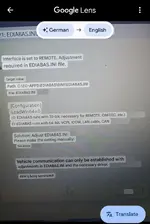
Ok I got obd.ini one in c: drive one in ediabas folder. I get this error can you explain how to edit path.Screenshot_20260201-124840_Google~2.webp
 
Ok I got obd.ini one in c: drive one in ediabas folder. I get this error can you explain how to edit...

This is a very common hurdle when setting up standard tools.

Error 2489 means "Path not found".

Basically, EDIABAS is trying to launch, but it has no idea where its configuration files (like obd.ini and ediabas.ini) are located. It relies on Windows to tell it where to look.

Here is how to fix the file locations and "edit the path" as you asked.

Step 1: Clean up file locations
You mentioned you have obd.ini in the C: drive root. Delete that one. It does absolutely nothing there.

The ONLY location that matters for obd.ini (and ediabas.ini) is inside the BIN folder. Based on the package structure in this thread, ensure your configured obd.ini is located exactly here:

C:\EC-APPS\EDIABAS\BIN\obd.ini

Step 2: Edit the Windows System Path
This is the fix for Error 2489. You need to tell Windows where that BIN folder is by setting a "System Environment Variable".

1. Click Start and type "Environment Variables".
2. Click on "Edit the system environment variables" (Control Panel).
3. In the window that pops up, click the Environment Variables... button near the bottom.
4. Look at the bottom section labeled System variables (NOT User variables at the top).
5. Look through the list for a variable named EDIABASCONFIGDIR.

  • If it exists: Select it and click Edit. Ensure the "Variable value" is exactly the path to your BIN folder. If you used the default extraction path for this package, it must be: C:\EC-APPS\EDIABAS\BIN
  • If it does NOT exist: Click the New... button under System variables.
    Variable name: EDIABAS_CONFIG_DIR
    Variable value: C:\EC-APPS\EDIABAS\BIN

Click OK on all windows to close them.

Once that variable is set correctly, EDIABAS will know exactly where to find your obd.ini file, and Error 2489 will disappear.
 
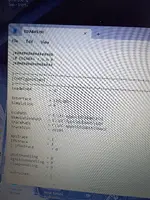
Here's my ediabas file.2490

Thanks for sharing that.

Since you are using a K+DCAN cable for an E-series (E93), there is one specific line in that file that is critical. The download package in this thread comes pre-configured for ENET, so you absolutely must change this line for your setup to work.

Open that EDIABAS.INI file in Notepad, look under the [CONFIGURATION] section, and ensure the Interface line is set exactly like this:

INI:
Interface = STD:OBD

If it still says Interface = ENET (which is the default for this download), change it to STD:OBD, save the file, and try INPA again.
 
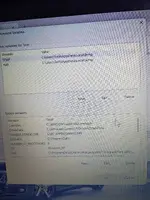
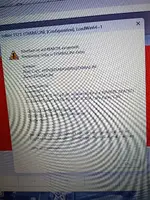
This is what pops up now first image environment variables second inpa error IMG_20260201_131220063.webpScreenshot_20260201-131325_Google~2.webp
 

Attachments

  • IMG_20260201_131244478.webp
    IMG_20260201_131244478.webp
    3.4 MB · Views: 0
This is what pops up now first image environment variables second inpa error 24912494

I can't actually see the images you attached (they just show up as numbers on my end).

Could you type out the specific error code you are getting in INPA now? It usually looks like IFH-000x or API-xxxx.

While I wait for that code, double-check these two things which are the most common causes for errors right at this stage of setup:

  1. Ignition: Is the car's ignition fully ON (dash lights lit up, engine off)? INPA won't talk if the ignition is just in accessory mode.
  2. Latency Timer: Go back into Device Manager -> Ports (COM & LPT) -> Right-click your USB sеriаl Port -> Properties -> Port Settings tab -> Advanced button. Make absolutely sure the "Latency Timer (msec)" is set to 1. If it reverted to the default 16, it won't connect to an E-series.
 
Ok I added at bottom of environment variables and upon opening inpa after reboot I got error 1121 ediabas .in configuration loadwin64=1
 
Ok I added at bottom of environment variables and upon opening inpa after reboot I got error 1121 ed...

That error code indicates a syntax problem directly inside your EDIABAS.INI file. It looks like a typo happened during the last edit, likely merging two lines together or pasting something accidentally.

Open your C:\EC-APPS\EDIABAS\BIN\EDIABAS.INI file in Notepad again.

Look near the top of the file. You will likely find a messy line containing that loadwin64=1 text mentioned in the error.

Here is what the very beginning of the file *should* look like for this 64-bit version. Make sure your file matches this structure exactly, paying close attention to the [CONFIGURATION] header and the lines below it:

INI:
;=============================================================================
; EDIABAS configuration file
;=============================================================================

[CONFIGURATION]
LoadWin32    = 0
LoadWin64    = 1
;=============================================================================

If you see a messy line like ediabas .in configuration loadwin64=1, delete that line entirely and ensure it looks clean like the example above. Save the file and try INPA again.
 
Oh I forgot In win 11 under device manager I don't see com port unless USB cable is plugged in. Under other versions of win I always seen com port listed?
 
Oh I forgot In win 11 under device manager I don't see com port unless USB cable is plugged in. Unde...

That is completely normal behavior for modern Windows (10 and 11) with USB devices.

The "Ports (COM & LPT)" section in Device Manager is dynamic now. It only shows up when a device requiring a COM port is physically connected and recognized.

So yes, you must have the K+DCAN cable plugged into your laptop USB port for it to appear in Device Manager so you can configure the COM port number and set the Latency Timer to 1. If you unplug it, that section will disappear again. This is fine and expected.
 
Back