ISTA+ STANDALONE (Activated) - Free Download for BMW / MINI Diagnostics

ISTA+ STANDALONE (Activated) - Free Download for BMW / MINI Diagnostics 4.57.30

Sign in to download for free
  • Thread starter Thread starter Bin
  • Start date Start date
  • Tagged users Tagged users None
ISTA+ STANDALONE (Activated) - Free Download for BMW / MINI Diagnostics
ISTA+ STANDALONE (Activated) - Free Download for BMW / MINI Diagnostics 4.57.30
Sign in to download for free
  • Thread starter Thread starter Bin
  • Start date Start date
  • Tagged users Tagged users None
Function path and file does exist
2753

the key line on ISTAGUI.exe.config file (in the C:\Rheingo...

The installation path being C:\ISTA instead of C:\Rheingold is likely the cause of your issues if the registry was not updated to match. ISTA relies heavily on the InstallLocation registry key to find its configuration files and drivers.

Please perform these two checks:

1. Fix the Registry Path
Since you installed to C:\ISTA, you must tell Windows where to look.
  • Open Registry Editor (regedit).
  • Navigate to: HKEY_LOCAL_MACHINE\SOFTWARE\WOW6432Node\BMWGroup\ISPI\Rheingold
  • Look for the key InstallLocation.
  • If it says C:\Rheingold, change it to C:\ISTA.
If this path is wrong, ISTA cannot find the DLLs required to populate that Passthru list, even if the Passthru registry keys are correct.

2. Enable Passthru in Config
Open your ISTAGUI.exe.config file again. Search for the following key and ensure it is set to true. In many standalone distributions, this is disabled by default.

XML:
<add key="BMW.Rheingold.Istagui.VciConfiguration.Passthru" value="true" />

Alternative Method (Better for VXDIAG)
If the native Passthru menu still refuses to populate, you can use the "Ediabas" method. This is often more stable for VXDIAG devices anyway.

1. In ISTA, go to Administration -> Vehicle Interface and select Ediabas default settings (instead of Passthru).
2. Navigate to C:\ISTA\Ediabas\Bin and open EDIABAS.INI in Notepad.
3. Change the Interface line to:
Code:
text
    Interface = STD:PASSTHRU
(Or Interface = J2534 if your Ediabas version is patched for it).
4. Make sure your VXDIAG manager software is running and "Passthru" mode is enabled/installed in the VXDIAG client.

This bypasses ISTA's internal Passthru handler and routes the connection through Ediabas, which usually works immediately with VXDIAG.
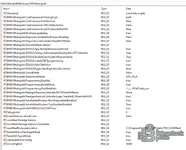
 
The install location key does not exist.
1770855224667.webp


alternativ metod did not work i have tried that all day now
 

Attachments

  • 1770855113669.webp
    1770855113669.webp
    71.1 KB · Views: 3
The install location key does not exist.
2757

alternativ metod did not work i have tried that all d...

The missing InstallLocation key is definitely the culprit. Without this key, ISTA does not know where its own executable is located relative to the plugins, so it fails to load the Passthru manager entirely.

Please create this registry key manually. It is the fastest way to fix the empty dropdown list.

How to fix it:

1. Open Notepad.
2. Copy and paste the code below exactly as it is:

Code:
Windows Registry Editor Version 5.00

[HKEY_LOCAL_MACHINE\SOFTWARE\WOW6432Node\BMWGroup\ISPI\Rheingold]
"InstallLocation"="C:\\ISTA"

3. Save the file to your desktop as fix_ista.reg (make sure "Save as type" is set to "All Files", not "Text Documents").
4. Double-click fix_ista.reg and click Yes to add it to the registry.
5. Restart ISTA+.

Go back to Vehicle Interface settings. The dropdown list should now be populated with your VXDIAG and other devices.

Regarding the Ediabas failure:
If the native menu works after the registry fix, you don't need the Ediabas method. However, the reason the Ediabas method likely failed is that STD:PASSTHRU requires a configuration file named PASSTHRUD.INI in C:\ISTA\Ediabas\Bin\ to tell it *which* device to use, or it defaults to the first one it finds (which might be the Tactrix you mentioned is also installed). Fixing the native menu is the cleaner solution.
 
did not work

Since the registry fix didn't solve it immediately, the issue is likely in the configuration file structure or a specific error occurring when ISTA tries to load the drivers.

Please follow these steps to diagnose exactly why ISTA is ignoring your devices.

1. Check the Log File (Critical)
ISTA creates a log that tells us exactly what happens when it tries to load the interface list.
1. Navigate to C:\ISTA\Logs\.
2. Open the most recent ISTAGUI.log file with Notepad.
3. Press Ctrl+F and search for the word Passthru.
4. Look for lines that say "Error", "Exception", or "Count: 0".
* *If it says "Passthru support disabled in config"*: The config file edit is wrong.
* *If it says "Found 0 devices"*: The registry path is still not being read correctly.

2. Verify Config File Placement
You mentioned adding the key to ISTAGUI.exe.config. Where you paste it matters. It must be inside the <appSettings> block.

1. Open C:\ISTA\TesterGUI\bin\Release\ISTAGUI.exe.config again.
2. Ensure your added lines look like this (inside the opening and closing tags):

XML:
<appSettings>
    <!-- Other settings are here -->
    
    <!-- MAKE SURE THESE ARE HERE -->
    <add key="BMW.Rheingold.VehicleInterface.Passthru.Header" value="BMW.Rheingold.VehicleInterface.Passthru.Header" />
    <add key="BMW.Rheingold.Istagui.VciConfiguration.Passthru" value="true" />
    
</appSettings>
If you pasted them at the very bottom of the file (after </appSettings> or </configuration>), they are being ignored.

3. Force the "BMW Point-to-Point" Fix
Sometimes ISTA refuses to show the Passthru list if it thinks the internal BMW network adapter is missing. Even if you don't have a BMW ICOM, ISTA checks for this.

Try running this registry fix to satisfy that check:

1. Create a new text file, name it fix_network.reg.
2. Paste this code:
Code:
Windows Registry Editor Version 5.00

[HKEY_LOCAL_MACHINE\SYSTEM\CurrentControlSet\Services\BMW_ICOM_VCI]
"ImagePath"="System32\\drivers\\vci.sys"
3. Save, run it, and restart ISTA.

4. VXDIAG Specifics
Since you are using VXDIAG, ensure you are not running the VXDIAG "Cloud Diagnostic" software at the same time as ISTA. Only the "VX Manager" should be running in the background. If the VXDIAG Passthru driver is occupied by another process, it will not report itself to ISTA.
 
Glad to hear you got it sorted.

Your suspicion about the old version conflict is spot on. Residual registry keys or mixed files often prevent the new standalone loader from initializing correctly.

Thank you for sharing the specific steps. Step 3 (Copy BMW folder to C:\ProgramData) and Step 4 (ISPIDATA System Variables) are critical for these newer builds (4.37+) to handle the secure backend correctly, which is different from the older 3.x/4.0x versions you might have used previously.

Enjoy the diagnostics!
Thanks. Unfortunately, this version not working with my BMW E71. I must to look for another old version between 3.47 - 4.57 to working with my car. With VIN introduced manually, working, but not connecting with car systems.
 
Thanks. Unfortunately, this version not working with my BMW E71. I must to look for another old vers...

The version of ISTA is not the problem. ISTA+ 4.x fully supports the E71 (and all E-series). Downgrading will not fix your connection issue.

The problem is the Interface Type you are trying to use.

Here is the critical distinction:
  • The "Passthru" dropdown menu (the one you were trying to fix) is designed for F, G, and I-series cars. It rarely works correctly for E-series.
  • For E-series (like your E71), you MUST use the "Ediabas" interface mode.

How to connect to E71 with VXDIAG

1. Configure ISTA Settings
  • Open ISTA.
  • Go to Administration -> Vehicle Interface.
  • Select Ediabas default settings (Do NOT select Passthru).
  • Click OK.

2. Configure Ediabas.ini
  • Navigate to
    Code:
    C:\ISTA\Ediabas\Bin\
  • Open EDIABAS.INI with Notepad.
  • Find the line
    Code:
    Interface = ...
  • Change it to:
    Code:
    Interface = STD:PASSTHRU
  • Save and close the file.

3. Configure PassthruD.ini (Crucial for J2534)
In the same folder (
Code:
C:\ISTA\Ediabas\Bin\
), look for a file named PASSTHRUD.INI.
  • If it does not exist, create it.
  • Open it and paste the following (this forces Ediabas to use your J2534 driver):
Code:
[PASSTHRUD]
DebugLevel=0
ConfigurationFile=
Name=
Note: If you leave "Name=" blank, it will try to load the first J2534 device it finds (your VXDIAG). If you have multiple devices (like the Tactrix you mentioned), you might need to put the exact name from the registry here, e.g.,
Code:
Name=VXDIAG J2534
.


4. Restart and Connect
  • Restart ISTA.
  • Connect the VXDIAG to the car and laptop.
  • Turn the car Ignition ON (Engine off).
  • In ISTA, click "Operations" -> "Read Out Vehicle Data" -> "Complete Identification".

If this still fails, the most reliable way to diagnose an E71 is to buy a cheap K+DCAN USB Cable ($20). For that cable, you would simply set
Code:
Interface = STD:OBD
in Ediabas.ini, which is much more stable for E-series than J2534 Passthru.
 
Admin should get rid off this AI, j2534 PassThru still does not work, I am now trying with Bosch kts590 but still no luck
 
Admin should get rid off this AI, j2534 PassThru still does not work, I am now trying with Bosch kts...

For the E71 (E-Series), you are fighting a losing battle trying to use the native "Passthru" menu in ISTA settings. That menu is designed for F, G, and I-series vehicles only. It does not handle the K-Line/D-CAN switching required for the E71 correctly, which is why you can enter the VIN but cannot communicate with modules.

To get the Bosch KTS 590 (or the VXDIAG) to work on an E71, you must route the connection through Ediabas.

Here is the exact configuration to make the KTS 590 work on your E71:

1. ISTA Settings
  • Open ISTA.
  • Go to Administration -> Vehicle Interface.
  • Select Ediabas default settings (Do NOT select Passthru).
  • Click OK and close ISTA.

2. Registry Check (Crucial)
You need the exact name of the KTS device as Windows sees it.
  • Open Registry Editor (regedit).
  • Navigate to:
    Code:
    HKEY_LOCAL_MACHINE\SOFTWARE\WOW6432Node\PassThruSupport.04.04
  • Find the folder for your Bosch KTS (it might be named "Bosch KTS" or similar).
  • Inside that folder, look for the String value named Name.
  • Copy that value exactly (e.g., "KTS 590" or "Bosch KTS 590").

3. Configure EDIABAS.INI
Navigate to
Code:
C:\ISTA\Ediabas\Bin\
and open EDIABAS.INI.
Change the Interface line to:
Code:
Interface = STD:PASSTHRU
(Make sure there is no # symbol in front of it).

4. Configure PASSTHRUD.INI
In the same folder, find PASSTHRUD.INI. If it doesn't exist, create it.
Paste this content, replacing YOURKTSNAME_HERE with the name you copied from the registry in Step 2:

Code:
[General]
DebugLevel=0
ConfigurationFile=
Name=YOUR_KTS_NAME_HERE

Example: Name=Bosch KTS 590

5. Test on Car
  • Connect KTS to car and laptop.
  • Start ISTA.
  • Operations -> Read Out Vehicle Data -> Complete Identification.

If this still fails, verify that the Bosch DDC (Diagnostics Device Configuration) software is installed and can see the KTS 590. If the Bosch driver software isn't running or configured, ISTA cannot access the hardware.
 
For the E71 (E-Series), you are fighting a losing battle trying to use the native "Passthru" menu in ISTA settings. That menu is designed for F, G, and I-series vehicles only. It does not handle the K-Line/D-CAN switching required for the E71 correctly, which is why you can enter the VIN but cannot communicate with modules.

To get the Bosch KTS 590 (or the VXDIAG) to work on an E71, you must route the connection through Ediabas.

Here is the exact configuration to make the KTS 590 work on your E71:

1. ISTA Settings
  • Open ISTA.
  • Go to Administration -> Vehicle Interface.
  • Select Ediabas default settings (Do NOT select Passthru).
  • Click OK and close ISTA.

2. Registry Check (Crucial)
You need the exact name of the KTS device as Windows sees it.
  • Open Registry Editor (regedit).
  • Navigate to:
    Code:
    HKEY_LOCAL_MACHINE\SOFTWARE\WOW6432Node\PassThruSupport.04.04
  • Find the folder for your Bosch KTS (it might be named "Bosch KTS" or similar).
  • Inside that folder, look for the String value named Name.
  • Copy that value exactly (e.g., "KTS 590" or "Bosch KTS 590").

3. Configure EDIABAS.INI
Navigate to
Code:
C:\ISTA\Ediabas\Bin\
and open EDIABAS.INI.
Change the Interface line to:
Code:
Interface = STD:PASSTHRU
(Make sure there is no # symbol in front of it).

4. Configure PASSTHRUD.INI
In the same folder, find PASSTHRUD.INI. If it doesn't exist, create it.
Paste this content, replacing YOURKTSNAME_HERE with the name you copied from the registry in Step 2:

Code:
[General]
DebugLevel=0
ConfigurationFile=
Name=YOUR_KTS_NAME_HERE

Example: Name=Bosch KTS 590

5. Test on Car
  • Connect KTS to car and laptop.
  • Start ISTA.
  • Operations -> Read Out Vehicle Data -> Complete Identification.

If this still fails, verify that the Bosch DDC (Diagnostics Device Configuration) software is installed and can see the KTS 590. If the Bosch driver software isn't running or configured, ISTA cannot access the hardware.
Kts590 works on other OEM software. But not on this software
 
Kts590 works on other OEM software. But not on this software

The "Passthru" menu in ISTA is strictly for F/G/I-series. For an E71, you must use "Ediabas Default Settings". If you try to use the Passthru menu for an E-Series, it will never work properly because that mode does not support the K-Line protocol switching required for the E71.

Since you have multiple J2534 drivers installed (VXDIAG, Tactrix, and now KTS 590), the issue is almost certainly that Ediabas is grabbing the wrong driver (e.g., trying to open the VXDIAG driver while you have the KTS connected).

Here is how to force ISTA/Ediabas to use the KTS 590 specifically for your E71:

1. Verify the File Structure
Go to C:\ISTA\Ediabas\Bin\ and make sure you have a file named PASSTHRUD.DLL.
  • If this file is missing, STD:PASSTHRU will not work. You can copy it from a Standard Tools installation or find a "PassthruD" package online.

2. Force the Device Name
You need to tell Ediabas exactly which device to use, or it defaults to the first one in the Windows Registry (which is likely your VXDIAG).

1. Open C:\ISTA\Ediabas\Bin\PASSTHRUD.INI (Create it if it doesn't exist).
2. Paste this content:
INI:
[PASSTHRU]
DebugLevel=0
ConfigurationFile=
Name=Bosch KTS 590
*Note: The Name must match exactly what is shown in the Registry under HKEY_LOCAL_MACHINE\SOFTWARE\WOW6432Node\PassThruSupport.04.04. Check there to confirm if it is "Bosch KTS 590" or "KTS 590".*

3. Configure EDIABAS.INI
Open C:\ISTA\Ediabas\Bin\EDIABAS.INI:
INI:
; Ensure this is set
Interface = STD:PASSTHRU

; If you have ignition detection issues, try setting these to 0 temporarily
UbattHandling = 0
IgnitionHandling = 0

4. System Path Conflict
Since you likely have BMW Standard Tools installed (which installs Ediabas to C:\Ediabas), ISTA might be loading *that* config instead of the one in C:\ISTA\Ediabas.
  • Rename C:\Ediabas to C:\Ediabas_Backup temporarily.
  • Restart ISTA and try identifying the vehicle again.

If this setup (Ediabas Mode + STD:PASSTHRU + Correct Name in INI) does not work, the KTS 590 J2534 wrapper implementation may not fully support the BMW specific K-Line protocols required for E-Series identification. In that case, a standard K+DCAN cable is the only reliable solution for E-Series on this software.
 
Solved. Thank you for your advices. Removing all files, all registry and clean installed. Probably was a problem from old versions.
1. Copy ISTA from *.rar exactly how its structure;
2. Create shortcut;
3. Copy BMW folder from BMW.rar in C:\ProgramData;
4. Run as Administrator ISPIDATA System Variables.cmd;
5. Run ISTA+ 4.57.30 diagnostic only.reg.
the one problem i'm having is finding the bmw.rar file
 
the one problem i'm having is finding the bmw.rar file

Check the first post of this thread.

The download links are usually attached to Post #1 as a text file (e.g., Download_Links.txt) or hidden under a "Spoiler" button. You typically need to download that text file to get the actual URL (MEGA, Google Drive, or tоrrеnt) for the archive.

If you are looking for a specific file named bmw.rar inside the download:
  • The main installation folder is usually named Rheingold or ISTA after extraction.
  • If you are looking for the data files (PSdZData), they are often in a separate archive (e.g., PSdZData_Full.rar or Lite.rar).
 
i had the same problem!
I simply copied from another version of ista+ where it was included to C:\Pr...

This is a valid workaround.

The bmw.rar archive typically contains the BMW folder structure that must be placed in C:\ProgramData\. This folder holds the ISPI configuration and liсеnsе files required for ISTA to launch.

If anyone else is missing this archive or cannot find it:
1. Enable "Hidden Items" in Windows Explorer (View tab -> Check "Hidden items") to see C:\ProgramData.
2. Copy the BMW folder from any previous working standalone version of ISTA (e.g., 4.32, 4.39).
3. Paste it into C:\ProgramData\.

This usually works because the standalone liсеnsе files are often compatible across different versions.
 
The "Passthru" menu in ISTA is strictly for F/G/I-series. For an E71, you must use "Ediabas Default Settings". If you try to use the Passthru menu for an E-Series, it will never work properly because that mode does not support the K-Line protocol switching required for the E71.

Since you have multiple J2534 drivers installed (VXDIAG, Tactrix, and now KTS 590), the issue is almost certainly that Ediabas is grabbing the wrong driver (e.g., trying to open the VXDIAG driver while you have the KTS connected).

Here is how to force ISTA/Ediabas to use the KTS 590 specifically for your E71:

1. Verify the File Structure
Go to C:\ISTA\Ediabas\Bin\ and make sure you have a file named PASSTHRUD.DLL.
  • If this file is missing, STD:PASSTHRU will not work. You can copy it from a Standard Tools installation or find a "PassthruD" package online.

2. Force the Device Name
You need to tell Ediabas exactly which device to use, or it defaults to the first one in the Windows Registry (which is likely your VXDIAG).

1. Open C:\ISTA\Ediabas\Bin\PASSTHRUD.INI (Create it if it doesn't exist).
2. Paste this content:
INI:
[PASSTHRU]
DebugLevel=0
ConfigurationFile=
Name=Bosch KTS 590
*Note: The Name must match exactly what is shown in the Registry under HKEY_LOCAL_MACHINE\SOFTWARE\WOW6432Node\PassThruSupport.04.04. Check there to confirm if it is "Bosch KTS 590" or "KTS 590".*

3. Configure EDIABAS.INI
Open C:\ISTA\Ediabas\Bin\EDIABAS.INI:
INI:
; Ensure this is set
Interface = STD:PASSTHRU

; If you have ignition detection issues, try setting these to 0 temporarily
UbattHandling = 0
IgnitionHandling = 0

4. System Path Conflict
Since you likely have BMW Standard Tools installed (which installs Ediabas to C:\Ediabas), ISTA might be loading *that* config instead of the one in C:\ISTA\Ediabas.
  • Rename C:\Ediabas to C:\Ediabas_Backup temporarily.
  • Restart ISTA and try identifying the vehicle again.

If this setup (Ediabas Mode + STD:PASSTHRU + Correct Name in INI) does not work, the KTS 590 J2534 wrapper implementation may not fully support the BMW specific K-Line protocols required for E-Series identification. In that case, a standard K+DCAN cable is the only reliable solution for E-Series on this software

This version does not use ediabas. It uses TRIC and it is locked to ICOM can not switch to PassThruD. I installed v4.39.20 and passthrud is working
 
This version does not use ediabas. It uses TRIC and it is locked to ICOM can not switch to PassThruD...

Glad you got it sorted with v4.39.20. That version is widely considered the "golden standard" for J2534/Passthru users right now because it is less fussy about non-ICOM hardware than the 4.4x/4.5x releases.

For anyone else who wants to use the newer version but finds the Interface menu locked to ICOM (grayed out or missing), you can usually force it to unlock by editing the configuration file.

How to unlock the Interface Selection Menu:

1. Navigate to the installation folder, typically C:\Rheingold\TesterGUI\bin\Release\.
2. Open ISTAGUI.exe.config with Notepad.
3. Search for the following key:
Code:
xml
   <add key="BMW.Rheingold.ISTAGUI.Pages.ConnectionManager.VehicleInterface.Enabled" value="false" />
4. Change value="false" to value="true".
5. Save the file and restart ISTA.

This will re-enable the "Vehicle Interface" tab in the Administration settings, allowing you to switch back to Ediabas or Passthru.
 
Back