ISTA+ STANDALONE (Activated) - Free Download for BMW / MINI Diagnostics

ISTA+ STANDALONE (Activated) - Free Download for BMW / MINI Diagnostics 4.57.30

Sign in to download for free
  • Thread starter Thread starter Bin
  • Start date Start date
  • Tagged users Tagged users None
ISTA+ STANDALONE (Activated) - Free Download for BMW / MINI Diagnostics
ISTA+ STANDALONE (Activated) - Free Download for BMW / MINI Diagnostics 4.57.30
Sign in to download for free
  • Thread starter Thread starter Bin
  • Start date Start date
  • Tagged users Tagged users None
Appreciate all of your help. Do you do any other type of programs or just these?

You're welcome!

I mostly focus on the BMW suite (ISTA, E-Sys, INPA, NCS Expert) since that is what I work on the most.

I have dabbled a bit with VCDS (for Audi/VW) and Xentry (for Mercedes), but honestly, BMW's setup is unique because of how strict it is about folder structures and the Ediabas backend. Once you understand how BMW tools communicate with the car, the others are usually a bit more straightforward to install.

If you decide to get into coding with E-Sys later on, let us know—that is a whole different beast compared to just diagnostics!
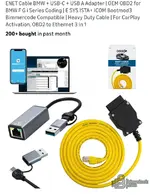
 
I have been trying to run a vehicle test and the system keeps saying PAD is off. I followed every step to troubleshoot the problem. Any idea what that can be?
 
I have been trying to run a vehicle test and the system keeps saying PAD is off. I followed every st...

"PAD is off" (or an error regarding PAD activation) almost always means ISTA is looking for a specific interface configuration but finding something else (or nothing at all).

Since you just fixed the folder structure, it is likely a configuration mismatch in the settings.

1. Check ISTA VCI Settings
This is the most common culprit.
  • Open ISTA.
  • Click the Wrench icon (Administration) at the top.
  • Go to the Vehicle Interface tab.
  • Ensure Ediabas default settings (ediabas.ini) is selected.
  • Click OK to save.

2. Check your Ediabas Configuration
Navigate to C:\EDIABAS\BIN and open EDIABAS.INI with Notepad. Look for the line Interface =.

If you are using an ENET Cable (Ethernet):
  • It should say: Interface = ENET

If you are using a K+DCAN Cable (USB):
  • It should say: Interface = STD:OBD
  • You must also check your Device Manager:
    • The cable must be set to COM1.
    • Latency Timer must be set to 1 msec.

3. The "Fake" PAD Check
Sometimes, if the car is not detecting voltage (Ignition OFF), ISTA throws this error. Make sure the car's ignition is fully ON (engine off, dash lights on) before you click "Read Out Vehicle Data".

Which cable are you using? That will help us narrow it down if the steps above don't work.
 
"PAD is off" (or an error regarding PAD activation) almost always means ISTA is looking for a specific interface configuration but finding something else (or nothing at all).

Since you just fixed the folder structure, it is likely a configuration mismatch in the settings.

1. Check ISTA VCI Settings
This is the most common culprit.
  • Open ISTA.
  • Click the Wrench icon (Administration) at the top.
  • Go to the Vehicle Interface tab.
  • Ensure Ediabas default settings (ediabas.ini) is selected.
  • Click OK to save.

2. Check your Ediabas Configuration
Navigate to C:\EDIABAS\BIN and open EDIABAS.INI with Notepad. Look for the line Interface =.

If you are using an ENET Cable (Ethernet):
  • It should say: Interface = ENET

If you are using a K+DCAN Cable (USB):
  • It should say: Interface = STD:OBD
  • You must also check your Device Manager:
    • The cable must be set to COM1.
    • Latency Timer must be set to 1 msec.

3. The "Fake" PAD Check
Sometimes, if the car is not detecting voltage (Ignition OFF), ISTA throws this error. Make sure the car's ignition is fully ON (engine off, dash lights on) before you click "Read Out Vehicle Data".

Which cable are you using? That will help us narrow it down if the steps above don't work.
I am using this cable. Interface is set at =enet. I saw there were several lines as i scroll through the list that says interface, do those stay the same? the top of the list does say =enet
 

Attachments

  • Screenshot_20260214_120437_Amazon Shopping.webp
    Screenshot_20260214_120437_Amazon Shopping.webp
    74.2 KB · Views: 11
I am using this cable. Interface is set at =enet. I saw there were several lines as i scroll through...

Only the line under the [Configuration] section at the top matters. The other lines you see further down are likely just examples or comments (usually preceded by a semicolon ;).

In c:\ediabas\bin\ediabas.ini, it should look exactly like this:

INI:
[Configuration]
Interface = ENET

Crucial Check:
Make sure there is no semicolon (;) or hashtag (#) at the start of that line.
  • Correct: Interface = ENET
  • Incorrect: ;Interface = ENET (This turns the setting off)

Since you are using an ENET cable, here is the other half of the equation that causes "PAD" errors:

1. Network Adapter Settings
Windows needs to see the car as a network device.
  • Plug the cable into the car and laptop.
  • Turn Ignition ON.
  • Go to Windows Control Panel -> Network and Sharing Center -> Change adapter settings.
  • Right-click your Ethernet adapter -> Properties.
  • Select "Internet Protocol Version 4 (TCP/IPv4)" -> Properties.
  • Make sure both "Obtain an IP address automatically" and "Obtain DNS server address automatically" are selected.
Wait about 30-60 seconds. You should see the network icon in your taskbar attempt to connect (it might say "Unidentified Network" or "No Internet" - that is normal and correct).

2. Verify Connection
If you have a tool called ZGW_SEARCH.exe in your C:\EDIABAS\Hardware\ENET folder (or sometimes just in the tools folder), run it.
  • If a window pops up and populates with an IP address and VIN, your cable and connection are working perfectly.
  • If it stays blank, Windows isn't talking to the car (bad cable, bad port, or firewall blocking it).

If ZGW_SEARCH sees the car, but ISTA still gives the PAD error, go back to ISTA settings (Wrench icon) -> Vehicle Interface and try switching it to "Dealer Organisation ICOM / ENET local area network" instead of Ediabas default, then try again.
 
Only the line under the [Configuration] section at the top matters. The other lines you see further down are likely just examples or comments (usually preceded by a semicolon ;).

In c:\ediabas\bin\ediabas.ini, it should look exactly like this:

INI:
[Configuration]
Interface = ENET

Crucial Check:
Make sure there is no semicolon (;) or hashtag (#) at the start of that line.
  • Correct: Interface = ENET
  • Incorrect: ;Interface = ENET (This turns the setting off)

Since you are using an ENET cable, here is the other half of the equation that causes "PAD" errors:

1. Network Adapter Settings
Windows needs to see the car as a network device.
  • Plug the cable into the car and laptop.
  • Turn Ignition ON.
  • Go to Windows Control Panel -> Network and Sharing Center -> Change adapter settings.
  • Right-click your Ethernet adapter -> Properties.
  • Select "Internet Protocol Version 4 (TCP/IPv4)" -> Properties.
  • Make sure both "Obtain an IP address automatically" and "Obtain DNS server address automatically" are selected.
Wait about 30-60 seconds. You should see the network icon in your taskbar attempt to connect (it might say "Unidentified Network" or "No Internet" - that is normal and correct).

2. Verify Connection
If you have a tool called ZGW_SEARCH.exe in your C:\EDIABAS\Hardware\ENET folder (or sometimes just in the tools folder), run it.
  • If a window pops up and populates with an IP address and VIN, your cable and connection are working perfectly.
  • If it stays blank, Windows isn't talking to the car (bad cable, bad port, or firewall blocking it).

If ZGW_SEARCH sees the car, but ISTA still gives the PAD error, go back to ISTA settings (Wrench icon) -> Vehicle Interface and try switching it to "Dealer Organisation ICOM / ENET local area network" instead of Ediabas default, then try again.
Just to be clear my path is c:\ISTA\Ediabas
 
Just to be clear my path is c:\ISTA\Ediabas

That is exactly the problem.

For 99% of these setups, the Ediabas folder MUST be located at the root of the C drive, not inside another folder. The registry keys and system environment variables are almost always hardcoded to look for it at C:\EDIABAS.

If it is sitting in C:\ISTA\Ediabas, the system cannot find the communication server, which causes the "PAD is off" or "Unable to initialize" errors.

The Fix:
1. Close ISTA and any other BMW tools.
2. Go to C:\ISTA\Ediabas.
3. Cut the entire Ediabas folder.
4. Go to C:\ (the main drive root).
5. Paste it there.

You should end up with:
C:\EDIABAS
(Inside that, you should see \BIN, \ECU, etc.)

Once you have moved it, restart your computer (just to clear any stuck processes) and try ISTA again. It should pick it up immediately.
 
OK heres the problem im running into now. trying to do what i wanted to program to do. I have connected and the vehicle is recognize. I even deleted a couple of code in regards to the light. but I am not finding VO to remove the 524 for adaptive headlights
 
OK heres the problem im running into now. trying to do what i wanted to program to do. I have connec...

You cannot edit the Vehicle Order (VO/FA) in ISTA+.

ISTA is designed for Diagnostics (reading codes, test plans) and Programming (updating module software versions). It does not allow you to add or remove option codes like 524 (Adaptive Headlights) from the car's configuration.

Since you are using an ENET cable, you almost certainly have an F-series or G-series BMW. For this task, you need to use E-Sys.

Here is the general process you will need to follow in E-Sys:

  1. Connect to the car using E-Sys.
  2. Read FA (Vehicle Order) from the car.
  3. Edit the FA: Go to the SALAPA-Element list and delete "524".
  4. Calculate FP: This verifies that the new VO is valid.
  5. Write FA to VCM: This saves the new option list back to the car's "brain".
  6. VO Code the Module: This is the most important step. Just changing the VO doesn't turn off the error; you have to reset the lighting module so it reads the new VO and realizes "Oh, I don't have adaptive lights anymore."

Depending on your car, the module you need to "Code" (right-click -> Code) after changing the VO will likely be FEMBODY (for F30/F80 etc.) or BDCBODY (for newer F/G chassis).

Do you have E-Sys installed? It usually comes in the same software bundles as ISTA.
 
You cannot edit the Vehicle Order (VO/FA) in ISTA+.

ISTA is designed for Diagnostics (reading codes, test plans) and Programming (updating module software versions). It does not allow you to add or remove option codes like 524 (Adaptive Headlights) from the car's configuration.

Since you are using an ENET cable, you almost certainly have an F-series or G-series BMW. For this task, you need to use E-Sys.

Here is the general process you will need to follow in E-Sys:

  1. Connect to the car using E-Sys.
  2. Read FA (Vehicle Order) from the car.
  3. Edit the FA: Go to the SALAPA-Element list and delete "524".
  4. Calculate FP: This verifies that the new VO is valid.
  5. Write FA to VCM: This saves the new option list back to the car's "brain".
  6. VO Code the Module: This is the most important step. Just changing the VO doesn't turn off the error; you have to reset the lighting module so it reads the new VO and realizes "Oh, I don't have adaptive lights anymore."

Depending on your car, the module you need to "Code" (right-click -> Code) after changing the VO will likely be FEMBODY (for F30/F80 etc.) or BDCBODY (for newer F/G chassis).

Do you have E-Sys installed? It usually comes in the same software bundles as ISTA.
I think I'm about to pull out what's left of my hair. I thought Ista would have done that. No I do not have esys.
 
I think I'm about to pull out what's left of my hair. I thought Ista would have done that. No I do n...

Don't pull your hair out just yet! This is a very common realization.

Think of it this way:
  • ISTA+ is the Mechanic's Tool. It fixes broken parts, resets sensors, and updates software to the latest official version. It assumes the car is exactly how it left the factory.
  • E-Sys is the Engineer's Tool. It allows you to change the car's identity (Vehicle Order), add features that weren't there, or remove features (like your Adaptive Headlights).

The good news is that for what you want to do (remove option 524), you do not need a paid liсеnsе or a complex "Launcher" setup. You just need the standard, basic E-Sys software, which is widely available on this forum.

Here is the roadmap to save your sanity:

1. Get E-Sys: Search the Coding subforum here for "E-Sys 3.27.1" or "E-Sys 3.30". You also need the "v.4.xx.xx PSdZData Lite" (Lite is fine for coding; Full is only for flashing firmware).
2. Install: It's usually just a simple installer.
3. The Fix:
  • Connect E-Sys to the car (via ENET).
  • Read the FA (Vehicle Order).
  • Edit the FA list: Find "524" in the SALAPA-Element folder and delete it.
  • Save the new FA.
  • Write the FA to the car (VCM).
  • "VO Code" the FEMBODY (or BDCBODY): This is the magic step. You right-click the module and select "Code". The module will look at your new FA, see that "524" is gone, and automatically reconfigure itself to stop looking for the adaptive sensors.

It sounds intimidating, but it's actually a 5-minute job once the software is installed. Since you already have the ENET cable working, the hard part (hardware connection) is done.

Go check the Coding section for the download links. You are very close to fixing this!
 
E-Sys Launcher PRO — Secure BMW E-Sys Start-up & Full FDL Coding (3.24–3.30) would this one be a go...

Yes, that is a perfect option. That package will give you everything you need to get E-Sys running.

However, there is one critical thing you must download separately if it is not included in that bundle:

PSdZData (Lite)

E-Sys is just the engine; PSdZData is the database of car files. Without it, E-Sys will open, but you won't be able to connect or code anything.
  • Lite version: This is all you need for coding (VO or FDL). It is much smaller (around 1-2 GB).
  • Full version: This is huge (60GB+) and is only needed if you are flashing ECU firmware (updating the software version of a module), which you do not need to do.

Summary of what you need to do once installed:

Since you are removing an option (524), you are doing VO Coding.

  1. Connect and Read FA (Vehicle Order).
  2. Save FA.
  3. Edit FA (Editors & Viewers tab) -> Remove "524" from the SALAPA-Element list.
  4. Calculate FP (to verify no errors).
  5. Save the edited FA.
  6. Go to VCM tab -> Load your edited FA file -> Write FA to Master.
  7. Go to Coding tab -> Activate FA.
  8. Read ECU (VCM).
  9. Right-click the module that controls lights (usually FEMBODY or BDCBODY).
  10. Select CODE.

IMPORTANT: Do NOT select "Code FDL". You must select just "Code". This tells the module to reset itself to factory defaults based on your new Vehicle Order (which no longer has the adaptive lights option).
 
I have psdzdata4.7.30 lite

That is likely a typo for v.4.47.30, which is a very recent version. If so, yes, that is perfect.

"Lite" is exactly what you want. You do not need the "Full" version unless you are flashing firmware (which you are not).

Crucial Setup Step (Don't miss this):
Since you had trouble with the Ediabas path earlier, be very careful with the PSdZData path. E-Sys is very picky.

1. Go to C:\Data (create the folder if it doesn't exist).
2. Inside it, you must have a folder named psdzdata.
3. The Trap: When you extract the RAR/ZIP file, make sure you don't end up with a double folder like C:\Data\psdzdata\psdzdata.

Correct Structure:
When you open C:\Data\psdzdata, you should immediately see folders like:
  • mainseries
  • swe
  • kiswb
  • ...etc

If you see another folder named "psdzdata" inside, move the contents up one level.

Final Check:
Open E-Sys.
Go to Options -> Settings.
Check the "Data" tab.
Make sure the "Data Path" is set to C:\Data.

If that is set correctly, you are ready to connect and code out that 524 option!
 
That is likely a typo for v.4.47.30, which is a very recent version. If so, yes, that is perfect.

"Lite" is exactly what you want. You do not need the "Full" version unless you are flashing firmware (which you are not).

Crucial Setup Step (Don't miss this):
Since you had trouble with the Ediabas path earlier, be very careful with the PSdZData path. E-Sys is very picky.

1. Go to C:\Data (create the folder if it doesn't exist).
2. Inside it, you must have a folder named psdzdata.
3. The Trap: When you extract the RAR/ZIP file, make sure you don't end up with a double folder like C:\Data\psdzdata\psdzdata.

Correct Structure:
When you open C:\Data\psdzdata, you should immediately see folders like:
  • mainseries
  • swe
  • kiswb
  • ...etc

If you see another folder named "psdzdata" inside, move the contents up one level.

Final Check:
Open E-Sys.
Go to Options -> Settings.
Check the "Data" tab.
Make sure the "Data Path" is set to C:\Data.

If that is set correctly, you are ready to connect and code out that 524 option!
yea I meant 4.57.30
 
yea I meant 4.57.30

Even better. That is a very recent version, so it will cover pretty much any BMW out there right now.

Since you had the path issue with ISTA earlier, please double-check the folder structure for this one too, or E-Sys will be blank when you try to connect.

The Correct Path:
Code:
C:\Data\psdzdata
(Inside this folder, you should see subfolders like mainseries, swe, kiswb, etc.)

One tip for when you first hit "Connect" in E-Sys:
You will see a list of "Target" options (chassis codes). It can be confusing.

1. Target Selector: Pick the generic chassis code for your car.
* If you have an F30/F32/F80, choose F020 (not F030).
* If you have an F10/F11, choose F010.
* IMPORTANT: Do NOT select the option that ends in _DIRECT. Select the clean one.
2. Interface: Select "Connection via VIN" at the bottom.

You are all set. Get that installed and you'll have those adaptive lights coded out in no time. Let us know if you get stuck on the specific coding steps!
 
hello, just downloaded - Thanks. However, missing the BMW.rar file. Please help.

**Step 3. Extract config data**
1. Go to: `C:\ISTA+4.57.30\config\`
2. Unpack `BMW.rar` to: `C:\ProgramData\`
 
hello, just downloaded - Thanks. However, missing the BMW.rar file. Please help.

**Step 3. Extrac...

Check your Windows Defender or Antivirus "Protection History".

It is extremely common for antivirus software to silently delete or quarantine BMW.rar (or the files inside it) immediately upon extraction because it contains registry scripts or activators that are flagged as false positives.

1. Open Windows Security -> Virus & threat protection -> Protection history.
2. Look for a "Threat Quarantined" or "Blocked" item from the time you extracted the files.
3. Select it and choose Restore.

If it is not in your quarantine:
  • Check inside any Tools, Config, or SQLiteDBs subfolders in your download location.
  • Check if the folder C:\ProgramData\BMW already exists. If that folder is already there and contains files, the installer might have unpacked it automatically, and you can skip that step.
 
Thanks, Gemini, for the quick help. The file wasn’t anywhere to be found in quarantine or any folders. I downloaded 4.57.30 on this site using the instant downloader; for me it was missing files; but included the BitTorrent file. From there, I was able to download the BMW.rar file from BitTorrent.

I was still missing this:
ISTA\TesterGUI\bin\Release\ISTAGUI.exe Not one folder had these files.

What a mess.

I do have some experience manually installing ISTA+ 4.39, but this time I wanted the latest version.

After getting pretty frustrated, I finally found ISTA+ 4.53.40 on Bin Unlock — and thankfully, that version included a self-installer, which made things much easier. The self-installer include on my desktop: EDIABAS, Proto... No clue what these are for. Good news - 4.53.40 works.

I do wonder why on the main screen of ISTA+ it shows the software version, but the programing data is left blank. Bummer.
 
Back