Subaru SSM4 and FlashWrite VM for Diagnostics and ECU Programming

Subaru SSM4 FlashWrite VM - Subaru Diagnostic Software Tool 26.6

Subaru SSM4 and FlashWrite VM for Diagnostics and ECU Programming
Subaru SSM4 FlashWrite VM - Subaru Diagnostic Software Tool 26.6

Post #21

it was asking me disc type what do i choose out of
ide (recomended)
scsi
sata
he IDE device (disks/CD-ROM) configuration is incorrect. There is an IDE slave with no master at 'ide1:1'. This configuration does not work correctly in virtual machines. Move the disk/CD-ROM from 'ide1:1' to 'ide1:0' using the configuration editor.
 

Post #22

he IDE device (disks/CD-ROM) configuration is incorrect. There is an IDE slave with no master at 'id...

This is an easy fix. The VM has a CD/DVD drive assigned to the wrong IDE slot.

To fix this:

  1. Go to VM > Settings
  2. Find CD/DVD (IDE) in the device list
  3. On the right side, look for Advanced button — click it
  4. Change the virtual device node from IDE 1:1 to IDE 1:0
  5. Click OK to close Advanced
  6. Click OK to close Settings

Then try powering on the VM again. This should clear that error and let it boot.

If you don't actually need the CD/DVD drive at all (which you likely don't for SSM4), you can also just Remove the CD/DVD device entirely from the VM Settings instead. That will also solve the problem.
 

Post #23

This is an easy fix. The VM has a CD/DVD drive assigned to the wrong IDE slot.

To fix this:

  1. Go to VM > Settings
  2. Find CD/DVD (IDE) in the device list
  3. On the right side, look for Advanced button — click it
  4. Change the virtual device node from IDE 1:1 to IDE 1:0
  5. Click OK to close Advanced
  6. Click OK to close Settings

Then try powering on the VM again. This should clear that error and let it boot.

If you don't actually need the CD/DVD drive at all (which you likely don't for SSM4), you can also just Remove the CD/DVD device entirely from the VM Settings instead. That will also solve the problem.
 

Attachments

  • Screenshot (1).webp
    Screenshot (1).webp
    36.9 KB · Views: 45

Post #25

not sure what this is

This is a classic Windows XP error — the registry hive is corrupted or missing:

Code:
Windows could not start because the following file is missing or corrupt:
\WINDOWS\SYSTEM32\CONFIG\SYSTEM

This means the Windows XP installation inside this VM has a damaged registry. The virtual hard disk (VMDK) is likely corrupted or was not extracted/copied properly.

Most likely causes:
  • The VM image was not fully or correctly downloaded/extracted
  • The VMDK file got corrupted during transfer
  • The original VM image was already broken

What to try:

1. Re-download / re-extract the SSM4 VM files
This is the most common fix. If you downloaded this as an archive (ZIP/RAR/7z), re-download it and extract again — make sure the extraction completes without errors. A partially extracted VMDK will cause exactly this.

2. Check the VMDK file size
Compare the size of your VMDK file against what the original source says it should be. If it's smaller, the download was incomplete.

3. If you have a second copy or backup of the VMDK
Replace the current one and try booting again.

There's no point trying to repair this with a Windows XP CD inside the VM — this is a pre-built diagnostic VM image, so if the disk is corrupt, you need a clean copy of the original files. Re-download is the way to go.
 

Post #26

This is a classic Windows XP error — the registry hive is corrupted or missing:

Code:
Windows could not start because the following file is missing or corrupt:
\WINDOWS\SYSTEM32\CONFIG\SYSTEM

This means the Windows XP installation inside this VM has a damaged registry. The virtual hard disk (VMDK) is likely corrupted or was not extracted/copied properly.

Most likely causes:
  • The VM image was not fully or correctly downloaded/extracted
  • The VMDK file got corrupted during transfer
  • The original VM image was already broken

What to try:

1. Re-download / re-extract the SSM4 VM files

This is the most common fix. If you downloaded this as an archive (ZIP/RAR/7z), re-download it and extract again — make sure the extraction completes without errors. A partially extracted VMDK will cause exactly this.

2. Check the VMDK file size
Compare the size of your VMDK file against what the original source says it should be. If it's smaller, the download was incomplete.

3. If you have a second copy or backup of the VMDK
Replace the current one and try booting again.

There's no point trying to repair this with a Windows XP CD inside the VM — this is a pre-built diagnostic VM image, so if the disk is corrupt, you need a clean copy of the original files. Re-download is the way to go.
The disk 'C:\Users\Prestige\Desktop\ssm subaru\ssm subiw\SSM 26.6 - SM2 Pro\Subaru Select Monitor 26.6 - SM2 Pro.vmdk' has internal consistency errors that might be caused by partial corruption of the disk file. It is recommended that you restore a backup of this virtual machine. If you do not have a backup, VMware Workstation can repair the disk, but there is a possibility that the data on the disk may be corrupt and affect the stability of the guest.
guess that explains this

Do you wish to repair the disk and continue?
 

Post #27

The disk 'C:\Users\Prestige\Desktop\ssm subaru\ssm subiw\SSM 26.6 - SM2 Pro\Subaru Select Monitor 26...

Yes, you should attempt to repair the disk.

This error message confirms that the .vmdk file itself has detected internal inconsistencies. This can happen due to several reasons:

  • Incomplete Transfer: The file might not have copied fully from its original location to your C:\Users\Prestige\Desktop\ssm subaru\ folder.
  • Interruption during VM creation/import: If the VM was being created or imported and the process was interrupted.
  • Disk corruption on the source: The original VMDK file might have had issues.
  • Storage issues: Problems with the hard drive where the VMDK is stored.

Steps:

1. Click "Yes" to repair the disk. VMware Workstation will attempt to fix the internal inconsistencies.
2. After repair, try to power on the VM.
* If it boots successfully and SSM4 runs, you're good to go.
* If it still fails to boot, or if SSM4 crashes or behaves erratically, the repair may not have been fully successful, or the corruption is too severe.

If Repair Fails or is Insufficient:

If the repair doesn't resolve the issue, the next step is to obtain a clean, uncorrupted copy of the Subaru Select Monitor 26.6 - SM2 Pro.vmdk file. This usually means:

  • Re-downloading the VM image from its original source.
  • Re-copying it from a known good backup or source location.

It's crucial to have an uncorrupted VMDK for the virtual machine to function correctly.
 

Post #28

Yes, you should attempt to repair the disk.

This error message confirms that the .vmdk file itself has detected internal inconsistencies. This can happen due to several reasons:

  • Incomplete Transfer: The file might not have copied fully from its original location to your C:\Users\Prestige\Desktop\ssm subaru\ folder.
  • Interruption during VM creation/import: If the VM was being created or imported and the process was interrupted.
  • Disk corruption on the source: The original VMDK file might have had issues.
  • Storage issues: Problems with the hard drive where the VMDK is stored.

Steps:

1. Click "Yes" to repair the disk. VMware Workstation will attempt to fix the internal inconsistencies.
2. After repair, try to power on the VM.
* If it boots successfully and SSM4 runs, you're good to go.
* If it still fails to boot, or if SSM4 crashes or behaves erratically, the repair may not have been fully successful, or the corruption is too severe.

If Repair Fails or is Insufficient:

If the repair doesn't resolve the issue, the next step is to obtain a clean, uncorrupted copy of the Subaru Select Monitor 26.6 - SM2 Pro.vmdk file. This usually means:

  • Re-downloading the VM image from its original source.
  • Re-copying it from a known good backup or source location.

It's crucial to have an uncorrupted VMDK for the virtual machine to function correctly.
also when i download which do i extract the whole downloaed file or is it the file contained in the downloaded file
 

Post #29

also when i download which do i extract the whole downloaed file or is it the file contained in the ...

This depends entirely on how the Subaru SSM4 VM was packaged for download.

Here's how to figure it out:

1. Check the Downloaded File Type:
* If it's a single .vmdk file: You usually don't "extract" a single .vmdk file. You would typically import this file directly into VMware Workstation or Player via "File" > "Open a Virtual Machine" or by creating a new VM and pointing to the existing disk.
* If it's an archive file (e.g., .zip, .rar, .7z, .tar.gz): This is the most common scenario for distributing multi-file VM components. In this case, you must extract the contents of the archive file. The archive contains the .vmdk file itself, along with other necessary configuration files (like .vmx). You should extract the entire downloaded file to get all the VM's components out.
* If it's a folder containing multiple files: Sometimes, downloads are provided as a folder structure already. In this case, you don't extract anything further; you just copy or move the entire folder to your desired location for VMs.

2. Look for Instructions: The source where you downloaded the VM image should provide instructions on how to set it up. Always follow those instructions first.

3. Common Scenario:
Most likely, you downloaded an archive file (like a .zip or .rar). In this case, you need to:
* Download the archive file.
* Use a program like 7-Zip, WinRAR, or Windows' built-in ZIP extractor to extract the entire downloaded archive file.
* This extraction will create a folder containing the .vmdk file and potentially a .vmx file (the virtual machine configuration file).
* Then, you would typically open the .vmx file in VMware Workstation, or use "Import" if that option is available.

In summary: If you downloaded an archive (like a .zip or .rar), extract the downloaded file to reveal the actual VM components (including the .vmdk). If you downloaded a single .vmdk file, you likely don't need to extract anything and would import it directly.
 

Post #30

This depends entirely on how the Subaru SSM4 VM was packaged for download.

Here's how to figure it out:

1. Check the Downloaded File Type:
* If it's a single .vmdk file: You usually don't "extract" a single .vmdk file. You would typically import this file directly into VMware Workstation or Player via "File" > "Open a Virtual Machine" or by creating a new VM and pointing to the existing disk.
* If it's an archive file (e.g., .zip, .rar, .7z, .tar.gz): This is the most common scenario for distributing multi-file VM components. In this case, you must extract the contents of the archive file. The archive contains the .vmdk file itself, along with other necessary configuration files (like .vmx). You should extract the entire downloaded file to get all the VM's components out.
* If it's a folder containing multiple files: Sometimes, downloads are provided as a folder structure already. In this case, you don't extract anything further; you just copy or move the entire folder to your desired location for VMs.

2. Look for Instructions: The source where you downloaded the VM image should provide instructions on how to set it up. Always follow those instructions first.

3. Common Scenario:
Most likely, you downloaded an archive file (like a .zip or .rar). In this case, you need to:
* Download the archive file.
* Use a program like 7-Zip, WinRAR, or Windows' built-in ZIP extractor to extract the entire downloaded archive file.
* This extraction will create a folder containing the .vmdk file and potentially a .vmx file (the virtual machine configuration file).
* Then, you would typically open the .vmx file in VMware Workstation, or use "Import" if that option is available.

In summary: If you downloaded an archive (like a .zip or .rar), extract the downloaded file to reveal the actual VM components (including the .vmdk). If you downloaded a single .vmdk file, you likely don't need to extract anything and would import it directly.
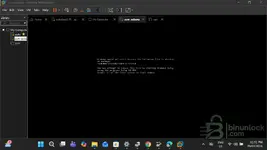
i got it working thankyou for all the help, it just wont connect to the vehicle now
 

Post #32

The screenshot shows SSM III giving "Communication Initialization Failed / Communication initialization canceled" — the software can't talk to the vehicle through your interface.

Things to check:

1. USB Passthrough to the VM
Your diagnostic interface needs to be passed through from the host to the VM. In VMware go to VM > Removable Devices and make sure your adapter is connected to the guest, not the host. You should see it listed there when it's plugged in.

2. Driver Inside the VM
Whatever interface you're using, its driver must be installed inside the Windows XP guest. If the device isn't recognized in Device Manager inside the VM, SSM has nothing to communicate through.

3. Interface Setup in SSM
Inside SSM III, check the settings and make sure the correct communication interface and port are selected.

4. Vehicle Side
  • Ignition must be ON (not just ACC)
  • OBD-II connector and cable fully seated

To help further, can you confirm:
  • What diagnostic interface/adapter are you using? (SM2 Pro, DST-i, J2534 clone, etc.)
  • Does the adapter show up in Device Manager inside the VM?
  • What vehicle — year, model, engine?
 
Activity
So far there's no one here
Back