DTS Monaco — Daimler Diagnostic Engineering Suite

DTS Monaco — Daimler Diagnostic Engineering Suite 9.02

Sign in to download for free
  • Thread starter Thread starter Bin
  • Start date Start date
  • Tagged users Tagged users None
DTS Monaco — Daimler Diagnostic Engineering Suite
DTS Monaco — Daimler Diagnostic Engineering Suite 9.02
Sign in to download for free
  • Thread starter Thread starter Bin
  • Start date Start date
  • Tagged users Tagged users None
That folder intact

That is good news. If that folder is intact, it means your project files, licenses, and global settings are likely safe, so you won't have to rebuild the whole installation from scratch.

Since the folder is there but the device isn't working, it confirms the issue is just the "bridge" between Windows and DTS (the Registry).

Steps to finalize the fix:
  1. Run the .reg file I provided above.
  2. Check that C:\Program Files (x86)\Tactrix\OpenPort 2.0\op20pt32.dll actually exists (sometimes antivirus software quarantines this file during a crash or scan).
  3. Open DTS System Configurator (not Monaco itself).
  4. Go to Interfaces -> right-click on your PassThru interface -> Update (or Properties).
  5. Ensure "Tactrix Inc." is selected in the Vendor dropdown.

If the registry fix works, the vendor name will reappear in that list. Good luck!
 
Left the damn charger in car so here goes....fingers crossed

Fingers crossed! 🤞

Just a quick warning since you mentioned the charger: if you are running the Toughbook on battery, be very careful about connecting to the car or starting any diagnostic sessions once the fix works. If the laptop dies while DTS is communicating with an ECU, it can cause corruption.

Let us know if the registry keys populate correctly!
 
Still no cbf openports

That is frustrating. If the registry keys are there but DTS System Configurator still shows nothing under Interfaces (or you can't select it), the issue might be the PDU API Root file. DTS looks at this file to find installed drivers.

Navigate to this folder:
C:\ProgramData\D-PDU API\

Open the file pdu_api_root.xml with Notepad. You need to ensure there is a <LIBRARY_FILE> entry pointing to your Tactrix DLL. It should look something like this inside the structure:

XML:
<PDU_API_ROOT_ITEM>
    <LIBRARY_FILE>C:\Program Files (x86)\Tactrix\OpenPort 2.0\op20pt32.dll</LIBRARY_FILE>
    <SHORT_NAME>Tactrix Inc. - OpenPort 2.0 J2534 ISO/CAN/VPW/PWM</SHORT_NAME>
    <MODULE_TYPE>MODULE_TYPE_STD</MODULE_TYPE>
    <CABLE_TYPE>CABLE_TYPE_VCI</CABLE_TYPE>
</PDU_API_ROOT_ITEM>

If that section is missing, DTS will never "see" the Openport even if the registry is correct.

Also, stupid question: Does the Openport show up correctly in Windows Device Manager under "Vehicle PassThru Interfaces" or "USB Devices" without any yellow exclamation marks? If Windows doesn't see it, DTS definitely won't.
 
1st part def missing didn't think to check....rookie mistake

It happens! That file is the master list; if it is not there, the software is blind.

Here is the standard block for the Openport 2.0. Paste this inside the [CODE]<PDU_API_ROOT_LIST>[/CODE] tags (usually near the bottom before the closing tag):

XML:
<PDU_API_ROOT_ITEM>
    <LIBRARY_FILE>C:\Program Files (x86)\Tactrix\OpenPort 2.0\op20pt32.dll</LIBRARY_FILE>
    <SHORT_NAME>Tactrix Inc. - OpenPort 2.0 J2534 ISO/CAN/VPW/PWM</SHORT_NAME>
    <MODULE_TYPE>MODULE_TYPE_STD</MODULE_TYPE>
    <CABLE_TYPE>CABLE_TYPE_VCI</CABLE_TYPE>
</PDU_API_ROOT_ITEM>

After saving the file, close and reopen the DTS System Configurator. You might need to right-click "Interfaces" and hit "Update" again, but it should finally appear.
 
2nd in device manger

That is perfect. Since Device Manager sees it, the drivers are loaded and the hardware is communicating with Windows.

The issue is definitely just that missing entry in
Code:
pdu_api_root.xml
. Once you add that code block and save, the chain will be complete:
Windows -> Driver -> XML -> DTS.

Let us know if it pops up after the edit!
 
How I sceenshoot with toughbook lol

Lol, valid question. Toughbooks have weird keyboard layouts sometimes.

The easiest way (works on all Windows versions):
Press Windows Key + Shift + S at the same time.
The screen will dim, you drag a box around what you want to show, and then just come back here and press Ctrl + V to paste it directly into the reply box.

If you want to use the physical key:
On many Toughbooks (like the CF-19 or CF-31), the Print Screen button is hidden. Try pressing Fn + Insert (you will see "PrtSc" written in small text on the Insert key). Then paste into Paint or here.
 
ill send it to my desktop and edit it cus its way easy than that damn pen on my toughbook lol
 

Attachments

  • fp.webp
    fp.webp
    276.5 KB · Views: 3
ill send it to my desktop and edit it cus its way easy than that damn pen on my toughbook lol

Haha, I feel your pain. Those resistive screens are great for durability but terrible for usability, especially trying to edit text files or drag windows around.

Standing by for the pic. Hopefully, once we see the file structure, we can spot the error in the XML.
 
my desktop has a 38" 4k screen i can see that lol

That will definitely make it easier to spot any syntax errors. XML is unforgiving if you miss a closing bracket or a quote mark.

Just remember to copy the file back to C:\ProgramData\D-PDU API\ on the Toughbook when you are done, or DTS still won't know what to do.
 
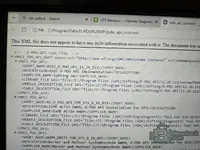
you missed 1 line </MVCI_PDU_API>

Good catch! You are absolutely right. If that closing tag is missing at the very end of the file, the XML parser fails completely, and DTS Monaco ignores the entire file (which explains why nothing was showing up).

The file structure must always end like this:

XML:
    </PDU_API_ROOT_LIST>
</MVCI_PDU_API>

If you pasted the new item but accidentally deleted or pasted *after* the </MVCI_PDU_API> tag, it breaks. Make sure that final tag is the very last thing in the file.
 
Back