INPA 64-Bit with ENET Support (for E/F/G-Series)

INPA 64-Bit with ENET - BMW Automotive Workshop Utility 2025-08-06

INPA 64-Bit with ENET Support (for E/F/G-Series)
INPA 64-Bit with ENET - BMW Automotive Workshop Utility 2025-08-06

Post #41

Much appreciated I'm glad you started with com 3 lol I ran com 1 a million times and couldn't get ifh 0003 to go away.
 

Post #42

Much appreciated I'm glad you started with com 3 lol I ran com 1 a million times and couldn't get if...

Haha, that is a classic trap! It happens to almost everyone starting out.

Just to be absolutely clear on why that happened: Windows assigns a random available number to the cable when you plug it in (like COM3, COM4, etc.). If your obd.ini file was hardcoded to Port=Com1, but Windows put the cable physically on COM3, EDIABAS was basically shouting down an empty phone line. That mismatch causes the IFH-0003 error just as easily as the wrong latency setting.

So, the golden rule is: The number listed in Device Manager MUST match the number written in your obd.ini file exactly.

If you have matched those numbers AND set the Latency Timer to 1msec in Device Manager as mentioned in the previous post, you should be completely good to go now. Hook it up to the E93 and give it a shot!
 

Post #43

Haha, that is a classic trap! It happens to almost everyone starting out.

Just to be absolutely clear on why that happened: Windows assigns a random available number to the cable when you plug it in (like COM3, COM4, etc.). If your obd.ini file was hardcoded to Port=Com1, but Windows put the cable physically on COM3, EDIABAS was basically shouting down an empty phone line. That mismatch causes the IFH-0003 error just as easily as the wrong latency setting.

So, the golden rule is: The number listed in Device Manager MUST match the number written in your obd.ini file exactly.

If you have matched those numbers AND set the Latency Timer to 1msec in Device Manager as mentioned in the previous post, you should be completely good to go now. Hook it up to the E93 and give it a shot!
your the greatest as soon as i get this running im sending a donation thanks for your brilliance and time.
 

Post #44

your the greatest as soon as i get this running im sending a donation thanks for your brilliance and...

That is very kind of you, but absolutely no donation is necessary! We are all here on the forum just helping each other out. Hearing that you got it sorted out is plenty of reward.

Good luck connecting to the E93. Let us know if you get the two black dots for Battery and Ignition ON when you hook it up!
 

Post #45

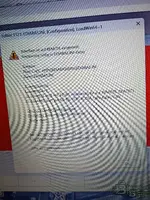
Ok I got obd.ini one in c: drive one in ediabas folder. I get this error can you explain how to edit path.
Screenshot_20260201-124840_Google~2.webp
 

Post #46

Ok I got obd.ini one in c: drive one in ediabas folder. I get this error can you explain how to edit...

This is a very common hurdle when setting up standard tools.

Error 2489 means "Path not found".

Basically, EDIABAS is trying to launch, but it has no idea where its configuration files (like obd.ini and ediabas.ini) are located. It relies on Windows to tell it where to look.

Here is how to fix the file locations and "edit the path" as you asked.

Step 1: Clean up file locations
You mentioned you have obd.ini in the C: drive root. Delete that one. It does absolutely nothing there.

The ONLY location that matters for obd.ini (and ediabas.ini) is inside the BIN folder. Based on the package structure in this thread, ensure your configured obd.ini is located exactly here:

C:\EC-APPS\EDIABAS\BIN\obd.ini

Step 2: Edit the Windows System Path
This is the fix for Error 2489. You need to tell Windows where that BIN folder is by setting a "System Environment Variable".

1. Click Start and type "Environment Variables".
2. Click on "Edit the system environment variables" (Control Panel).
3. In the window that pops up, click the Environment Variables... button near the bottom.
4. Look at the bottom section labeled System variables (NOT User variables at the top).
5. Look through the list for a variable named EDIABASCONFIGDIR.

  • If it exists: Select it and click Edit. Ensure the "Variable value" is exactly the path to your BIN folder. If you used the default extraction path for this package, it must be: C:\EC-APPS\EDIABAS\BIN
  • If it does NOT exist: Click the New... button under System variables.
    Variable name: EDIABAS_CONFIG_DIR
    Variable value: C:\EC-APPS\EDIABAS\BIN

Click OK on all windows to close them.

Once that variable is set correctly, EDIABAS will know exactly where to find your obd.ini file, and Error 2489 will disappear.
 

Post #48

Here's my ediabas file.2490

Thanks for sharing that.

Since you are using a K+DCAN cable for an E-series (E93), there is one specific line in that file that is critical. The download package in this thread comes pre-configured for ENET, so you absolutely must change this line for your setup to work.

Open that EDIABAS.INI file in Notepad, look under the [CONFIGURATION] section, and ensure the Interface line is set exactly like this:

INI:
Interface = STD:OBD

If it still says Interface = ENET (which is the default for this download), change it to STD:OBD, save the file, and try INPA again.
 

Post #50

This is what pops up now first image environment variables second inpa error
IMG_20260201_131220063.webp
Screenshot_20260201-131325_Google~2.webp
 

Attachments

  • IMG_20260201_131244478.webp
    IMG_20260201_131244478.webp
    2.5 MB · Views: 67

Post #51

This is what pops up now first image environment variables second inpa error 24912494

I can't actually see the images you attached (they just show up as numbers on my end).

Could you type out the specific error code you are getting in INPA now? It usually looks like IFH-000x or API-xxxx.

While I wait for that code, double-check these two things which are the most common causes for errors right at this stage of setup:

  1. Ignition: Is the car's ignition fully ON (dash lights lit up, engine off)? INPA won't talk if the ignition is just in accessory mode.
  2. Latency Timer: Go back into Device Manager -> Ports (COM & LPT) -> Right-click your USB Serial Port -> Properties -> Port Settings tab -> Advanced button. Make absolutely sure the "Latency Timer (msec)" is set to 1. If it reverted to the default 16, it won't connect to an E-series.
 

Post #52

Ok I added at bottom of environment variables and upon opening inpa after reboot I got error 1121 ediabas .in configuration loadwin64=1
 

Post #53

Ok I added at bottom of environment variables and upon opening inpa after reboot I got error 1121 ed...

That error code indicates a syntax problem directly inside your EDIABAS.INI file. It looks like a typo happened during the last edit, likely merging two lines together or pasting something accidentally.

Open your C:\EC-APPS\EDIABAS\BIN\EDIABAS.INI file in Notepad again.

Look near the top of the file. You will likely find a messy line containing that loadwin64=1 text mentioned in the error.

Here is what the very beginning of the file *should* look like for this 64-bit version. Make sure your file matches this structure exactly, paying close attention to the [CONFIGURATION] header and the lines below it:

INI:
;=============================================================================
; EDIABAS configuration file
;=============================================================================

[CONFIGURATION]
LoadWin32    = 0
LoadWin64    = 1
;=============================================================================

If you see a messy line like ediabas .in configuration loadwin64=1, delete that line entirely and ensure it looks clean like the example above. Save the file and try INPA again.
 

Post #54

Oh I forgot In win 11 under device manager I don't see com port unless USB cable is plugged in. Under other versions of win I always seen com port listed?
 

Post #55

Oh I forgot In win 11 under device manager I don't see com port unless USB cable is plugged in. Unde...

That is completely normal behavior for modern Windows (10 and 11) with USB devices.

The "Ports (COM & LPT)" section in Device Manager is dynamic now. It only shows up when a device requiring a COM port is physically connected and recognized.

So yes, you must have the K+DCAN cable plugged into your laptop USB port for it to appear in Device Manager so you can configure the COM port number and set the Latency Timer to 1. If you unplug it, that section will disappear again. This is fine and expected.
 

Post #56


Glad that cleared it up!

So, with the cable plugged in, COM port set to COM1 (and Latency to 1), and the EDIABAS.INI syntax fixed, does INPA load up without errors now?

You should see the two black dots (Battery and Ignition) filled in when you connect to the car. Let us know if you're fully operational.
 

Post #57

That error means the Windows Script Host cannot locate the target file specified in the shortcut. It's looking for it here: C:\EC-APPS\INPA\BIN\INPALOADER.vbs

Please check the following:

1. Did you extract the contents of the archive directly to your C:\ drive root? The file structure is critical and must reside at C:\EC-APPS.
2. Open File Explorer and navigate manually to C:\EC-APPS\INPA\BIN\. Do you see the INPALOADER.vbs file there?
3. If the file is missing, check your antivirus quarantine. Sometimes these loader scripts get flagged falsely.

If you installed the EC-APPS folder to a different location (like D:\ drive or a subfolder), you will need to right-click the shortcut, select Properties, and edit the "Target" path to point to where the .vbs file actually resides on your system.
i have the same problem but when i check original download i cant see a .vbs file? no antivirus deleteing anyfiles?
 

Post #58

How come there is a download limit?

i have the same problem but when i check original download i ca...

Regarding the download limit: If the link is on Mega.nz, they have a strict bandwidth limit for free users (you have to wait or use a VPN). If it's Google Drive and it says "Quota Exceeded," sign into your Google account, add the file to your Drive, make a copy of it, and download the copy.

Regarding the missing .vbs file:

Yes, Windows Defender (or any 3rd party Antivirus) almost certainly deleted it immediately upon extraction.

Scripts that automate shortcuts or register components (like .vbs or .bat files included in these packs) are frequently flagged as "False Positives" because they modify system settings.

  • Go to Windows Security -> Virus & threat protection.
  • Click Protection history.
  • Look for a recent "Severe" or "High" threat that was blocked/quarantined.
  • Click the dropdown and select Restore or Allow.

You will likely need to turn off "Real-time protection" temporarily, re-extract the downloaded zip file, and then run the setup. Once installed, add the C:\EC-APPS folder to your antivirus exclusions list so it doesn't delete files later.
 

Post #59

Regarding the download limit: If the link is on Mega.nz, they have a strict bandwidth limit for free users (you have to wait or use a VPN). If it's Google Drive and it says "Quota Exceeded," sign into your Google account, add the file to your Drive, make a copy of it, and download the copy.

Regarding the missing .vbs file:

Yes, Windows Defender (or any 3rd party Antivirus) almost certainly deleted it immediately upon extraction.

Scripts that automate shortcuts or register components (like .vbs or .bat files included in these packs) are frequently flagged as "False Positives" because they modify system settings.

  • Go to Windows Security -> Virus & threat protection.
  • Click Protection history.
  • Look for a recent "Severe" or "High" threat that was blocked/quarantined.
  • Click the dropdown and select Restore or Allow.

You will likely need to turn off "Real-time protection" temporarily, re-extract the downloaded zip file, and then run the setup. Once installed, add the C:\EC-APPS folder to your antivirus exclusions list so it doesn't delete files later.
No Ive deleted all AV on my machine i dont have any I checked the download link and the files in it and there is no .vbs file?
 

Post #60

No Ive deleted all AV on my machine i dont have any I checked the download link and the files in it ...

Even if you have uninstalled all third-party antivirus (Norton, McAfee, etc.), Windows Defender is built deep into Windows 10 and 11. It is active by default and is notorious for silently deleting .vbs and .bat files from these BMW tool packs immediately upon extraction.

You must check: Settings -> Update & Security -> Windows Security -> Virus & threat protection -> Protection History. If Defender ate the file, it will be listed there, and you can restore it.

However, depending on exactly which "64-Bit" pack you downloaded, there might not actually be a .vbs file.

  • Mike's Easy BMW Tools: Uses an .exe installer.
  • Standard Tools 2.12 (Referenz): Usually has a Setup.exe.
  • Custom 64-Bit Packs: Often just contain folders (EC-APPS, EDIABAS) that you must copy-paste manually, and sometimes a .reg file or a .bat file to register components.

If you are looking for a script to create the desktop shortcuts and it is missing, you can just do it manually:

1. Navigate to C:\EC-APPS\INPA\BIN\
2. Right-click INPALOAD.EXE -> Send to -> Desktop (create shortcut).
3. Navigate to C:\EC-APPS\NCSEXPERT\BIN\
4. Right-click NCSEXPER.EXE -> Send to -> Desktop (create shortcut).

If you are looking for a script to register the OCX files (which is required if you get "Component not correctly registered" errors), look for a file named Register.bat or Registrator.exe in the download folder. If that is missing, you definitely have an antivirus/Defender issue.
 
Activity
So far there's no one here
Back