Bin

Thread Owner
Administrator
Joined
03.05.2025
Messages
1,661
Reaction score
15,373
Bin submitted a new resource:

INPA 64-Bit with ENET Support (for E/F/G-Series) - Finally, INPA on 64-bit Windows with ENET Cable Compatibility.

The Modern 64-Bit INPA with ENET Support for E, F & G-Series Diagnostics.

View attachment 408

This resource provides a modern, updated, and easy-to-install package of BMW INPA, specifically designed to work on 64-bit operating systems and with modern diagnostic interfaces. This package, known as "INPA64," brings the power and familiarity of the classic INPA diagnostic tool to a wider range of vehicles and computers.

What Problem Does This Solve?...

Read more about this resource...
 
Very useful program according to description. What password?
Hello, the password is binunlock.com

I've got a huge collection of car software and firmware for pretty much all brands, not just BMW. The thing is, my day job keeps me really busy, so I'm not sure when I'll find the time to post it all. Probably over the winter. In the meantime, here is the stuff for BMW
 
Last edited:
Здравствуйте, пароль — binunlock.com

У меня огромная коллекция автомобильного ПО и прошивок практически для всех марок, не только для BMW. Дело в том, что моя основная работа очень загружена, поэтому я не уверен, когда найду время всё это выложить. Наверное, зимой. А пока вот материалы для BMW.
https://mega.nz/folder/ZWEVVKDb#fD2ZUxmaS8wsUT9CfBcjyA
WOW Thanks :)
 
Hello. I follow the steps 1:1.
After i start the program it doesnt ask for language and it doesnt connect to the ENET cable at all.
How to fix it ? I am using windows 10.
 
When I openned the INPALOADER shortcut, I have this error.
How do I fix this?

1769495483825.webp
 
When I openned the INPALOADER shortcut, I have this error.
How do I fix this?

2396

That error means the Windows Script Host cannot locate the target file specified in the shortcut. It's looking for it here: C:\EC-APPS\INPA\BIN\INPALOADER.vbs

Please check the following:

1. Did you extract the contents of the archive directly to your C:\ drive root? The file structure is critical and must reside at C:\EC-APPS.
2. Open File Explorer and navigate manually to C:\EC-APPS\INPA\BIN\. Do you see the INPALOADER.vbs file there?
3. If the file is missing, check your antivirus quarantine. Sometimes these loader scripts get flagged falsely.

If you installed the EC-APPS folder to a different location (like D:\ drive or a subfolder), you will need to right-click the shortcut, select Properties, and edit the "Target" path to point to where the .vbs file actually resides on your system.
 
That error means the Windows Script Host cannot locate the target file specified in the shortcut. It's looking for it here: C:\EC-APPS\INPA\BIN\INPALOADER.vbs

Please check the following:

1. Did you extract the contents of the archive directly to your C:\ drive root? The file structure is critical and must reside at C:\EC-APPS.
2. Open File Explorer and navigate manually to C:\EC-APPS\INPA\BIN\. Do you see the INPALOADER.vbs file there?
3. If the file is missing, check your antivirus quarantine. Sometimes these loader scripts get flagged falsely.

If you installed the EC-APPS folder to a different location (like D:\ drive or a subfolder), you will need to right-click the shortcut, select Properties, and edit the "Target" path to point to where the .vbs file actually resides on your system.
I've checked the antivirus quarantine but the INPALOADER.vbs was not there.
Could you PM the missing file?
 
I've checked the antivirus quarantine but the INPALOADER.vbs was not there.
Could you PM the missing...

If it's not in quarantine, then the initial extraction process likely failed, or the downloaded archive itself is corrupt. Sending just that one file won't guarantee that other necessary files aren't also missing.

You need to ensure a clean installation from the source archive.

  1. Delete the entire existing C:\EC-APPS folder.
  2. It is highly recommended to re-download the original archive to ensure it's not corrupted.
  3. Use a reliable tool like 7-Zip or WinRAR to extract the archive.
  4. Ensure you extract it directly to the root of your C:\ drive so the final structure starts exactly at C:\EC-APPS\. Watch closely for any error messages during the extraction process.
 
If it's not in quarantine, then the initial extraction process likely failed, or the downloaded archive itself is corrupt. Sending just that one file won't guarantee that other necessary files aren't also missing.

You need to ensure a clean installation from the source archive.

  1. Delete the entire existing C:\EC-APPS folder.
  2. It is highly recommended to re-download the original archive to ensure it's not corrupted.
  3. Use a reliable tool like 7-Zip or WinRAR to extract the archive.
  4. Ensure you extract it directly to the root of your C:\ drive so the final structure starts exactly at C:\EC-APPS\. Watch closely for any error messages during the extraction process.
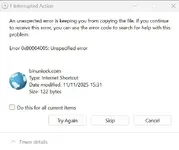
The zip file cannot be extracted.
The error was: 1769615408305.webp
 
The zip file cannot be extracted.
The error was: 2409

That image confirms the root cause. The WinRAR error "The archive is corrupt" means the file did not download completely or was damaged during the transfer process. You cannot repair this local file.

You must re-download the entire archive.

Here are a few tips to ensure a successful download:
  • Try using a different web browser (e.g., Firefox instead of Chrome, or vice versa).
  • Ensure your internet connection is stable throughout the download.
  • If it continues to fail, try temporarily disabling your antivirus real-time protection just while downloading the file. Sometimes aggressive network scanning by AV software can corrupt large archives on the fly.
 
The zip file cannot be extracted.
The error was: View attachment 2409
Archive note
You may need WinRAR or 7-Zip to extract
Some archives (ZIP/RAR) are packed with WinRAR, and 7z archives require 7-Zip. The standard Windows 11 extractor may not always unpack these correctly.
 
What's the settings for d can cable? If I edit inpa script to std:obd will that do it?

To use a K+DCAN (USB) cable instead of ENET, you don't typically edit an INPA loader script. The connection type is defined in the EDIABAS configuration settings.

While this specific package is tailored for ENET, the underlying EDIABAS architecture remains the same. You need to tell EDIABAS to use the standard OBD protocol over sеriаl (USB).

Here is the standard procedure to configure for D-CAN:

1. Navigate to your EDIABAS binary folder, usually C:\EDIABAS\BIN\.
2. Find and open the file EDIABAS.INI in a text editor like Notepad.
3. Find the Configuration section and look for the Interface parameter. Change it to:
Code:
ini
    Interface = STD:OBD
*(If it currently says Interface = ENET, change it).*

4. Next, you need to ensure EDIABAS knows which COM port your USB cable is using. Look for the file OBD.INI in the same directory (C:\EDIABAS\BIN\).
* *Note: Sometimes this file is located in C:\Windows\, depending on how it was installed.*
5. Open OBD.INI and ensure the Port setting matches the COM port assigned to your cable in Windows Device Manager (e.g., COM1, COM2, etc.).
Code:
ini
    [OBD]
    Port=Com1
    Hardware=USB

Make sure your USB cable drivers are installed correctly and set to Latency Timer: 1ms in Device Manager for best performance with D-CAN.
 
To use a K+DCAN (USB) cable instead of ENET, you don't typically edit an INPA loader script. The connection type is defined in the EDIABAS configuration settings.

While this specific package is tailored for ENET, the underlying EDIABAS architecture remains the same. You need to tell EDIABAS to use the standard OBD protocol over sеriаl (USB).

Here is the standard procedure to configure for D-CAN:

1. Navigate to your EDIABAS binary folder, usually C:\EDIABAS\BIN\.
2. Find and open the file EDIABAS.INI in a text editor like Notepad.
3. Find the Configuration section and look for the Interface parameter. Change it to:
Code:
ini
    Interface = STD:OBD
*(If it currently says Interface = ENET, change it).*

4. Next, you need to ensure EDIABAS knows which COM port your USB cable is using. Look for the file OBD.INI in the same directory (C:\EDIABAS\BIN\).
* *Note: Sometimes this file is located in C:\Windows\, depending on how it was installed.*
5. Open OBD.INI and ensure the Port setting matches the COM port assigned to your cable in Windows Device Manager (e.g., COM1, COM2, etc.).
Code:
ini
    [OBD]
    Port=Com1
    Hardware=USB

Make sure your USB cable drivers are installed correctly and set to Latency Timer: 1ms in Device Manager for best performance with D-CAN.
Thanks.
 
Back