
Description
TD2 / EDIAG Plus Recovery is an Android application for restoring firmware on THINKDIAG 2 and EDIAG Plus diagnostic adapters, including devices affected by interrupted or failed firmware flashing.
The main advantage: firmware recovery without J-Link, ST-Link, an external programmer or a separate 12V power supply!
The application communicates directly with the adapter through the standard USB Type-C connector located on the rear side of its circuit board. An Android phone or tablet with USB OTG provides both communication and power during recovery.

Recovery After Interrupted Firmware Flashing
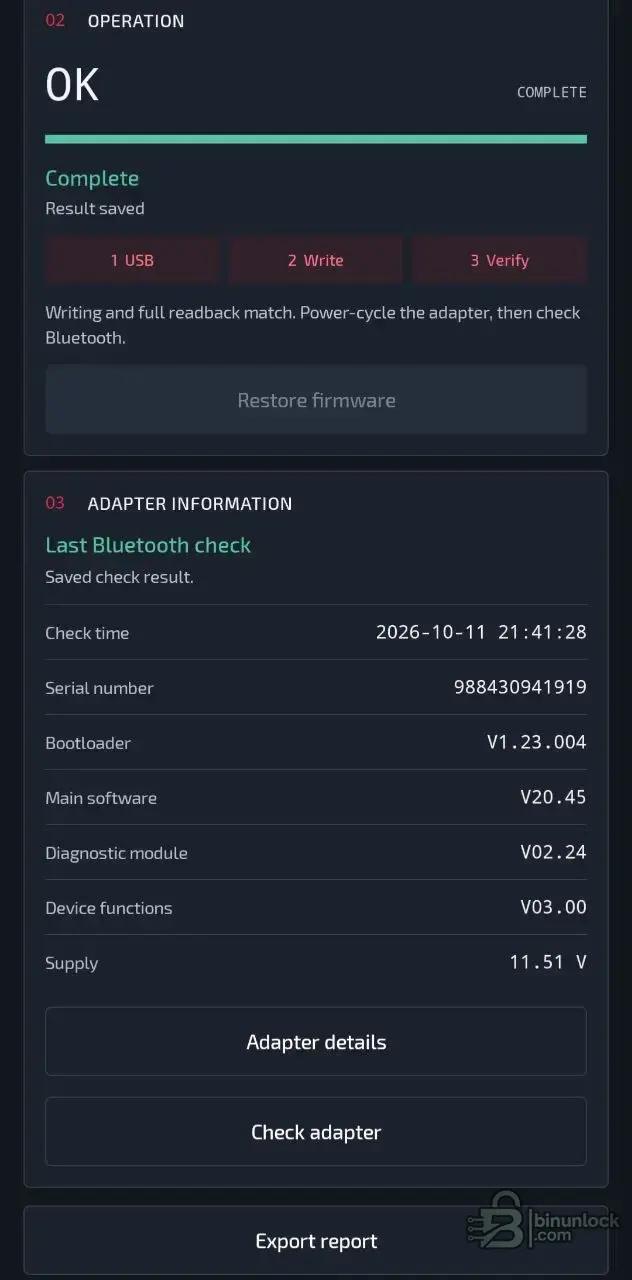
The recovery procedure has been successfully tested after deliberately interrupting firmware writing. The adapter was subsequently reflashed through USB-C, and the application confirmed that the written firmware matched the full readback.
This makes the tool particularly useful for recovering supported adapters with incomplete or corrupted main firmware, without using an external hardware programmer.
Main Features
Firmware Options
1. TD2 Original — V20.45
The original firmware image is included for restoring the supported adapter to its standard software configuration.
2. TD2 USB Hybrid — Test
An experimental firmware image intended for USB diagnostic communication with a modified X-431 application.
This option requires the corresponding X-431 USB compatibility modification and is intended for testing.
3. Custom Firmware BIN
Allows advanced users to select a complete firmware BIN file. The selected image must be compatible with the adapter hardware.
How to Restore the Firmware
Bluetooth Adapter Information
After recovery, the application can retrieve:
Results can also be exported for later reference.
Built-in Hardware Recovery Guide
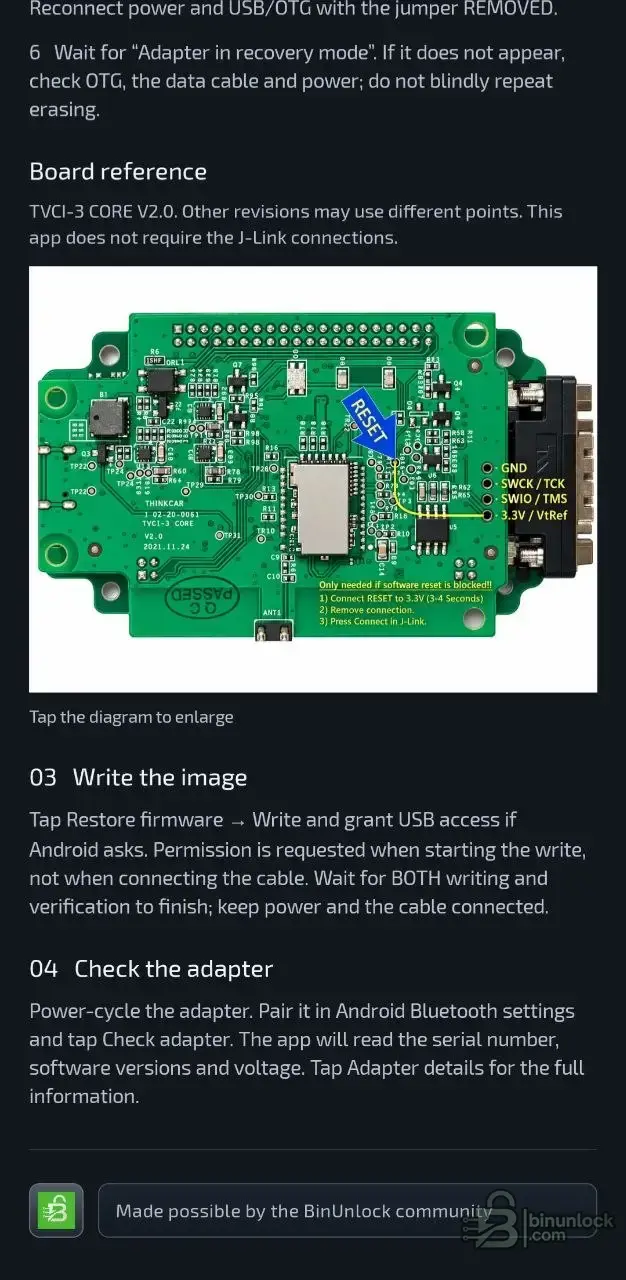
The application contains illustrated instructions for entering recovery mode and using the USB connection.
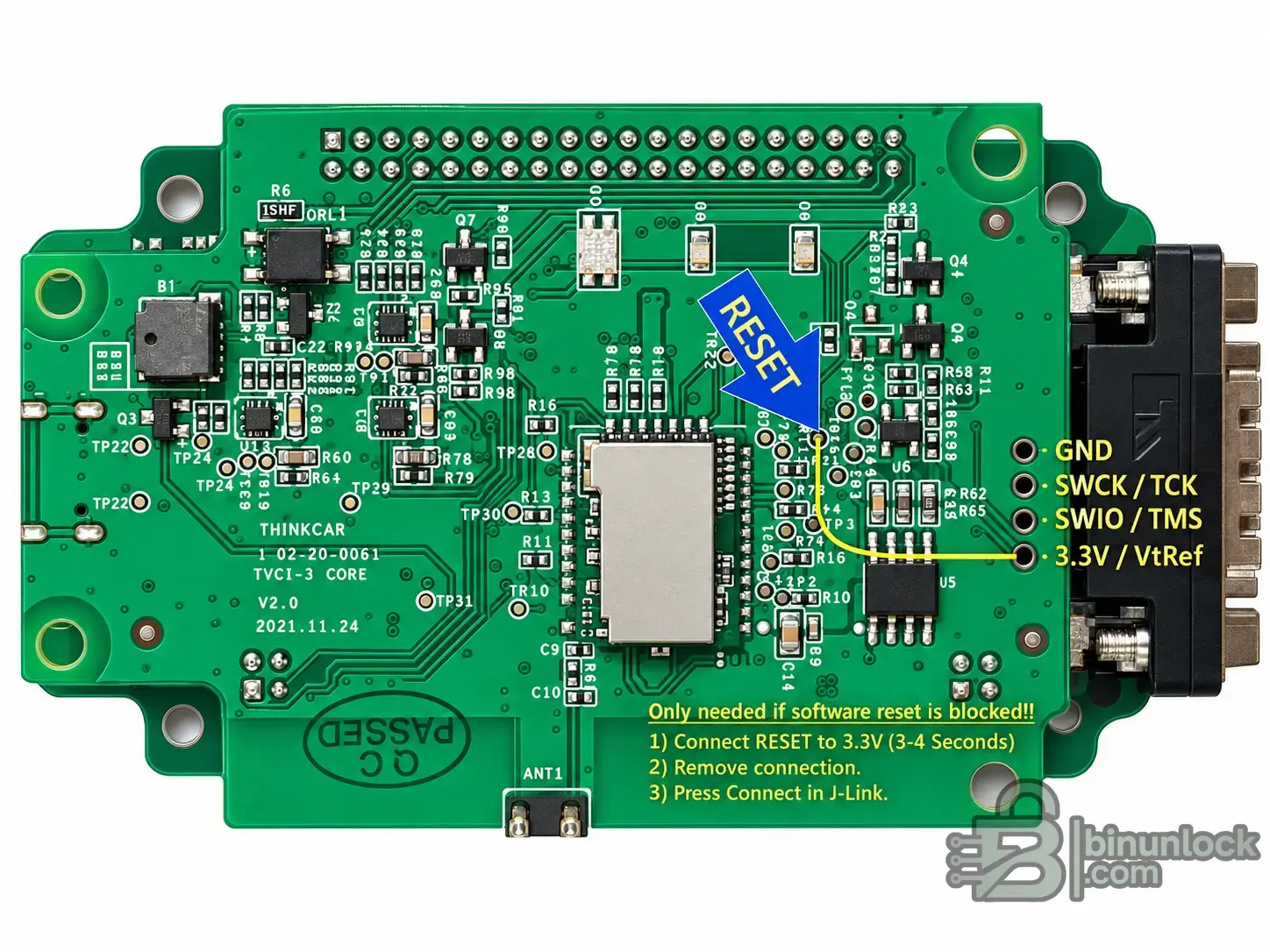
The included board reference covers TVCI-3 CORE V2.0, with recovery-related connection points identified on the PCB.
J-Link connections are not required for the supported USB firmware recovery procedure.
Other hardware revisions may have different PCB layouts or recovery-mode requirements.
Requirements
Important Notes
TD2 / EDIAG Plus Recovery provides a standalone Android solution for reflashing supported diagnostic adapters through USB-C — without a Windows PC, external programmer or separate 12V power supply.
The main advantage: firmware recovery without J-Link, ST-Link, an external programmer or a separate 12V power supply!
The application communicates directly with the adapter through the standard USB Type-C connector located on the rear side of its circuit board. An Android phone or tablet with USB OTG provides both communication and power during recovery.
Recovery After Interrupted Firmware Flashing
The recovery procedure has been successfully tested after deliberately interrupting firmware writing. The adapter was subsequently reflashed through USB-C, and the application confirmed that the written firmware matched the full readback.
This makes the tool particularly useful for recovering supported adapters with incomplete or corrupted main firmware, without using an external hardware programmer.
Main Features
- Direct USB-C Recovery — restore firmware through the adapter's built-in Type-C connection.
- No External Programmer — no J-Link, ST-Link or dedicated flashing hardware required.
- No External 12V Power — USB OTG supplies the power required for the tested recovery procedure.
- Interrupted Flash Recovery — successfully tested after an intentionally interrupted firmware write.
- Original Firmware — built-in THINKDIAG 2 V20.45 image.
- USB Hybrid Firmware — experimental firmware for USB diagnostics with compatible modified X-431 software.
- Custom BIN Support — load and write a compatible complete firmware image.
- Full Readback Verification — automatically compare written firmware against the readback data.
- Bluetooth Adapter Check — read device identification and firmware information after recovery.
- Export Reports — save operation and adapter information.
- Built-in Recovery Guide — step-by-step instructions with PCB reference images.
Firmware Options
1. TD2 Original — V20.45
The original firmware image is included for restoring the supported adapter to its standard software configuration.
2. TD2 USB Hybrid — Test
An experimental firmware image intended for USB diagnostic communication with a modified X-431 application.
This option requires the corresponding X-431 USB compatibility modification and is intended for testing.
3. Custom Firmware BIN
Allows advanced users to select a complete firmware BIN file. The selected image must be compatible with the adapter hardware.
How to Restore the Firmware
- Connect the adapter to an Android smartphone or tablet using a USB OTG data cable and the adapter's rear USB Type-C connector.
- If necessary, enter recovery mode using the built-in instructions for the supported PCB revision.
- Open TD2 / EDIAG Plus Recovery.
- Select the original firmware, USB Hybrid test image or a compatible custom BIN.
- Start the recovery operation and grant USB access when requested by Android.
- Wait until firmware writing and full readback verification are complete.
- Power-cycle the adapter.
- Connect through Bluetooth and check the restored adapter information.
Bluetooth Adapter Information
After recovery, the application can retrieve:
- Adapter serial number
- Bootloader version
- Main software version
- Diagnostic module version
- Device functions version
- Supply voltage
Results can also be exported for later reference.
Built-in Hardware Recovery Guide
The application contains illustrated instructions for entering recovery mode and using the USB connection.
The included board reference covers TVCI-3 CORE V2.0, with recovery-related connection points identified on the PCB.
J-Link connections are not required for the supported USB firmware recovery procedure.
Other hardware revisions may have different PCB layouts or recovery-mode requirements.
Requirements
- Android smartphone or tablet supporting USB OTG
- Compatible USB OTG data cable or adapter
- Supported THINKDIAG 2 / EDIAG Plus diagnostic adapter
- Access to the adapter's rear USB Type-C connector
Important Notes
- No external 12V power supply is needed for the demonstrated USB recovery procedure.
- Keep the USB connection secure during firmware writing and verification.
- Follow the correct recovery-mode instructions for your PCB revision.
- The USB Hybrid firmware is experimental and requires compatible X-431 software modifications.
- Use only firmware images compatible with your adapter hardware.
TD2 / EDIAG Plus Recovery provides a standalone Android solution for reflashing supported diagnostic adapters through USB-C — without a Windows PC, external programmer or separate 12V power supply.


