XENTRY FullFix By Samik (Diagnostics & Engineering Suite)

XENTRY FullFix By Samik - Mercedes OBD2 Diagnostic Suite 4.8.1

Sign in to download for free
XENTRY FullFix By Samik (Diagnostics & Engineering Suite)
XENTRY FullFix By Samik - Mercedes OBD2 Diagnostic Suite 4.8.1
Sign in to download for free
Sure, we can try to help. What exactly is the problem?

To give you the right advice, please provide a bit more detail:

  • Which version of Xentry are you using?
  • What specific error message are you seeing?
  • At what point does the problem occur (installation, activation, or when connecting to the car)?

Without more info, it's hard to guess what's wrong.
Version 03.2026 Xentry Cars, offline mode does not activate, it asks to connect online but does not allow offline login: Username: z and password: z, this option does not even appear, previous versions have the same problem.
 
Version 03.2026 Xentry Cars, offline mode does not activate, it asks to connect online but does not ...

First, I assume you mean 03.2024 (or perhaps 12.2023), as 03.2026 does not exist yet.

Since the 2023 updates, Mercedes has completely removed the "Offline Mode" button and the ability to use z / z from the standard interface. A clean installation will always force you to the Online B2B login screen.

To get the offline option back, you must apply the specific раtсh for it. Since you are in the Samik FullFix thread:

  1. Run XENTRY FullFix By Samik as Administrator.
  2. Look for the checkbox or button labeled Offline Login or Common Fixes (depending on your version of the tool).
  3. Apply the fix.

This раtсh modifies the internal login.html and JavaScript files to restore the offline button or bураss the login screen entirely.

If you have already applied the fix and the button is still missing:
  • Check your Antivirus/Defender history. It often detects the modified login.js or Authentication dlls as threats and restores the original files.
  • Ensure you are using a version of the FullFix that supports your specific Xentry version. Older fixers often don't work on 2024 installations because the file structure of the login page changed.
 
Version 03.2026 Xentry Cars, offline mode does not activate, it asks to connect online but does not allow offline login: Username: z and password: z, this option does not even appear, previous versions have the same problem.
Welche FullFix Version hast du verwendet?
 
Welche FullFix Version hast du verwendet?

Falls du dich auf den Beitrag weiter oben beziehst: Der User hat geschrieben, dass er die Version 4.8.4 genutzt hat.

Generell gilt für die neueren Xentry Versionen (ab Ende 2023/Anfang 2024): Du brauchst zwingend eine neuere Version des FullFix (meistens 4.x oder höher). Die älteren Versionen finden die Pfade für den Login-раtсh nicht mehr, da Mercedes die Struktur der login.html und der Java-Dienste geändert hat.
 
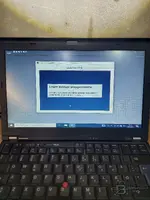
Hi after install FullFix xentry stuck on logging step.
 

Attachments

  • 20260212_151637.webp
    20260212_151637.webp
    1.3 MB · Views: 27
Hi after install FullFix xentry stuck on logging step.

This usually happens if a background service fails to start or a patched file was blocked by the system.

Please check the following points:

  • Secure Boot: Go into your BIOS and make sure Secure Boot is Disabled. The раtсh uses modified DLLs that often fail to load if Secure Boot is active.
  • Antivirus: Check Windows Defender or your AV history. It likely quarantined a file in
    Code:
    C:\Program Files (x86)\Mercedes-Benz\Xentry\bin
    (usually a DLL related to authentication or the diag service).
  • Services: Open
    Code:
    services.msc
    and check if the Xentry Diagnosis Service is running. If it is stopped, try to start it manually.

If it still hangs, try re-applying the FullFix as Administrator, but make sure your antivirus is disabled during the process.
 
Can t find xentry diagnosis service in services.msc ?

If the service is completely missing from the list, your base installation is likely corrupted or incomplete. This often happens if the setup was interrupted or if Windows Defender deleted the service executable immediately during installation.

  • First, check if the file actually exists on your disk:
    Code:
    C:\Program Files (x86)\Mercedes-Benz\Xentry\bin\XentryDiagnosisService.exe
    (The path might vary slightly depending on your version, but look in the bin folder).
  • If the file is missing: You must reinstall Xentry. There is no fix other than replacing the missing files or running the setup again.
  • If the file is there but not in services: You can try to register it manually. Open Command Prompt (CMD) as Administrator and run:
    Code:
    sc create XentryDiagnosisService binPath= "C:\Program Files (x86)\Mercedes-Benz\Xentry\bin\XentryDiagnosisService.exe"

However, if the service is missing, usually other registry keys are missing too. I strongly recommend a clean reinstall with your Antivirus disabled.
 
Thank you very much !

You're welcome!

I'm glad I could help. If you manage to get it working after the reinstall, please let us know. It helps others to confirm that the clean reinstall solved the missing service issue.

Good luck!
 
how to run DAS interface sdconnect C4

Fault (1.1)-1.501.9988
...... the voltage supply at the diagnostic socket (circuit 30 ........
 
how to run DAS interface sdconnect C4

Fault (1.1)-1.501.9988
...... the voltage supply at the diagn...

This error (1.1)-1.501.9988 typically indicates that the DAS software cannot communicate with the SDConnect C4 to read the vehicle voltage. This is usually due to a configuration mismatch or the multiplexer being blocked.

Please check the following:

  1. SDConnect Toolkit: Look at the Toolkit icon in your system tray. Is the C4 detected and does it have a green checkmark? If the Toolkit does not see the mux, DAS cannot use it. Check your IP settings (PC IP should be 172.29.127.119, Subnet 255.255.0.0).
  2. Blacklist Fix: Since you are using the FullFix, re-run the tool and ensure you have applied the C4 Blacklist раtсh (sometimes labeled as "Mux Fix" or similar). If your clone C4 sеriаl number is on the blacklist, DAS will throw this error.
  3. Configuration: Check the file cal.ini in C:\Program Files (x86)\Mercedes-Benz\DAS\bin\. Ensure the platform is set correctly for C4 (usually PLATFORM=PART_D2).

If the Toolkit sees the mux but DAS still gives this error, try running the "Caesar / D-PDU API" fix within the FullFix tool again.
 
DAS\bin\ cal.ini change "PLATFORM=PART_T"

No, do not use PART_T if you are using an SDConnect C4.

  • PART_T is strictly for PassThru (J2534) devices (like OpenPort, Scanmatik, etc.).
  • PART_D2 is the correct setting for SDConnect C4.

If you change it to PART_T, DAS will try to look for a J2534 driver instead of the SDConnect Toolkit, and your C4 will not work.

Please change it back to:
Code:
PLATFORM=PART_D2
 
Back