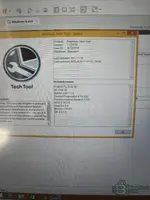
PASS ID M120218Здравствуйте, я не могу получить доступ к пользовательскому коду, пожалуйста, кто-нибудь, я пытаюсь использовать P123456.
Hello good work but i try to open settings and make crash software any solution i need it please.New release thread for Volvo Premium Tech Tool Diagnostic: discuss, share feedback, and get help.
Volvo Premium Tech Tool Diagnostic
v1.12.970 — Ready-to-run VMware image for Volvo/Mack/Renault trucks with guided diagnostics and para
Frequently Asked Questions
Which Windows version is recommended?
For maximum stability during ECU flashing and diagnostics, a clean installation of Windows 10 (64-bit) is recommended.
Is it compatible with J2534 PassThru?
Most modern software versions support standard J2534 interfaces like Scanmatik 2 Pro, OpenPort 2.0, and specific VCI adapters.
What's inside:
- Overview & screenshots
- Version history and compatibility
- Download link and setup notes
View full details and download — Volvo Premium Tech Tool Diagnostic
Hello good work but i try to open settings and make crash software any solution i need it please.
M120218
p123456
123456
"great but settings make crash software"
There are a couple of different questions here, let me address each:
1. User Code / Login Issue
For PTT login, the common default credentials for offline/workshop use are:
- User ID:
Code:M120218- Password: Try
orCode:p123456Code:123456
If neither of those work, please provide:
- Which PTT version you are running (1.12 VM or the 2.8 / 2.40 version from your earlier screenshot?)
- The exact error message you get when trying to log in
- A screenshot of the login screen if possible
Different PTT versions handle user authentication differently — the older 1.12 VM and the newer 2.x versions may have different default credentials or access levels.
2. Settings Crash Issue
I noticed one of the reviews on the resource page also mentions this exact problem:
This is a known issue with this VM image. Here are some things to try:
- Don't open Settings directly after launch. First identify a vehicle (even offline with a VIN), let PTT fully initialize, and then try accessing Settings.
- Run PTT as Administrator — right-click the PTT shortcut inside the VM and select "Run as administrator."
- Check VM resources — make sure you have allocated at least 4 GB RAM to the VM and 2 CPU cores. Low resources can cause PTT modules to crash. You can adjust this in VMware: VM > Settings > Memory / Processors.
- Revert to snapshot — if the crash corrupted anything, revert to the Clean_Baseline snapshot and try again.
- Avoid maximizing the VM window — some PTT UI elements crash when the display resolution changes unexpectedly. Keep the VM at its default resolution.
If the crash persists, please share:
- A screenshot of the error/crash message
- Which specific settings menu you are trying to open
- Your VM resource allocation (RAM, CPU cores)
That will help narrow down the root cause.
1.12.970 version
I try to open settings and still loadingThanks for confirming! Based on your screenshot, I can now see the full details:
Your PTT Setup:
- Product: Premium Tech Tool
- Version: 1.12.970
- User ID: M120218
- Database: Standard
- Guest OS: Windows 8 x64
- VCADS Pro 2.44.30
- APCI 0.36.2.0
- Communication Server 6.7.0.5
So the VM is working and PTT is running — that's good. Now regarding your two issues:
1. User Code / Password
Since User ID M120218 is already loaded and PTT launched successfully to the About screen, you should already be logged in. If PTT is asking for a user code when you try to access certain functions (like programming or parameter changes), that is an access level restriction, not a login issue.
Try these common passwords for this version:
- p123456
- 123456
- 1
If none work, please screenshot the exact screen where it asks for the code — it matters whether it's asking at login, at a specific function, or for a developer/engineering level.
2. Settings Crash
This is a known issue with PTT 1.12.970 on Windows 8 x64 VMs. The Settings module in this version has compatibility problems. Try the following:
- Right-click PTT shortcut > Properties > Compatibility tab — set it to run in Windows 7 compatibility mode
- Also check "Run as administrator" in the same Properties window
- Restart PTT after making these changes
- If it still crashes, try accessing Settings after connecting to a vehicle or loading a VIN — some PTT modules only initialize properly after a session is active
If the crash continues after trying these steps, please share the exact error message or crash dialog that appears.
I try to open settings and still loading
C:\ProgramData\PTT\ (or similar)C:\Users\<user>\AppData\Local\PTT\C:\Users\<user>\AppData\Roaming\PTT\This site uses cookies to help personalise content, tailor your experience and to keep you logged in if you register.
By continuing to use this site, you are consenting to our use of cookies.