
Volvo Tech Tool Diagnostic VM - Heavy Duty OBD2 Suite 2.8.360
Sign in to download for free
- Thread starter Bin
- Start date
Post #21
Post #22
 Online now
- Joined
- 09.05.2025
- Messages
- 6,107
- Reactions
- 1,429
- Location
- 🇺🇸USUnited States
Ok thank you I really appreciate it
You're welcome!
If you run into any specific error codes when connecting to a truck later, just start a new thread in the main section with the error ID.
Enjoy the software.
Post #23

- Joined
- 08.02.2026
- Messages
- 19
- Reactions
- 1
- Location
- 🇪🇬EGEgypt
Post #24
- Joined
- 08.02.2026
- Messages
- 19
- Reactions
- 1
- Location
- 🇪🇬EGEgypt
after re activate .... what can i do?
Post #25
Online now
- Joined
- 09.05.2025
- Messages
- 6,107
- Reactions
- 1,429
- Location
- 🇺🇸USUnited States
2889
after re activate .... what can i do?
It is unclear exactly what 28882889 refers to without seeing where it appears on your screen.
However, since you mentioned "after re activate", this is likely one of two things:
1. The Computer ID / Hardware ID
If the activation tool is showing you this number, it means your Hardware ID has changed.
This happens if you changed the Virtual Machine settings (e.g., increased RAM, changed CPU cores, or modified the Network Adapter MAC address) after the first activation.
- If you changed VM settings: Change them back to exactly how they were when it worked.
- If you cannot remember the settings: You must generate a new license file for this new ID (28882889) using the same method you used the first time (via the forum/uploader).
2. The User ID at the Login Screen
If PTT starts up and asks for a password for User ID 28882889:
- Try standard passwords:
,Code:
admin, or leave it blank.Code:volvo - If that fails, you need to run the Developer Tool (often called DevTool or Tech Tool Unlocker) usually found in the patch folder. Use it to "Unlock" the account or reset the password.
The Best Solution:
If you followed my previous advice and made the snapshot "Fresh Install Activated", do not try to fix this manually.
1. Shut down the VM.
2. Revert to that snapshot.
3. It will work immediately.
Post #26
- Joined
- 08.02.2026
- Messages
- 19
- Reactions
- 1
- Location
- 🇪🇬EGEgypt
where you see ID 28882889:It is unclear exactly what 28882889 refers to without seeing where it appears on your screen.
However, since you mentioned "after re activate", this is likely one of two things:
1. The Computer ID / Hardware ID
If the activation tool is showing you this number, it means your Hardware ID has changed.
This happens if you changed the Virtual Machine settings (e.g., increased RAM, changed CPU cores, or modified the Network Adapter MAC address) after the first activation.
- If you changed VM settings: Change them back to exactly how they were when it worked.
- If you cannot remember the settings: You must generate a new liсеnsе file for this new ID (28882889) using the same method you used the first time (via the forum/uploader).
2. The User ID at the Login Screen
If PTT starts up and asks for a password for User ID 28882889:
Post #27
Online now
- Joined
- 09.05.2025
- Messages
- 6,107
- Reactions
- 1,429
- Location
- 🇺🇸USUnited States
where you see ID 28882889:
Based on the format of that number,
28882889 is almost certainly the User ID located on the main Tech Tool Login Screen.When you start the program, it asks for a User ID and a Password. The activator likely set this ID up.
Here is how to get past it:
1. Try the Default Passwords
Since this is a cracked/VM version, the password for that ID is usually simple. Try these exactly:
- (Leave it empty/blank)
- admin
- volvo
- 12345
- x
2. Use the Unlock Tool
If the passwords above do not work, look on your VM desktop or in the
C:\ drive for a tool named something like DevTool, Tech Tool License Editor, or User Unlocker.- Run that tool.
- Go to the "Users" tab.
- Find ID
28882889in the list. - Click "Unlock" or "Reset Password".
3. The "Magic" Solution (Revert Snapshot)
You mentioned earlier that you created a snapshot called "Fresh Install Activated".
Do not waste time fighting with passwords.
- Shut down the VM.
- Revert to that "Fresh Install Activated" snapshot.
Post #28
- Joined
- 08.02.2026
- Messages
- 19
- Reactions
- 1
- Location
- 🇪🇬EGEgypt
and now it is work thanx
Post #29
Online now
- Joined
- 09.05.2025
- Messages
- 6,107
- Reactions
- 1,429
- Location
- 🇺🇸USUnited States
2895
and now it is work thanx
Glad to hear it is working!
Thank you for confirming that 2895 was the correct code. That information will be very helpful for anyone else on the forum who downloads this specific VM and gets stuck at the same login screen.
Safe travels!
Post #30
- Joined
- 08.02.2026
- Messages
- 19
- Reactions
- 1
- Location
- 🇪🇬EGEgypt
i try to use it now on my 734 ge genset it only read dtc clear them test and test and calibrate is not selectable?
Post #31
Online now
- Joined
- 09.05.2025
- Messages
- 6,107
- Reactions
- 1,429
- Location
- 🇺🇸USUnited States
i try to use it now on my 734 ge genset it only read dtc clear them test and test and calibrate is n...
This is a common issue when using a Truck installation on Penta (Industrial/Genset) equipment.
Here is why this is happening:
1. Missing Penta Database
The VM you downloaded is titled "VM for Trucks". Truck installations often do not contain the specific APC (Authorized Product Coverage) and database files for Volvo Penta engines (like your TAD734GE).
- The tool can communicate via standard J1939 protocol, which is why you can read and clear DTCs.
- However, to run Tests and Calibrations, the software needs the specific scripts for that engine model. If the Penta database is missing, these buttons remain greyed out.
2. Product Identification
Look at the top left of the screen when connected.
- Does it identify the unit specifically as "TAD734GE" or "Penta"?
- Or does it say something generic like "Unidentified", "Generic J1939", or just the Engine Serial Number?
3. Solution
You likely need to install the Volvo Penta add-on or database. Since this is a pre-built VM, you cannot easily add it. You may need to look for a Tech Tool version specifically labeled for Construction / Penta / Marine.
Quick Check:
If there is a "DevTool" or "Developer Tool" on the desktop, open it. Sometimes you can force the software to load a different profile, but usually, if the Penta files aren't there, you can't force it.
Post #32
- Joined
- 08.02.2026
- Messages
- 19
- Reactions
- 1
- Location
- 🇪🇬EGEgypt
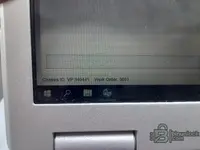
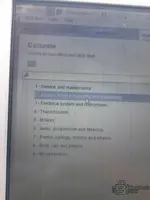
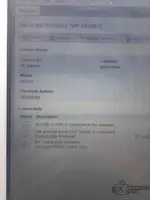
Post #33
Online now
- Joined
- 09.05.2025
- Messages
- 6,107
- Reactions
- 1,429
- Location
- 🇺🇸USUnited States
this is what i see?
The image did not attach to your post, so I cannot see exactly what is on your screen.
However, if you can read codes but Test and Calibrate are greyed out, check the Product box in the top-left corner of the screen.
- If it says Generic J1939 or just shows the Engine Serial Number without the model name (TAD734GE):
- If it DOES say TAD734GE but buttons are still greyed out:
1. Go to the File menu (or the top left circle icon).
2. Select Recent Selections or Work in Progress.
3. Clear/Delete any open sessions for that engine.
4. Disconnect and Reconnect.
If that does not work, you simply cannot calibrate a Genset with a Truck-only installation. You need to download a version that specifically lists Volvo Penta in the description.
Post #34
- Joined
- 08.02.2026
- Messages
- 19
- Reactions
- 1
- Location
- 🇪🇬EGEgypt
Post #35
- Joined
- 08.02.2026
- Messages
- 19
- Reactions
- 1
- Location
- 🇪🇬EGEgypt
i have other tech tool not VM haw can i get penta database and haw can i install itThis is a common issue when using a Truck installation on Penta (Industrial/Genset) equipment.
Here is why this is happening:
1. Missing Penta Database
The VM you downloaded is titled "VM for Trucks". Truck installations often do not contain the specific APC (Authorized Product Coverage) and database files for Volvo Penta engines (like your TAD734GE).
- The tool can communicate via standard J1939 protocol, which is why you can read and clear DTCs.
- However, to run Tests and Calibrations, the software needs the specific scripts for that engine model. If the Penta database is missing, these buttons remain greyed out
Post #36
Online now
- Joined
- 09.05.2025
- Messages
- 6,107
- Reactions
- 1,429
- Location
- 🇺🇸USUnited States
i have other tech tool not VM haw can i get penta database and haw can i install it
To add Volvo Penta support to an existing Tech Tool installation, you cannot simply "copy and paste" a file. You need to perform a software update using specific installation files.
Here is the process you need to follow:
1. Get the Penta Intermediate Storage (IS) Files
You need to find the database files. On this forum, search for "Volvo Penta Intermediate Storage" or "Penta Database" for your specific version of Tech Tool (e.g., 2.7 or 2.8).
These are usually large downloads (several GBs).
2. Install via Tech Tool Installer
Once you have the files downloaded and extracted:
- Open the Tech Tool Core Installer or Client Update tool (usually found in the Start Menu under Tech Tool).
- Select the option to Install from Local Directory or Offline Installation.
- Point it to the folder where you extracted the Penta Intermediate Storage files.
- The installer will detect the Penta package and allow you to add it to your current installation.
3. CRITICAL: Update Your License (APC)
This is the step most people forget. Even if you install the database, you will not see the Penta options if your User ID is only licensed for Trucks.
- You must run your Activator / kеуg** / Developer Tool again.
- When generating the license for your User ID, make sure the checkbox for Volvo Penta is selected.
- If you are using a "DevTool" to modify the user, look for the APC (Authorized Product Coverage) section and ensure Penta is added to your profile.
Without step 3, the software will have the files but will hide the buttons because it thinks you are a Truck mechanic, not a Marine/Industrial mechanic.
Post #37

- Joined
- 16.02.2026
- Messages
- 7
- Reactions
- 2
- Location
- 🇮🇳INIndia
Post #38
Online now
- Joined
- 09.05.2025
- Messages
- 6,107
- Reactions
- 1,429
- Location
- 🇺🇸USUnited States
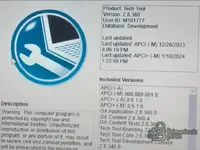
Hi Team, After install Tech Tool version of 2.8.360 ACPI version still its showing 0.5.1.0
please h...
You are likely referring to the APCI (Authorized Product Coverage Information) database.
Seeing version
0.5.1.0 means you have installed the Tech Tool Core (the framework), but you have not installed the Database (the actual vehicle data). The software is essentially empty right now.To fix this, you must install the Intermediate Storage files.
Follow these steps:
- Locate the folder in your download package named Intermediate Storage, Database, or IS. It should be a large folder (several GB).
- Go to your Windows Start Menu and search for Tech Tool Installer or Client Update.
- When the tool opens, select the option for Offline Installation or Install from Local Directory.
- Browse to and select the Intermediate Storage folder you found in step 1.
- Click Install/Update and wait. This process can take 20-40 minutes.
Once this installation finishes, restart the computer. Your APCI version should then update to the correct number (e.g., 0.12.x.x or similar depending on the specific update package).
Post #39
- Joined
- 16.02.2026
- Messages
- 7
- Reactions
- 2
- Location
- 🇮🇳INIndia
Can you guide me how to install Database and what you suggested client update there are no files if i install online its freezing
Post #40
Online now
- Joined
- 09.05.2025
- Messages
- 6,107
- Reactions
- 1,429
- Location
- 🇺🇸USUnited States
Can you guide me how to install Database and what you suggested client update there are no files if ...
Do NOT try to install online.
Online updates require a valid dealer login and connection to Volvo servers. On a cracked/offline version, this will cause the "freezing" you are experiencing or will break your installation entirely.
You must perform an Offline Installation using the files you downloaded.
Here is the step-by-step guide to fix the "No files" issue:
1. Locate Your Database Files
Go to the folder where you downloaded the software. You are looking for a folder usually named Intermediate Storage, IS, or Database.
Inside this folder, you should see many subfolders (like
apci, vcads, etc.) or zip files.If you do not have this folder, you have not downloaded the full package. You need to go back to the forum and download the "Intermediate Storage" or "Database" part.
2. Run the Installer Correctly
1. Go to Start Menu -> Tech Tool -> Tech Tool Installer (or search for "Client Update").
2. When it opens, look for a tab or link that says Manage Software or Install / Update.
3. Select Install from Local Directory (do not select Online).
3. The "No Files" Fix (Crucial Step)
This is where most people fail. The installer is picky about which folder you select.
1. Click Browse.
2. Select the Intermediate Storage folder itself.
3. If it still says "No updates found", try selecting the Parent Folder (the folder that contains the Intermediate Storage folder).
4. Once the path is correct, the list in the center of the window will populate with updates (APCI, VCADS, etc.).
4. Install
1. Check the boxes for all available updates.
2. Click Install.
3. Wait for the process to finish (it can take 30+ minutes).
4. Restart your computer.
After the restart, check the APCI version again. It should now show the correct version (e.g., 0.12.x.x).
Activity
So far there's no one here
Similar threads

- Replies
- 29
- Views
- 13K
- Replies
- 26
- Views
- 18K

- Replies
- 61
- Views
- 38K

- Replies
- 21
- Views
- 12K
- Replies
- 1
- Views
- 3K
