
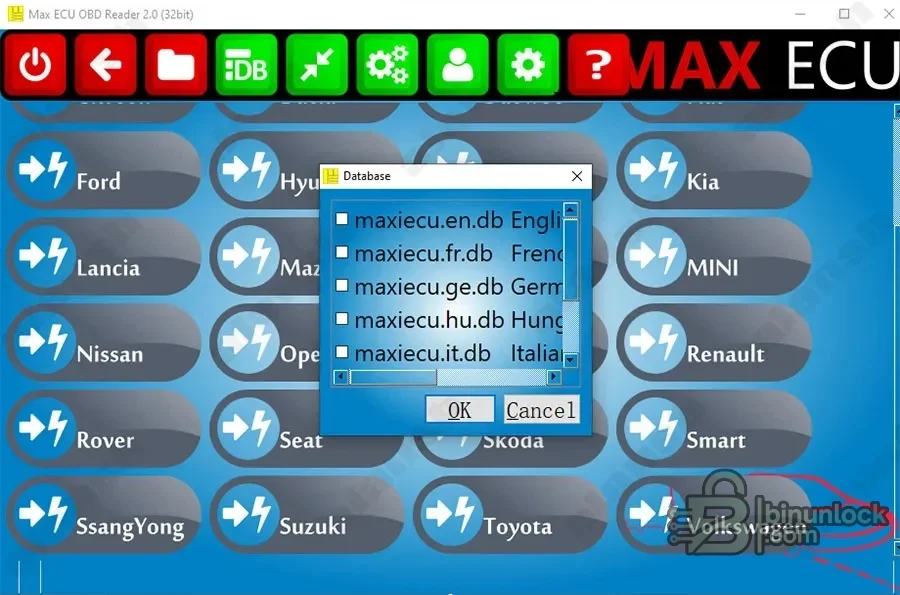
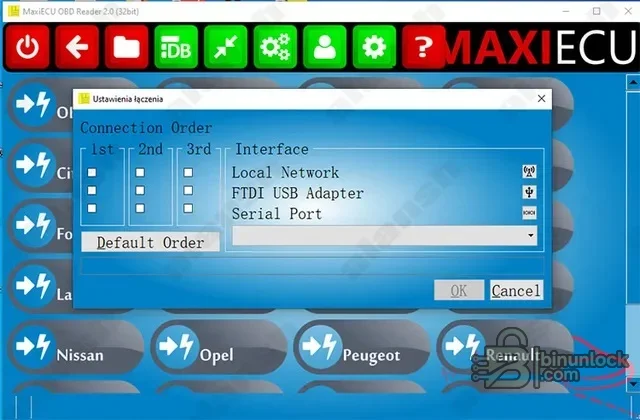
MaxiECU2 is a modular multi-brand diagnostic platform for Windows. It combines generic EOBD communication with licensed manufacturer modules for supported engines, transmissions, ABS, airbags, body electronics, climate systems and other controllers. The interface shows brand selection, automatic database choices and connection settings for network, FTDI USB and serial communication.
MaxiECU2 requires compatible MaxiECU hardware and the correct licence for the selected brand. The developer distinguishes this legacy generation from the newer MaxiECU platform; vehicle coverage should be checked by exact make, model, year, system and controller rather than inferred from the brand button alone.
MaxiECU2 requires compatible MaxiECU hardware and the correct licence for the selected brand. The developer distinguishes this legacy generation from the newer MaxiECU platform; vehicle coverage should be checked by exact make, model, year, system and controller rather than inferred from the brand button alone.
What this resource is for#
Use the software for complete vehicle scanning, controller identification, fault diagnosis, live-value review and supported service procedures on a compatible vehicle. Its modular design is useful for workshop laptops that need deeper brand-specific access while retaining a generic OBD path.Confirmed functions#
- Select licensed vehicle brands and supported controller groups
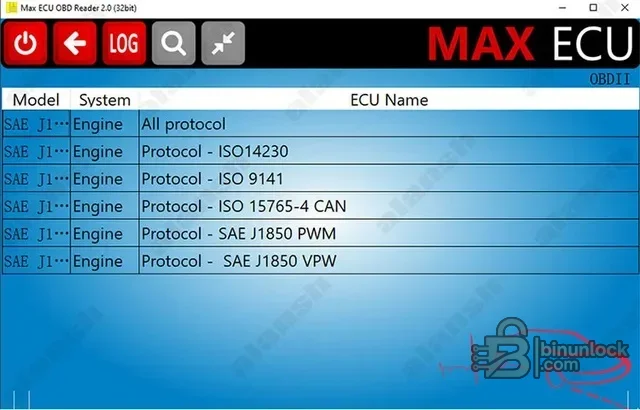
- Run generic OBD communication through ISO 14230, ISO 9141, ISO 15765 CAN and SAE J1850 families
- Read and clear diagnostic trouble codes on supported modules
- Display live values, identifications and controller status
- Run supported actuator tests, calibrations, resets and adaptations
- Configure compatible local-network, USB/FTDI or serial interface connections
- Use automatic search when the exact protocol or module is not known
Supported vehicles, controllers and files#
- Official MaxiECU documentation states that this generation supports forty-seven brands including four light-commercial brands
- The supplied interface lists European, Asian and American passenger-vehicle brands
- MPM-COM interfaces are legacy hardware specifically associated with MaxiECU2
- Current 4GEN and Expert interfaces may work with a valid legacy licence, according to the developer’s interface guide
- Function availability varies by vehicle parameters and must be checked in the developer’s functionality search
Package contents#
- Offline Windows installer extracted from three nested containers rather than republishing archive wrappers
- Two companion library files retained with the supplied activation layout
- Readme file retained with the functional package
- Main screenshot and two diagnostic preview images
- All nested containers passed full test and extraction; executable files were inspected without launch
System, hardware and interface requirements#
- Windows 8 or newer for the legacy application according to the developer
- Pentium 4 class processor or better and enough RAM/storage for the diagnostic database
- Compatible MPM-COM, 4GEN or Expert interface with valid licence for the requested brands
- Correct USB, Bluetooth, Wi-Fi or serial drivers and connection settings
- Stable vehicle battery support during active service functions
Recommended workshop workflow#
- Confirm interface model, serial and licensed brands before connecting to a vehicle
- Select the exact vehicle or use automatic search cautiously
- Save a complete initial scan and controller identification report
- Diagnose the physical or network fault before clearing codes
- Verify prerequisites before any reset, calibration or actuator test
- Repeat the scan, compare results and retain diagnostic logs with the repair order
Compatibility limits and responsible use#
- This package is the legacy generation and must not be described as the current MaxiECU product
- MPM-COM hardware has protocol limitations on newer vehicles
- A brand licence does not guarantee support for every model or ECU
- Generic OBD data is narrower than manufacturer-specific diagnostics
- Do not interrupt adaptations or coding because of weak battery voltage or wireless instability
Troubleshooting#
- Interface not found: verify driver installation and selected USB, Bluetooth or network mode
- Controller will not connect: cycle ignition as instructed and choose the exact system rather than only the brand
- Required licence message: confirm the interface-bound brand entitlement
- Installer fails: verify Windows compatibility and required Visual C++ runtime libraries
- Live values stop updating: check interface power, communication quality and vehicle network faults


