Description
The Fastest Way to Find, Export, and Import Any PSdZData File.

We are thrilled to announce a major update to our popular file management utility, the PSdZData File Finder & Exporter, now version 1.1! This powerful tool suite is designed to solve one of the biggest headaches for BMW technicians and coders: finding and sharing specific files from the massive PSdZData library.
This new version introduces a completely overhauled search algorithm, making the process faster and more efficient than ever before.
What Problem Does This Tool Solve?
The full BMW PSdZData library can be over 100GB. When you need to send just a few specific files (like a CAFD or SWFL series) to another person for a remote coding or flashing session, searching for them manually is slow and difficult.
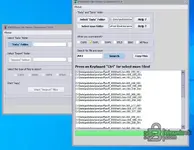
This tool automates the entire process. The Exporter acts as a powerful search engine for your PSdZData, allowing you to find any file you need in seconds. It then copies them into a small, portable package. The Importer lets the other person install that package into their own PSdZData folder with just a few clicks.
What's New in Version 1.1?
- Massive Speed Improvement: The search algorithm has been completely rewritten. Finding files is now up to 10 times faster than in V1.0! The delay when re-searching for a new version is eliminated, saving you a significant amount of time.
How to Use the Tool Suite
1. Using the Exporter
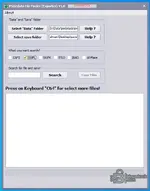
- Select "Data" Folder: Choose your main `PSdZData` folder.
- Select "Save" Folder: Choose an empty folder where the exported files will be saved.
- Select File Type: Check the box for the type of file you want to search for (CAFD, SWFL, etc.). For a global search across all subdirectories, select "All Place".
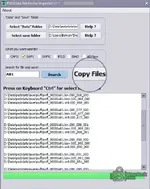
- Search: Enter your search query in the "Search for file" box. You can use a full name (e.g., `cafd_0000000f`) or a partial name (e.g., `A81`). Press "Search".
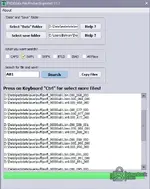
- Select & Copy: The results will appear in the list. Select the files you need (hold the Ctrl key to select multiple files). Press "Copy Files".
- Done! The selected files will be copied into your "Save Folder", automatically sorted into subfolders (e.g., `\swfl\`, `\cafd\`). You can now zip this folder and send it.
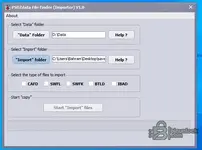
- Select "Data" Folder: Choose the main `PSdZData` folder where you want to import the files.
- Select "Import" Folder: Choose the folder you received from the Exporter.
- Select File Types: Check the boxes for the file types you want to import from that folder.
- Start Import: Press the "Start 'Import' files" button. The files will be copied into the correct locations within your `PSdZData` folder.
System Requirements
- Operating System: Windows 7, Windows 8, Windows 10, Windows 11.
- Frameworks: Microsoft .NET Framework 4.5 or higher may be required.
⚠ Warning said: